How to Set Up Lace Wallet
Lace Wallet is continuously updated.
This guide is based on the interface available at the time these instructions were created, so the layout and displayed content may differ slightly depending on the version you are using.
This guide uses Google Chrome as an example.
Lace Wallet is also available on mobile devices, so the steps are generally the same in the mobile version.
Add the Chrome Extension
Download Lace from the official website below.
https://cardano.org
-
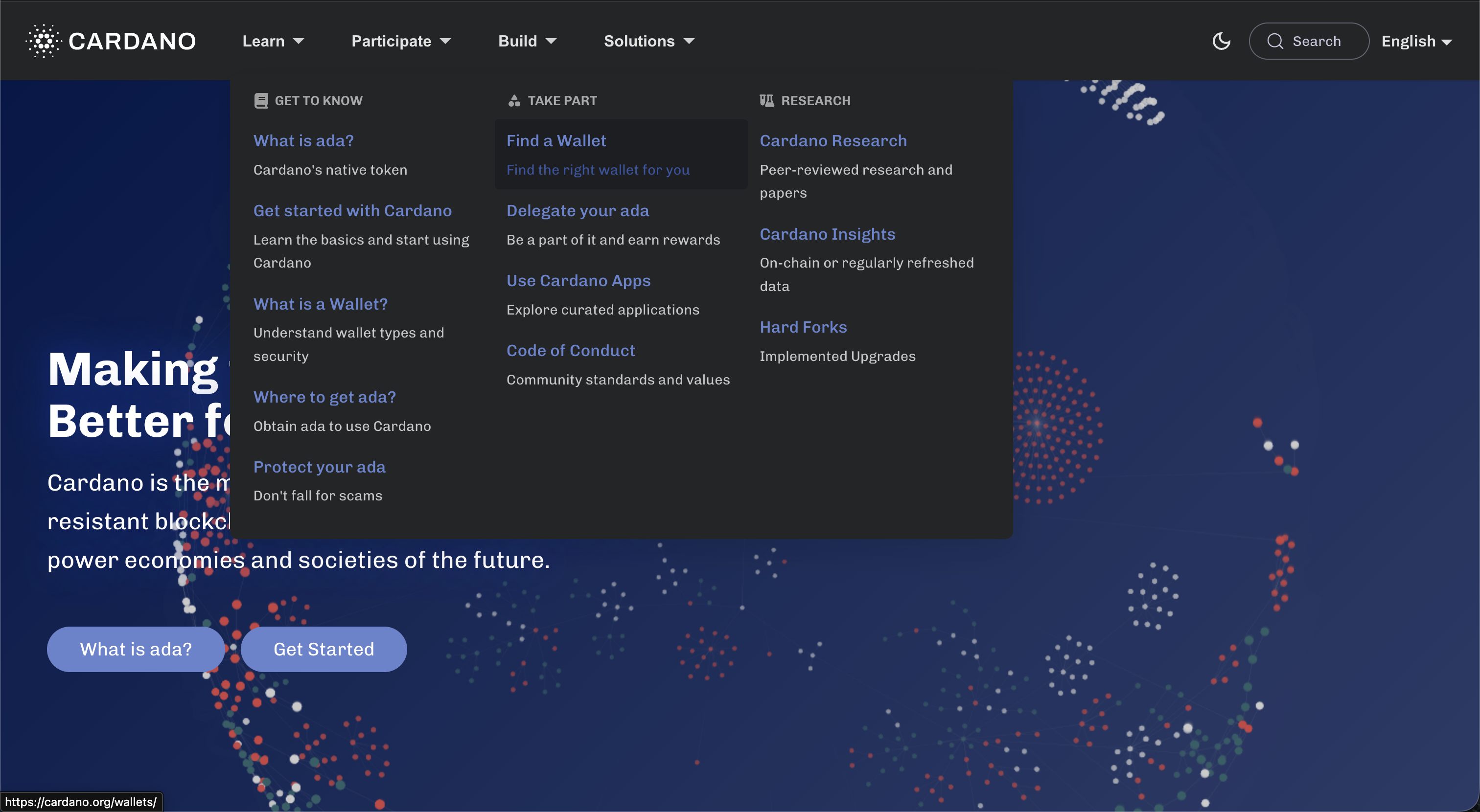
Visit the official website, then select "Learn" → "TAKE PART" → "Find a Wallet".
-
Scroll down, find "Lace", and select "Visit Website".
-
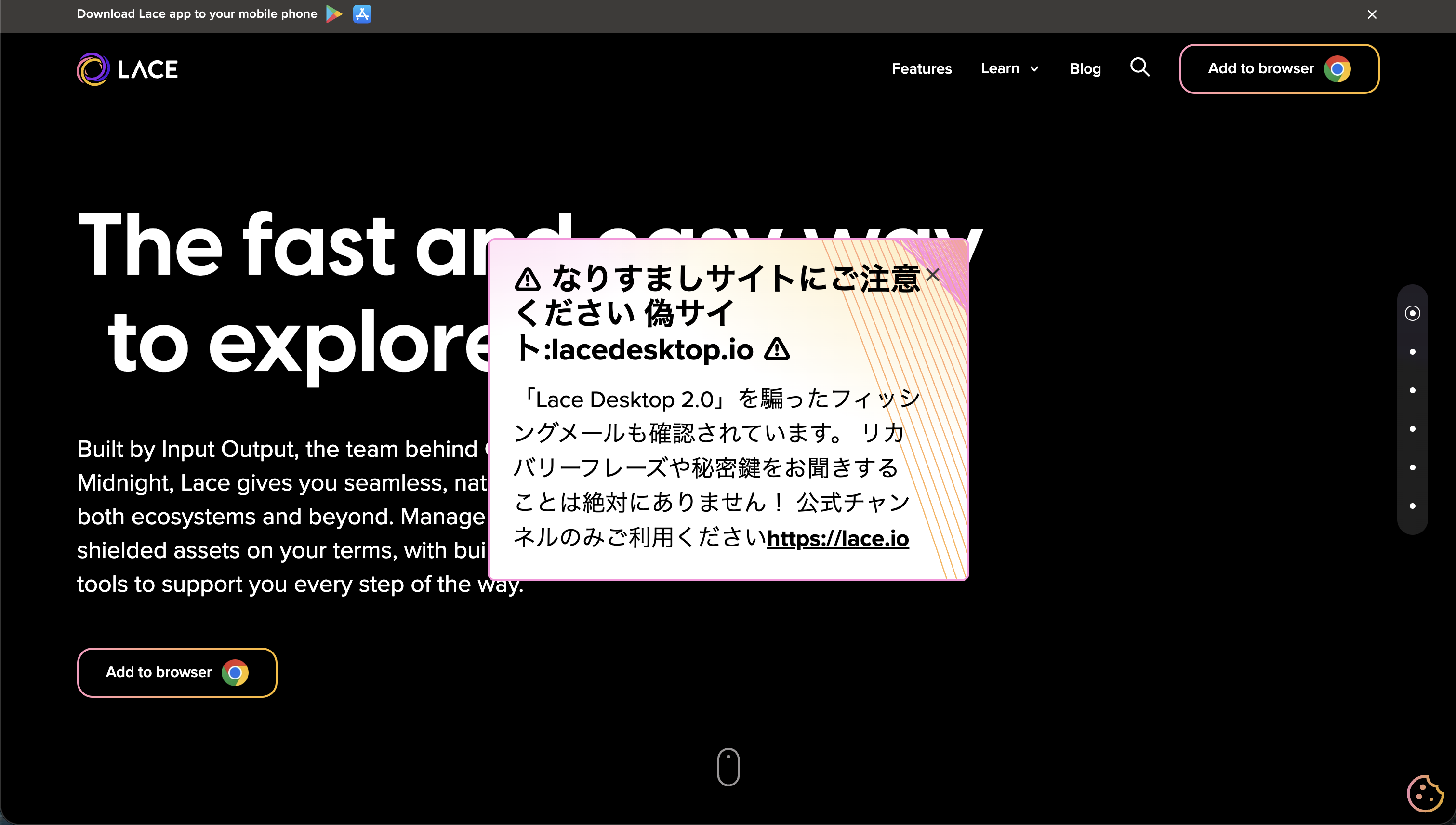
Once you are on the official Lace download page, select "Add to browser".
-
Select "Add to Chrome" in the upper-right corner.

-
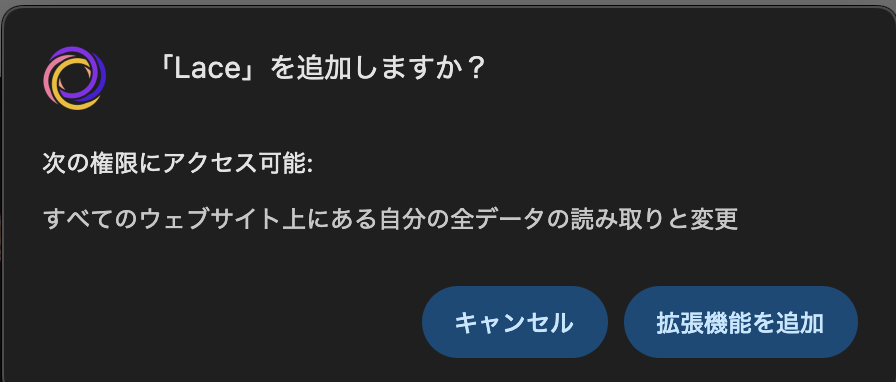
Select "Add extension".
-
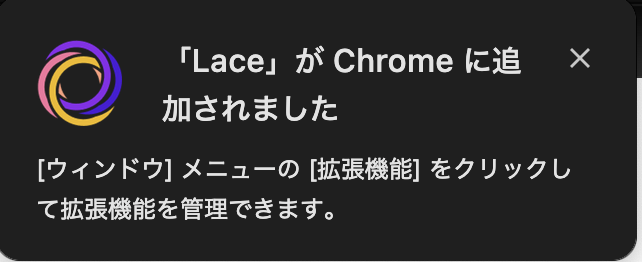
A pop-up will appear indicating that Lace has been added to Chrome.
-
Select the Extensions icon in the upper-right corner.

-
Select "Manage Extensions".

-
Make sure the toggle switch in the lower-right corner is turned ON.
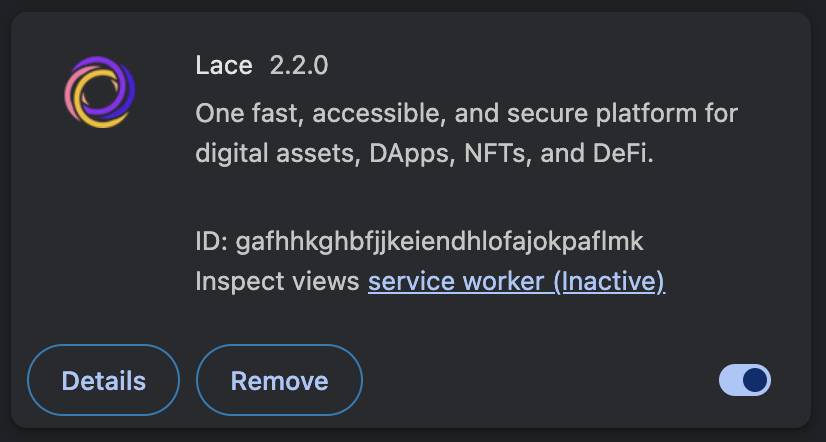
If Lace has been installed successfully, it will already be enabled.
Create a Wallet
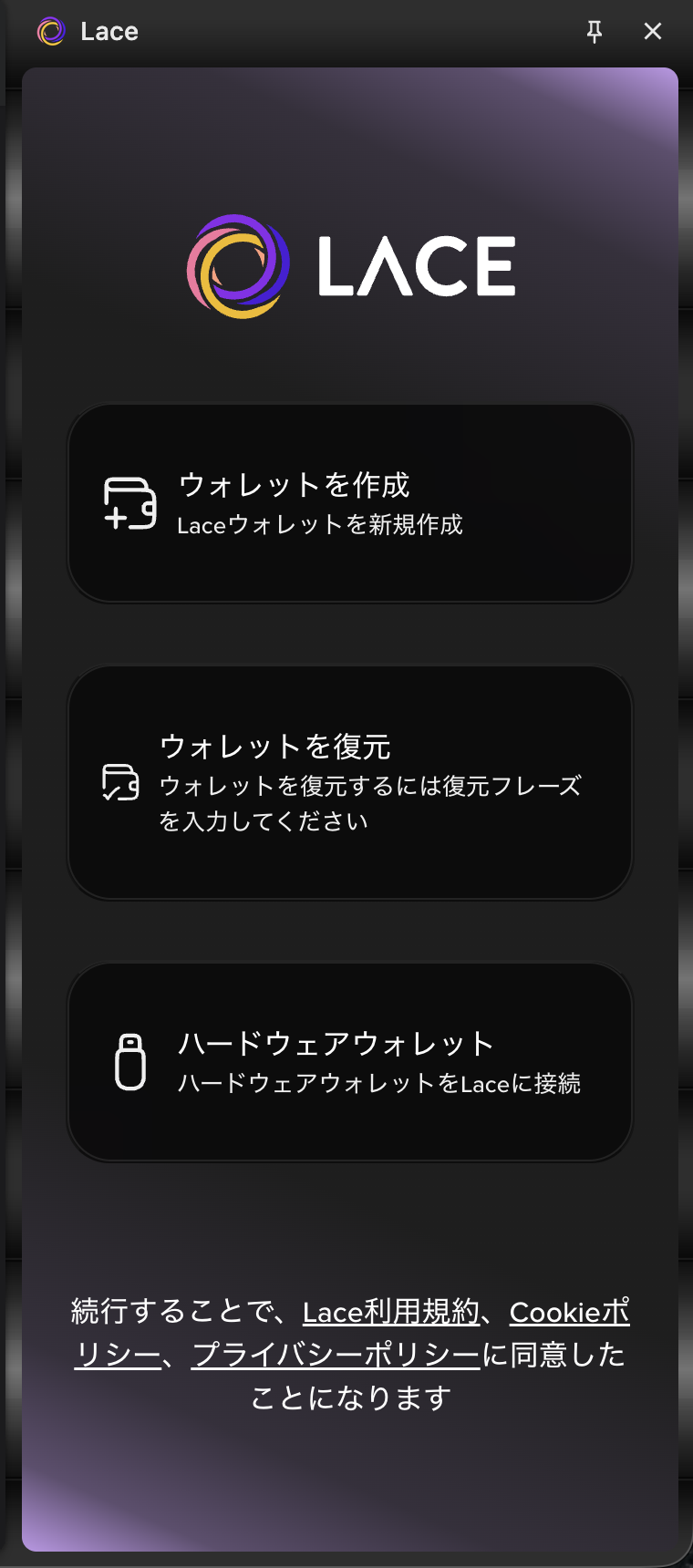
Note: Open Lace from the Chrome Extensions menu.
-
Select "Create Wallet".
-
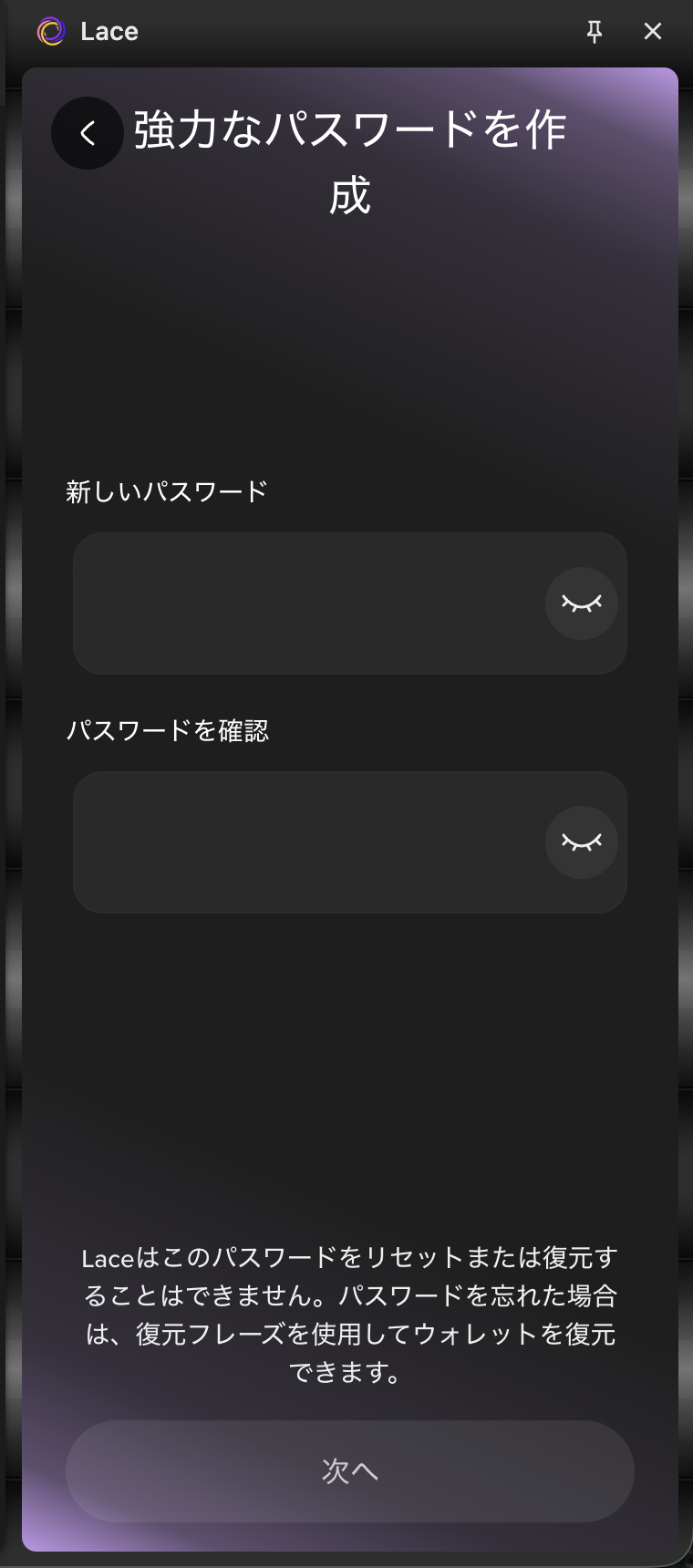
On the "Create a Strong Password" screen, enter a New Password and Confirm Password, then select "Next".
In the current version of Lace, this password is used to authorize transactions and other wallet operations for all wallets.
Under the current design, this password cannot be changed once it has been set.
Choose a password that you can remember easily, and write it down on paper or store it in another secure location.
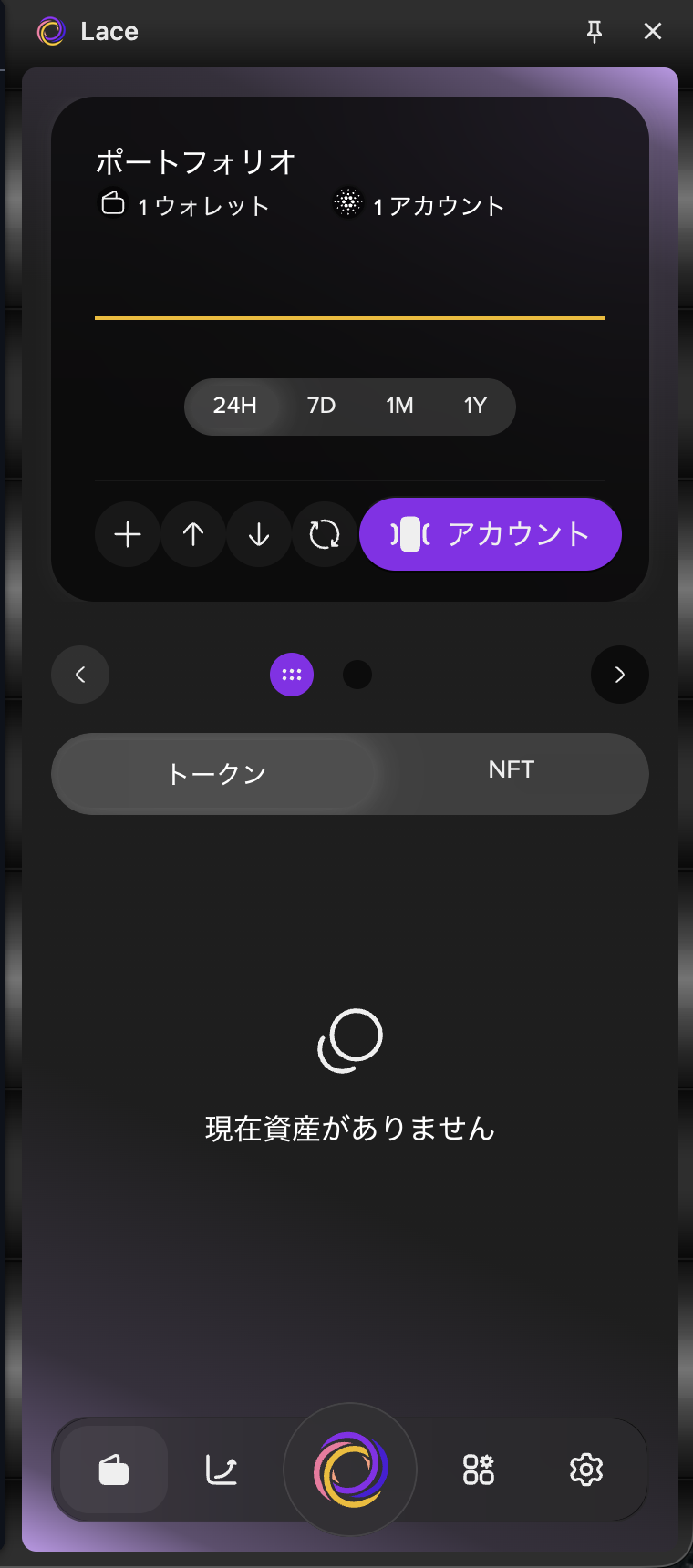
- Your new wallet has been created.
Verify Your Recovery Phrase
Your recovery phrase is essential for restoring your wallet.
Be sure to write down the displayed recovery phrase on paper and keep it in a safe place.
- Do not save it as a screenshot.
- Do not share it with anyone.
- If you lose it, you will no longer be able to restore your wallet.
-
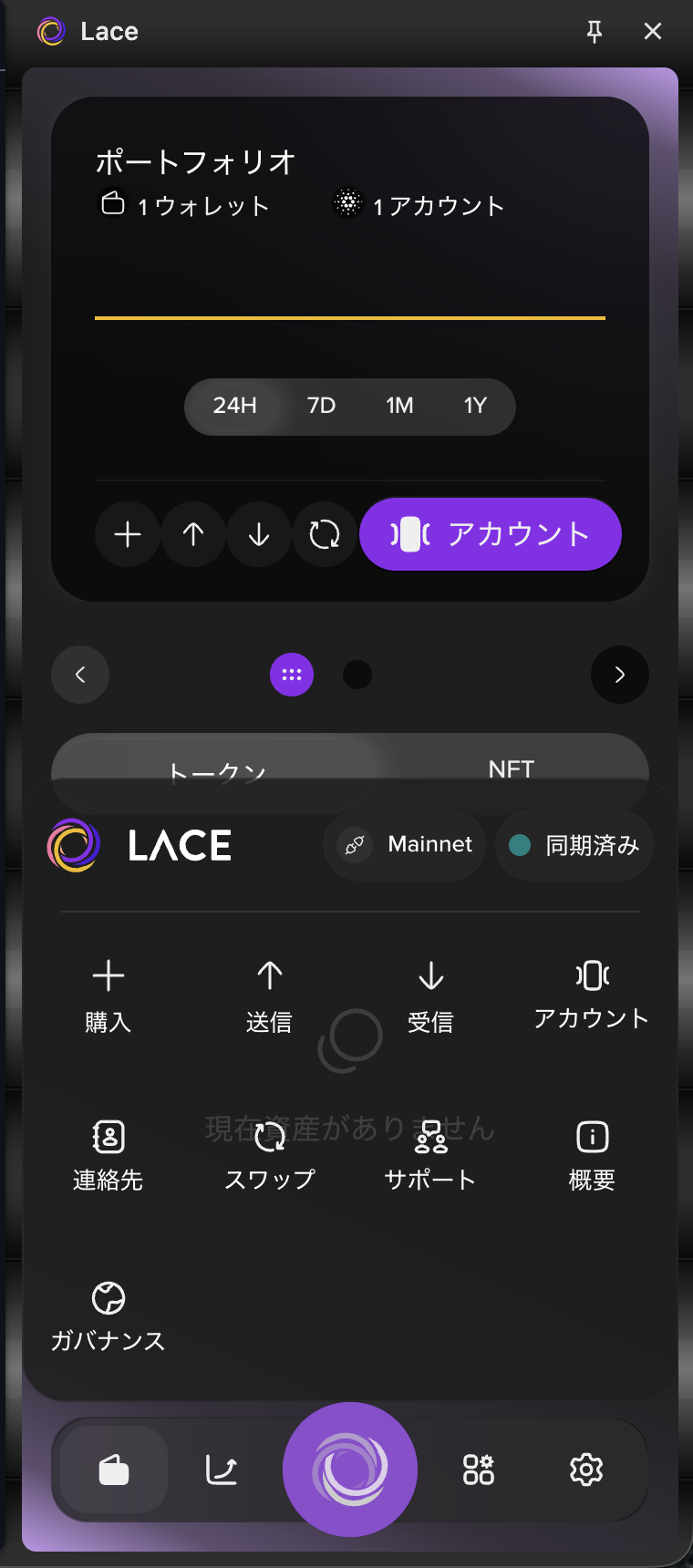
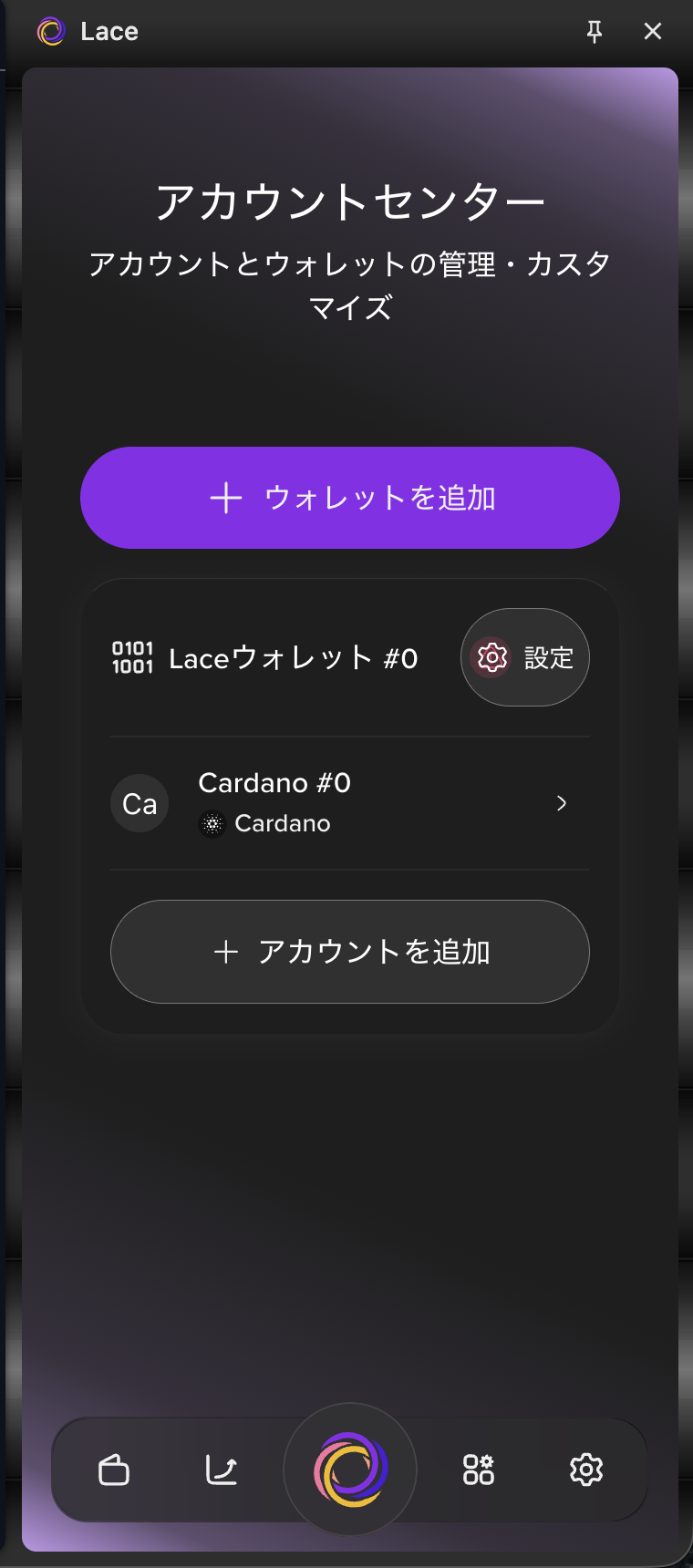
Select the Lace icon at the bottom of the screen, select "Accounts", then select "Settings" next to the wallet you want to verify.
-
Select "Verify Recovery Phrase", enter your password, and then select "Verify".
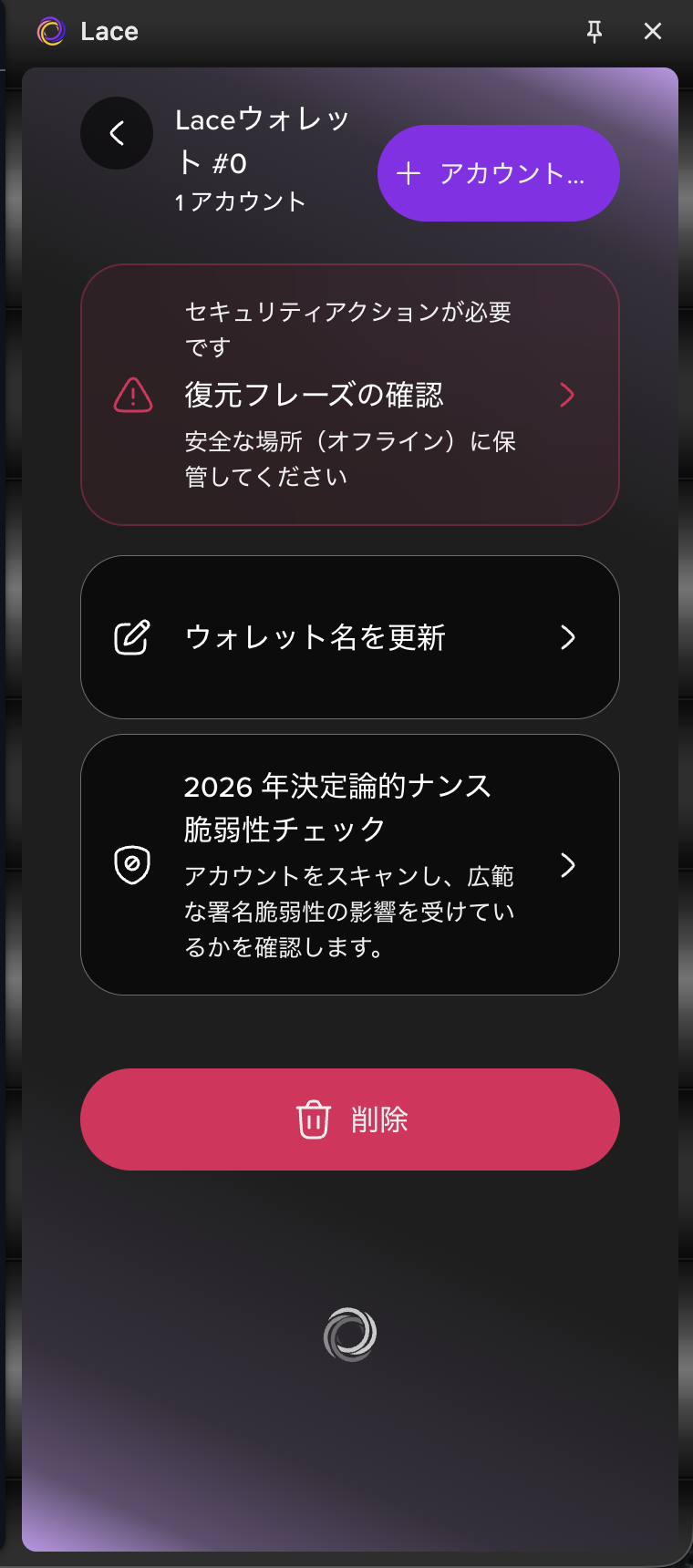
-
Enter the recovery phrase that you wrote down earlier, then select "Verify".
Note: Separate each word with a single space.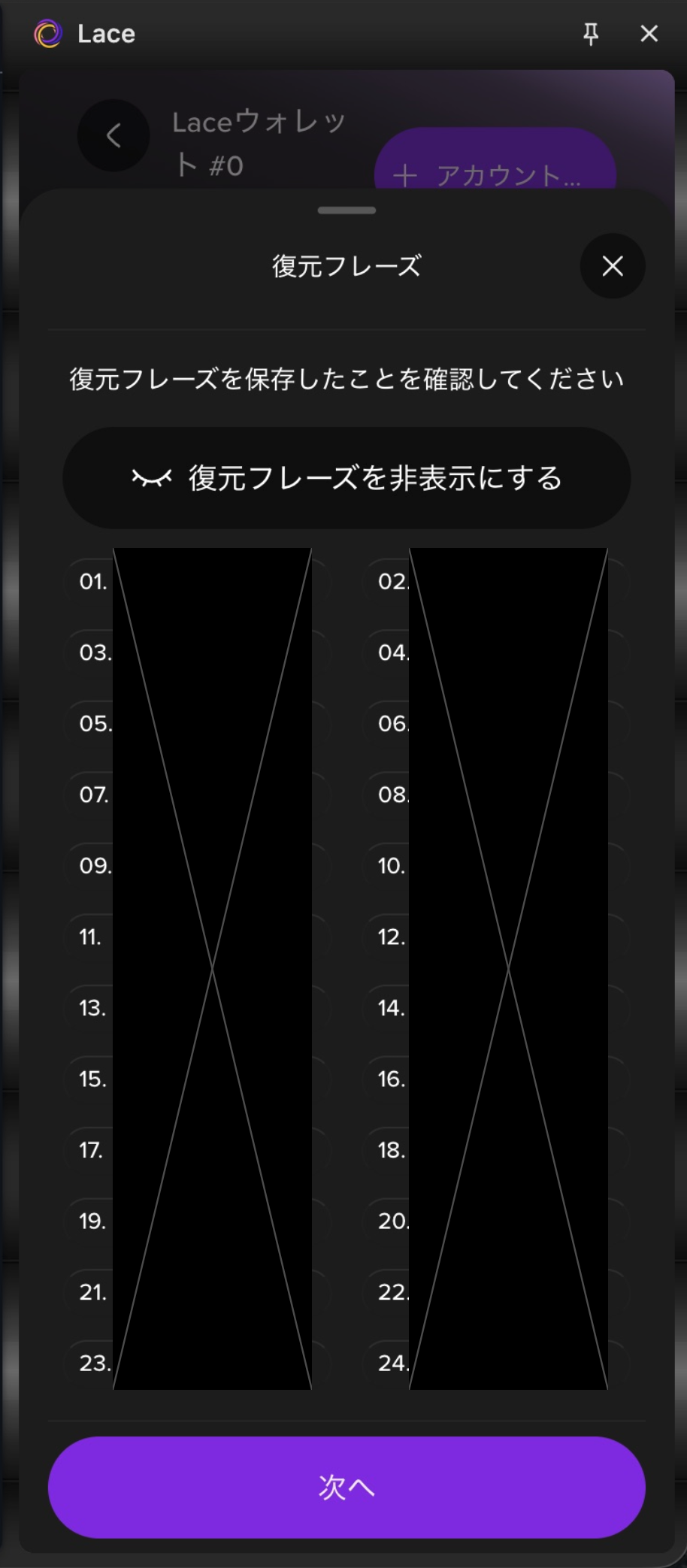
-
Select "Done".
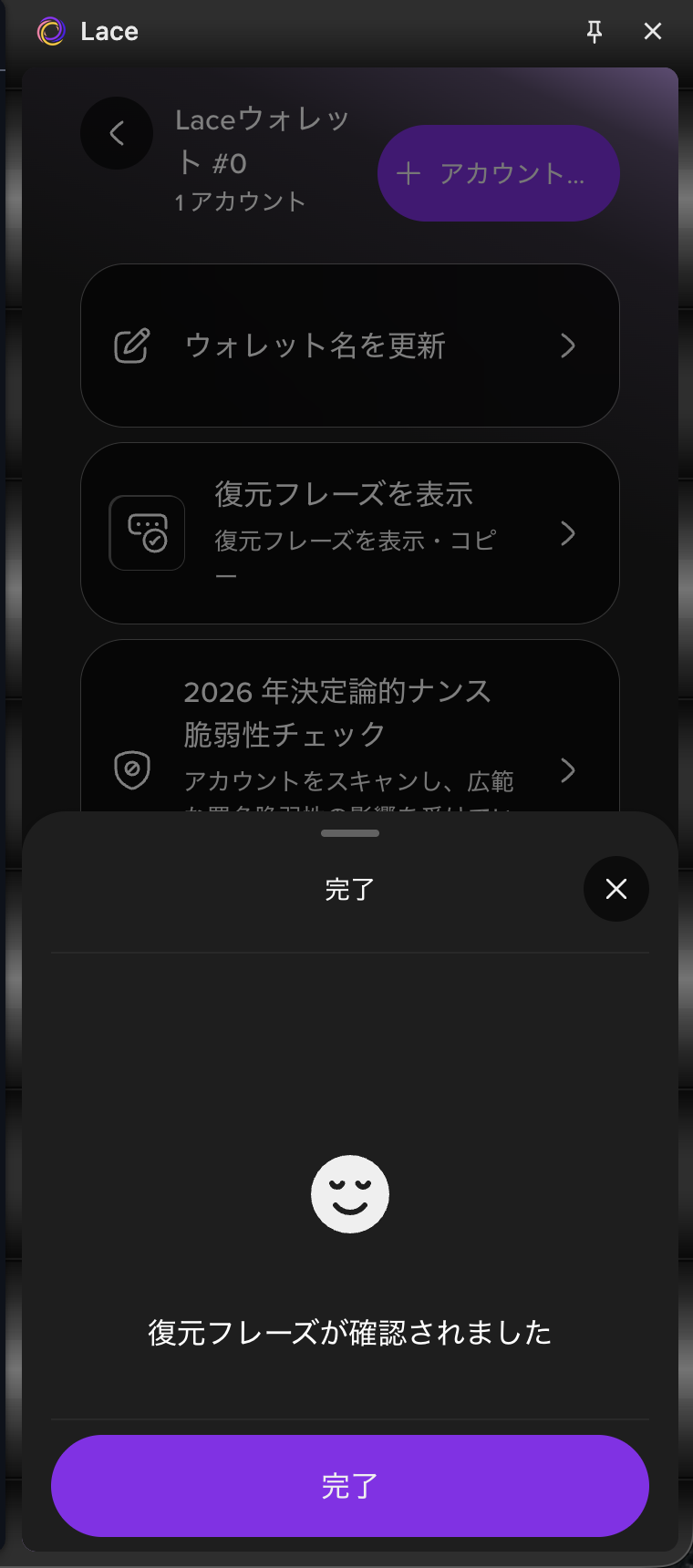
Initial Settings
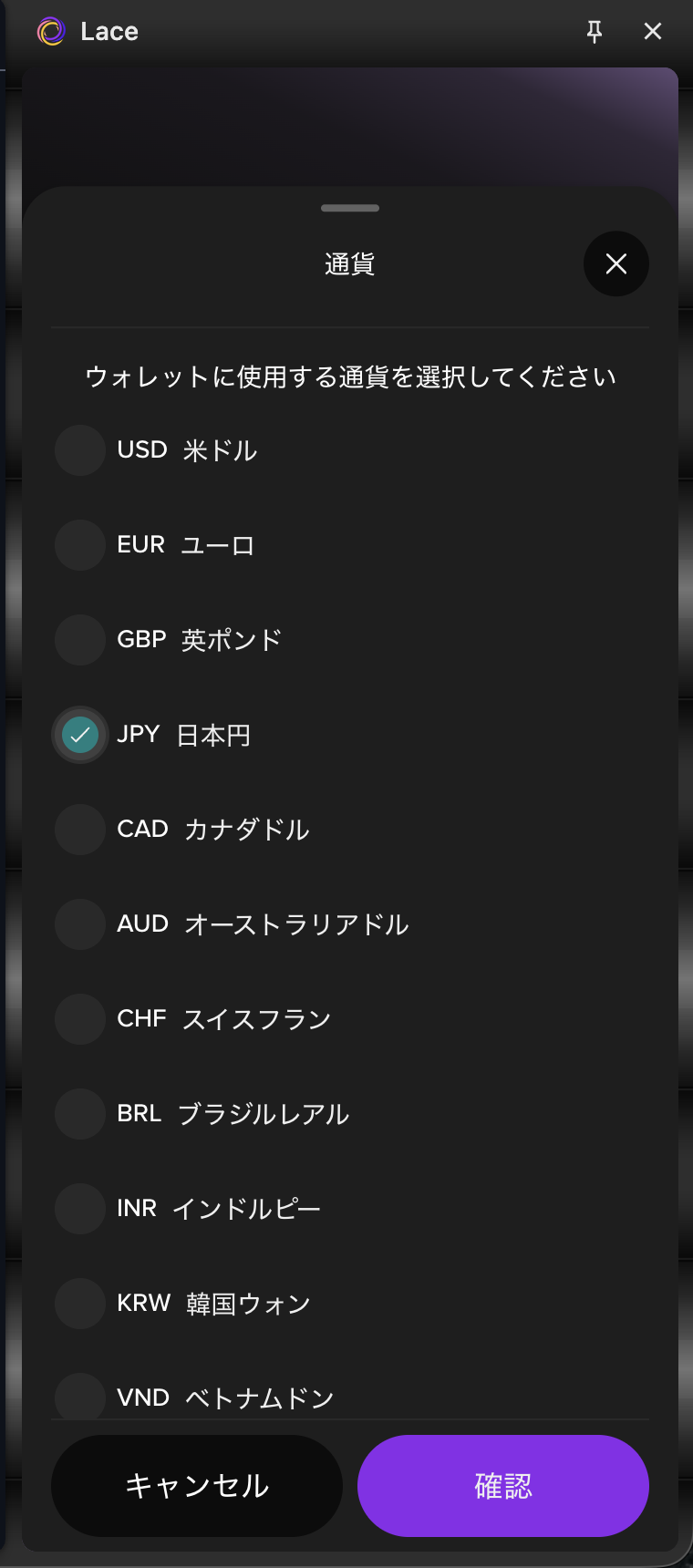
Currency Settings
Change the currency according to your preference.
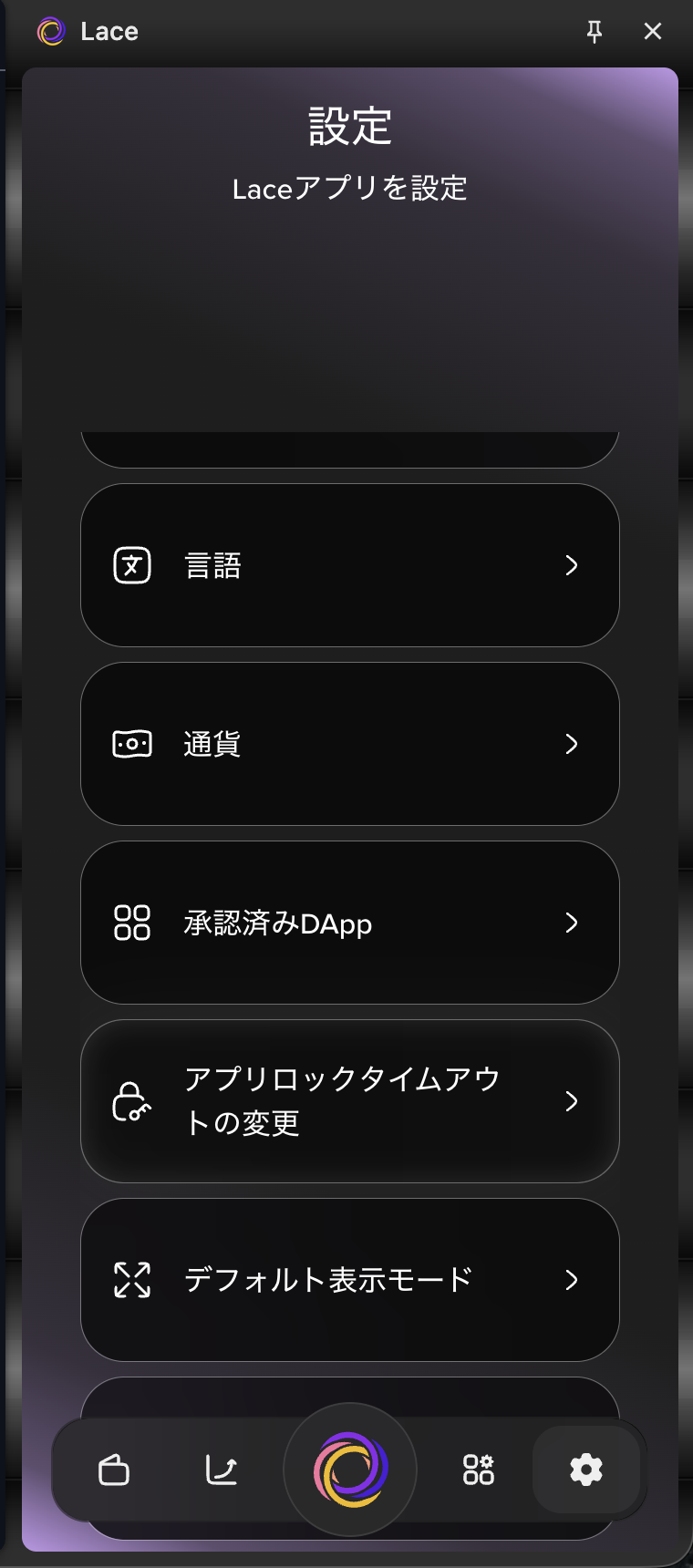
- Select the Settings icon at the bottom of the screen, select "Currency", and choose your preferred currency.
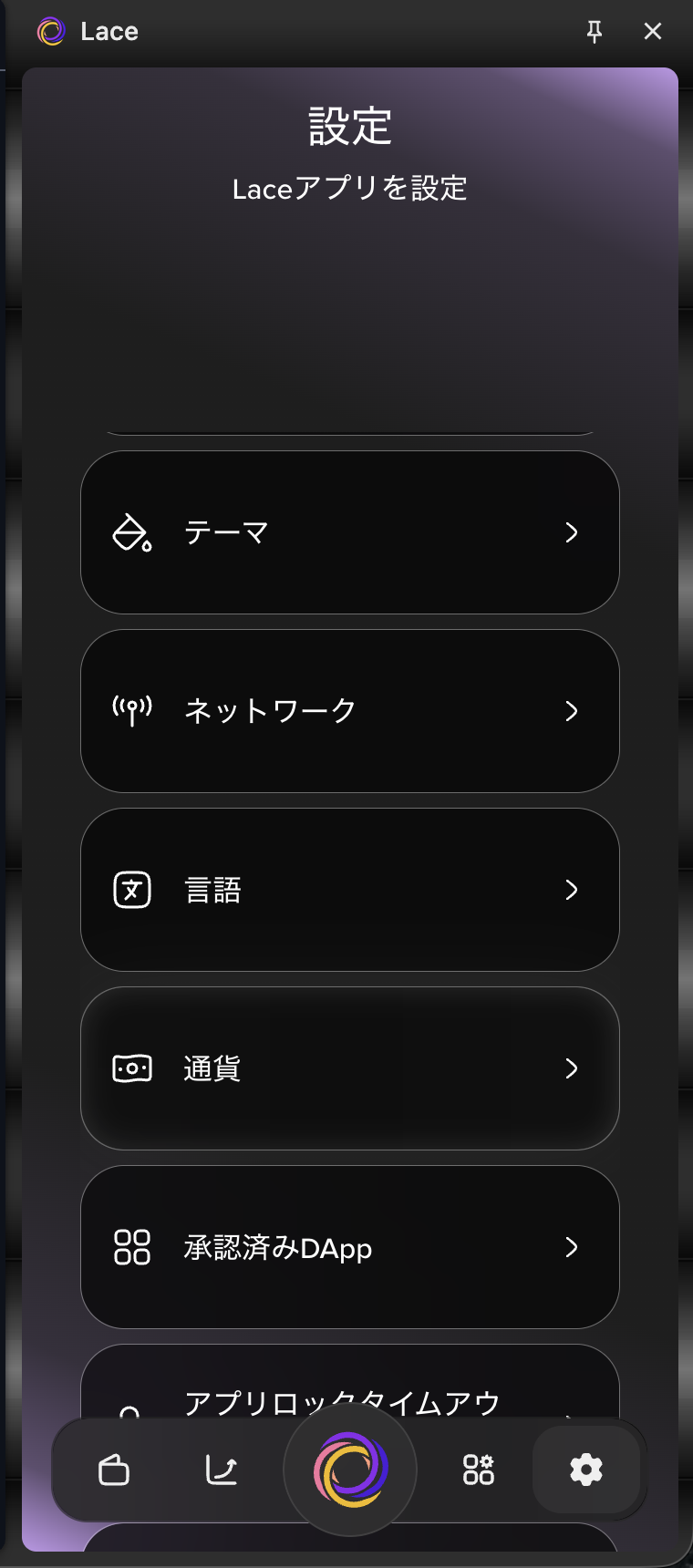
App Lock Timeout
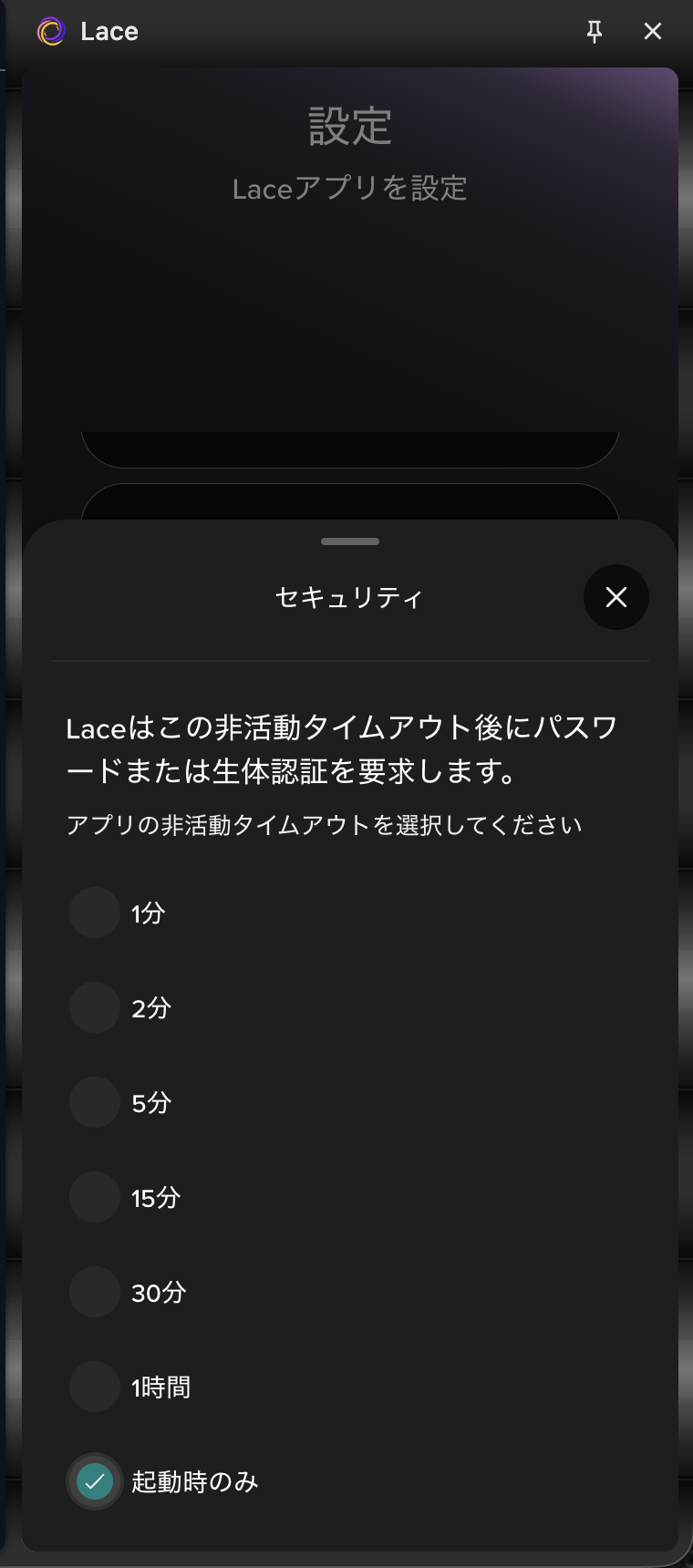
Change the timeout period according to your preference.
- Select the Settings icon at the bottom of the screen, select "Change App Lock Timeout", and choose your preferred timeout duration.