Connecting a Hardware Wallet
Connecting a Hardware Wallet
-
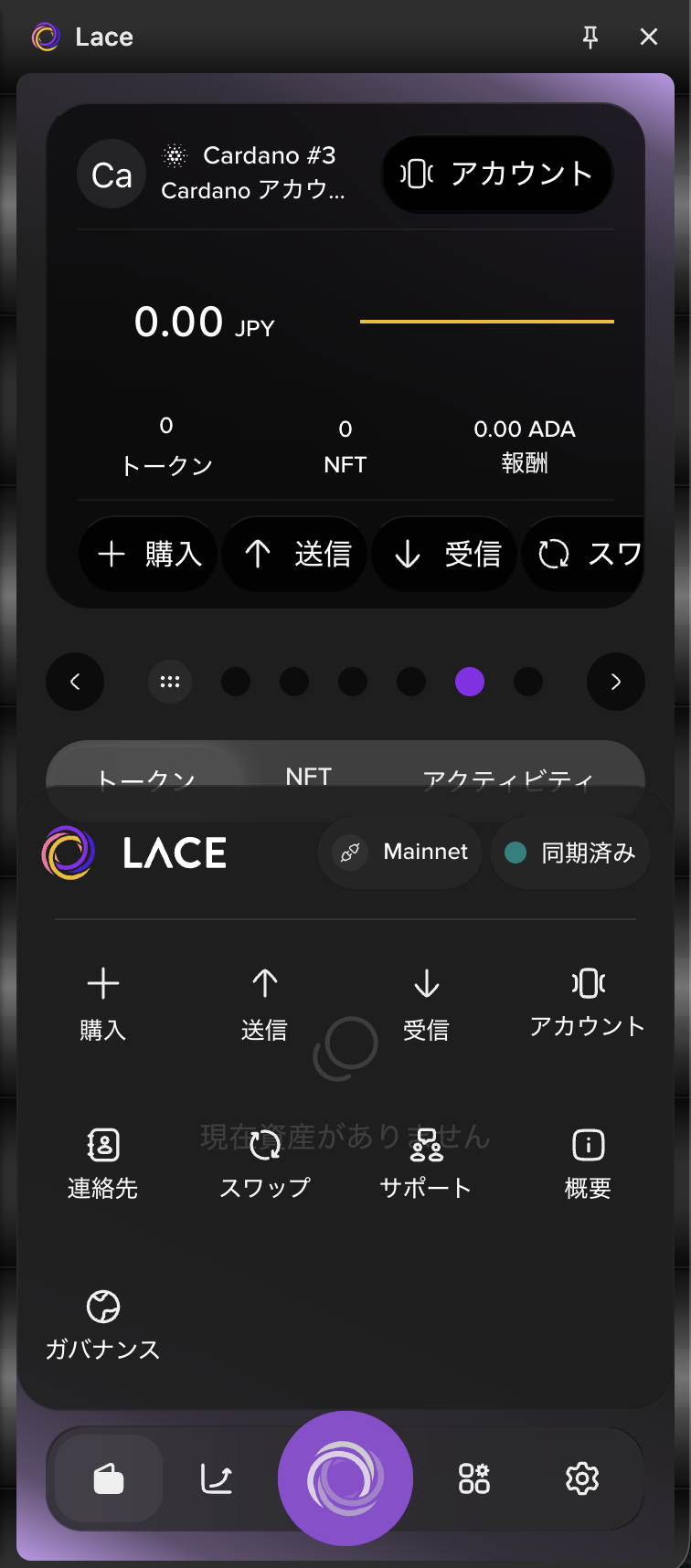
Select the Lace icon at the bottom of the screen, then select “Accounts.”
-
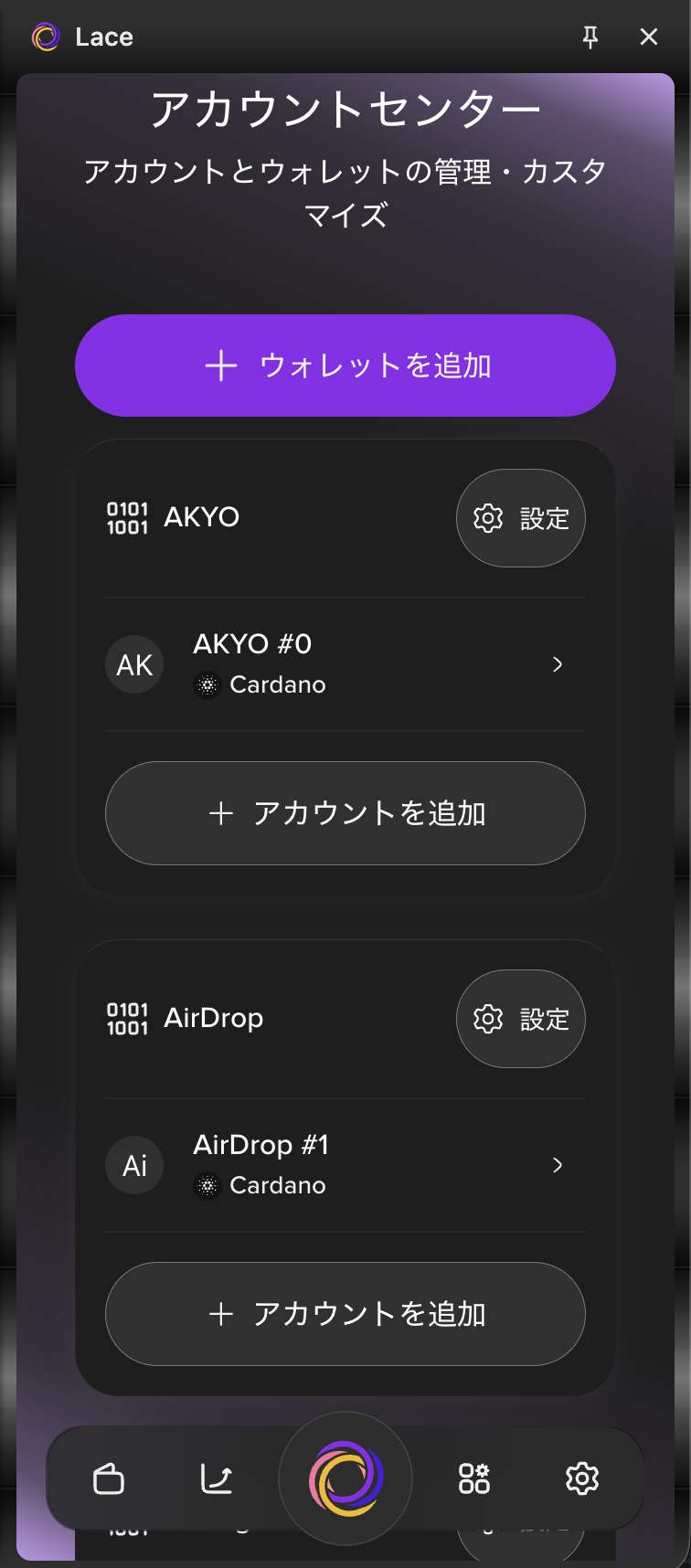
Select “+ Add wallet.”
-
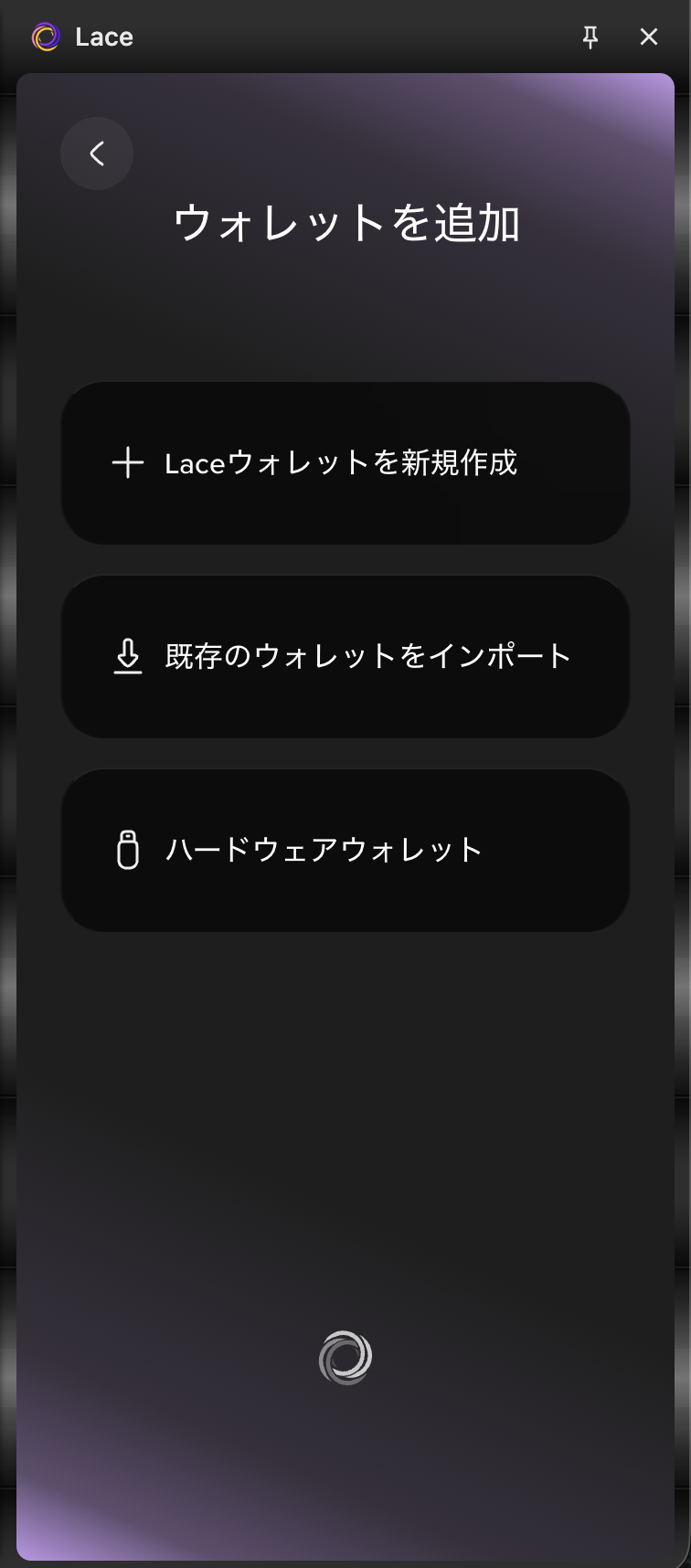
Select “Hardware wallet.”
-
Select the “KEYSTONE” logo.
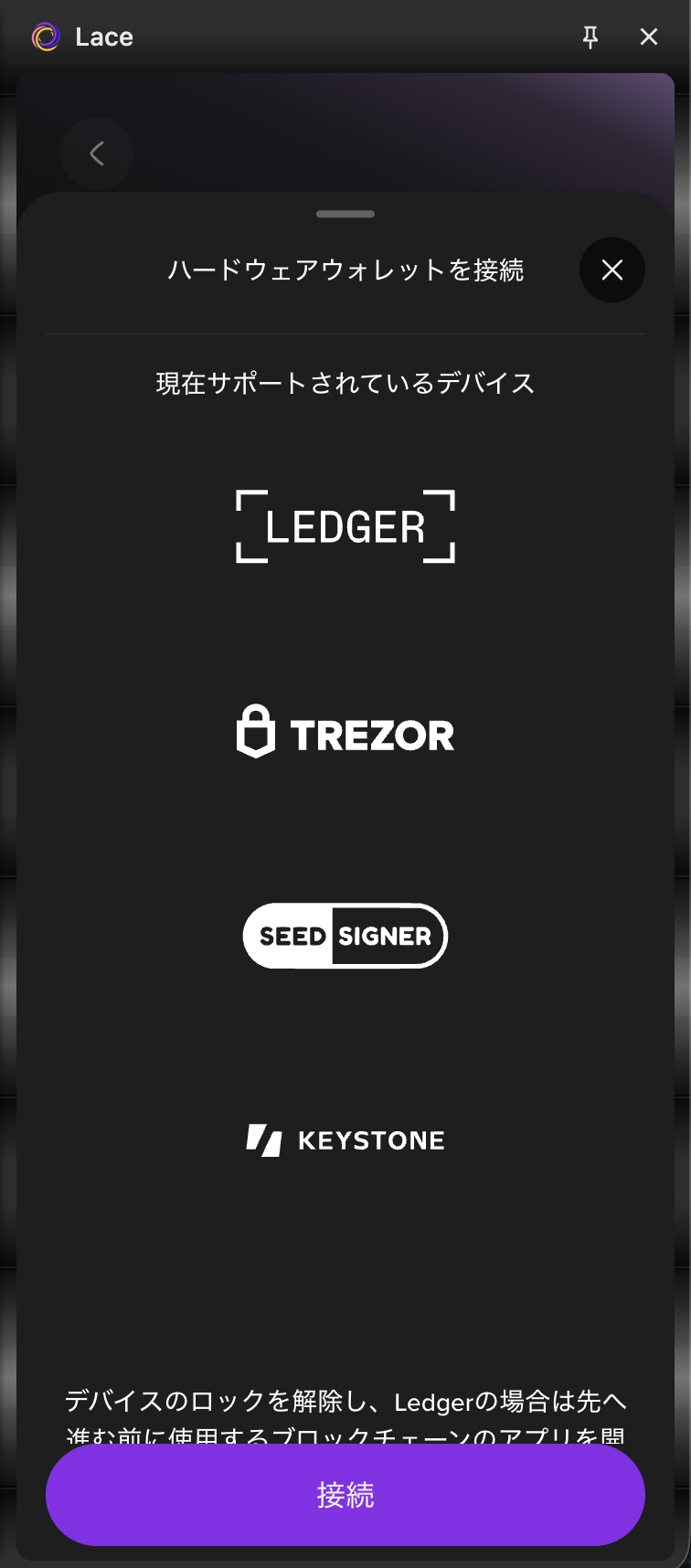
-
Select the “Cardano” logo.
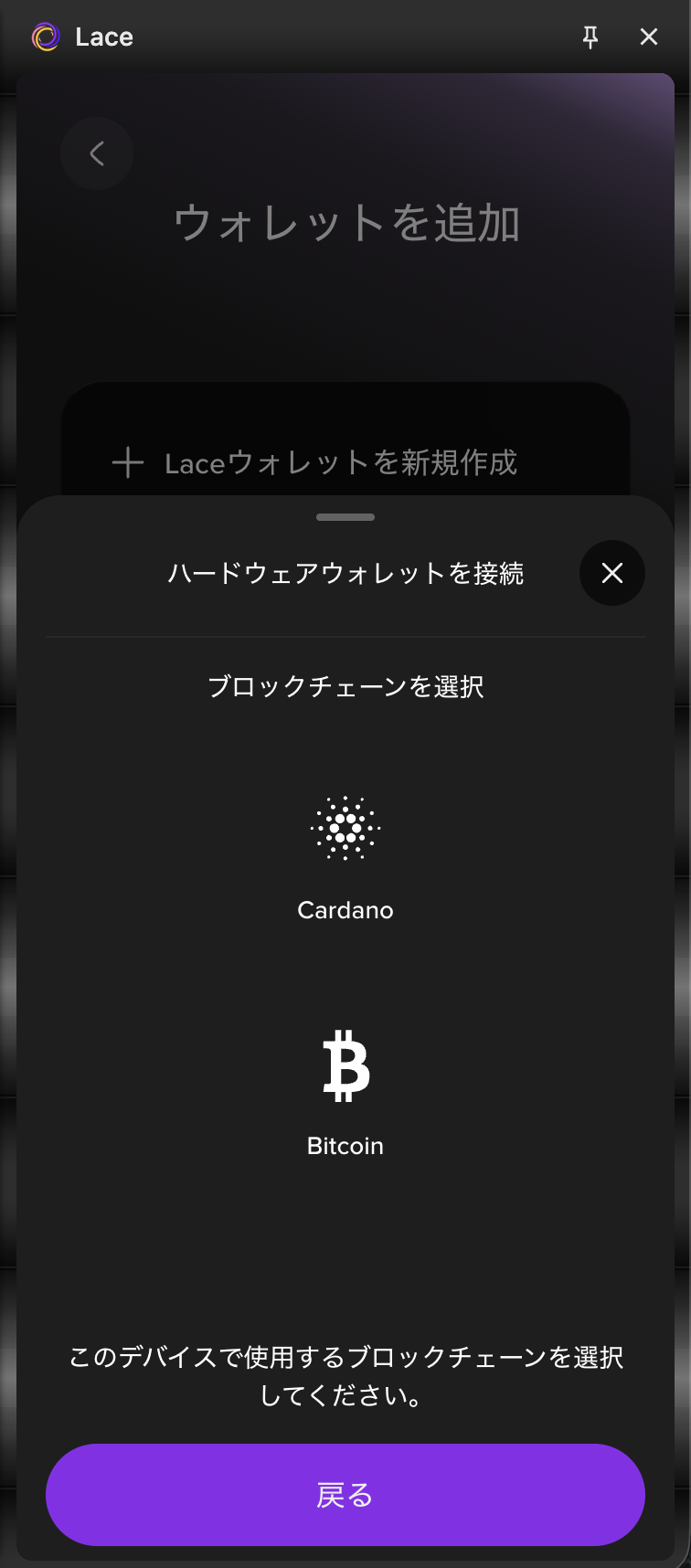
-
Select “Create wallet.”
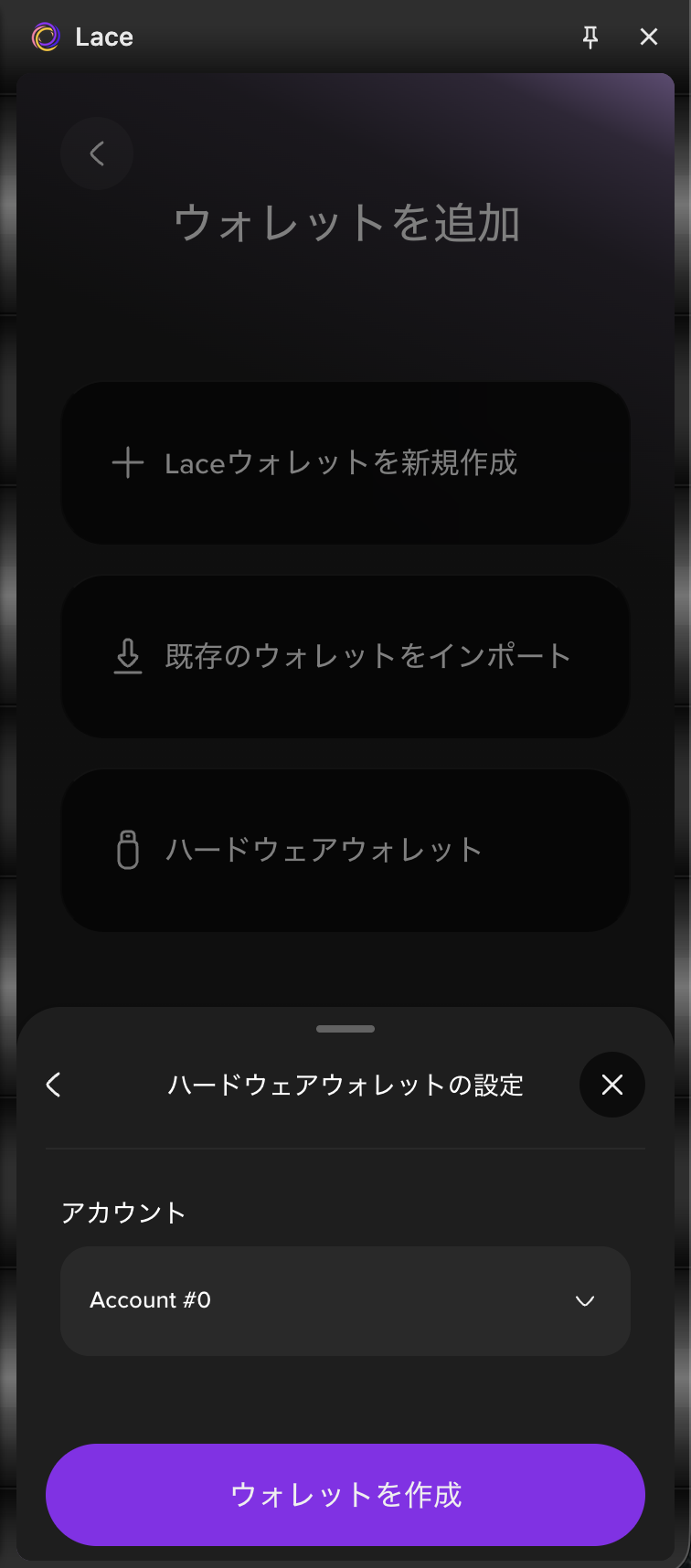
-
When “Scan with device” is displayed, open the QR code scanner at the bottom right of the Keystone device screen and scan the QR code.
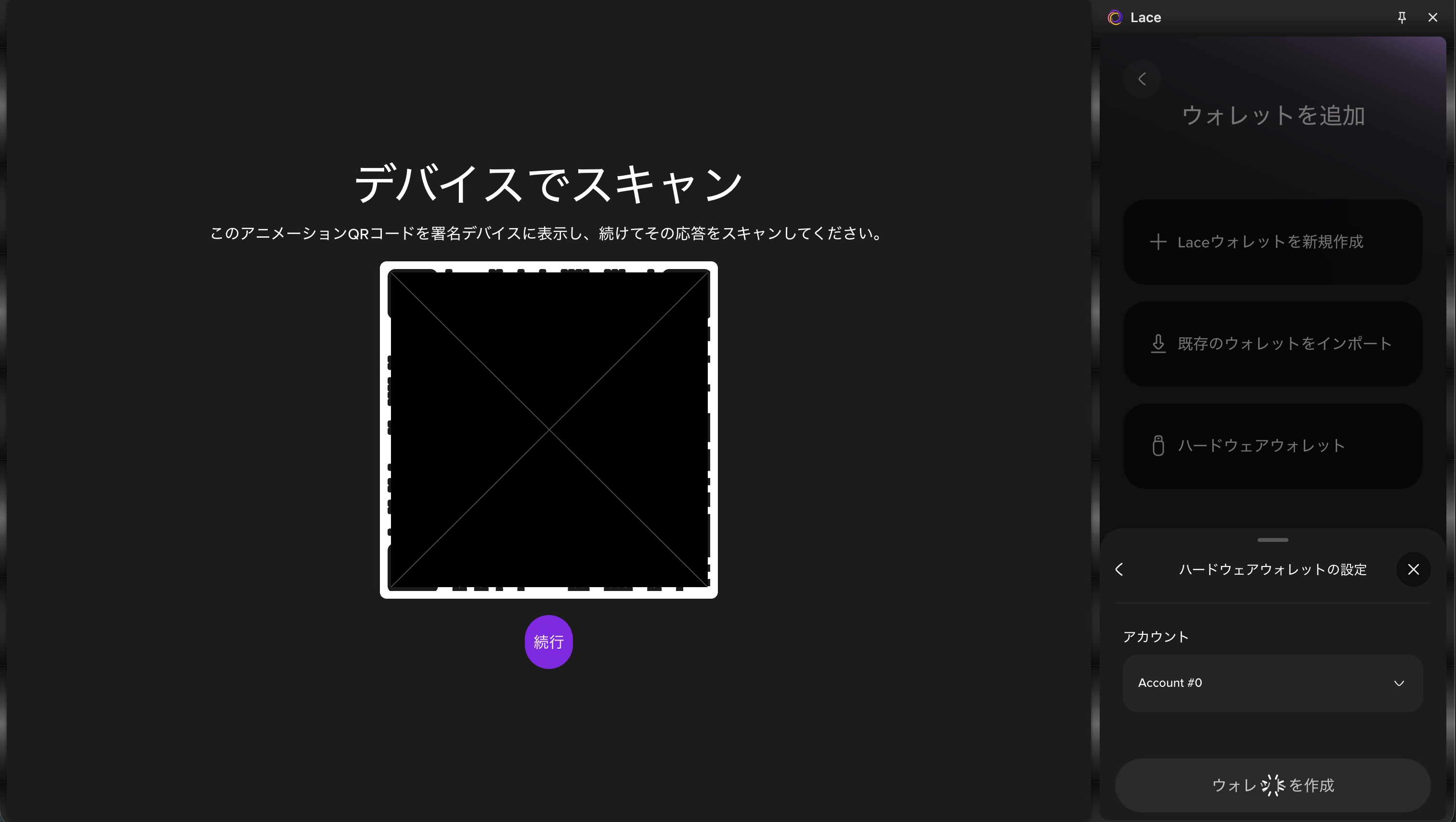
-
On the Keystone device, a message will appear stating that “Lace Wallet is requesting Keystone’s public key information.” Select “Approve,” and a QR code will be displayed.
-
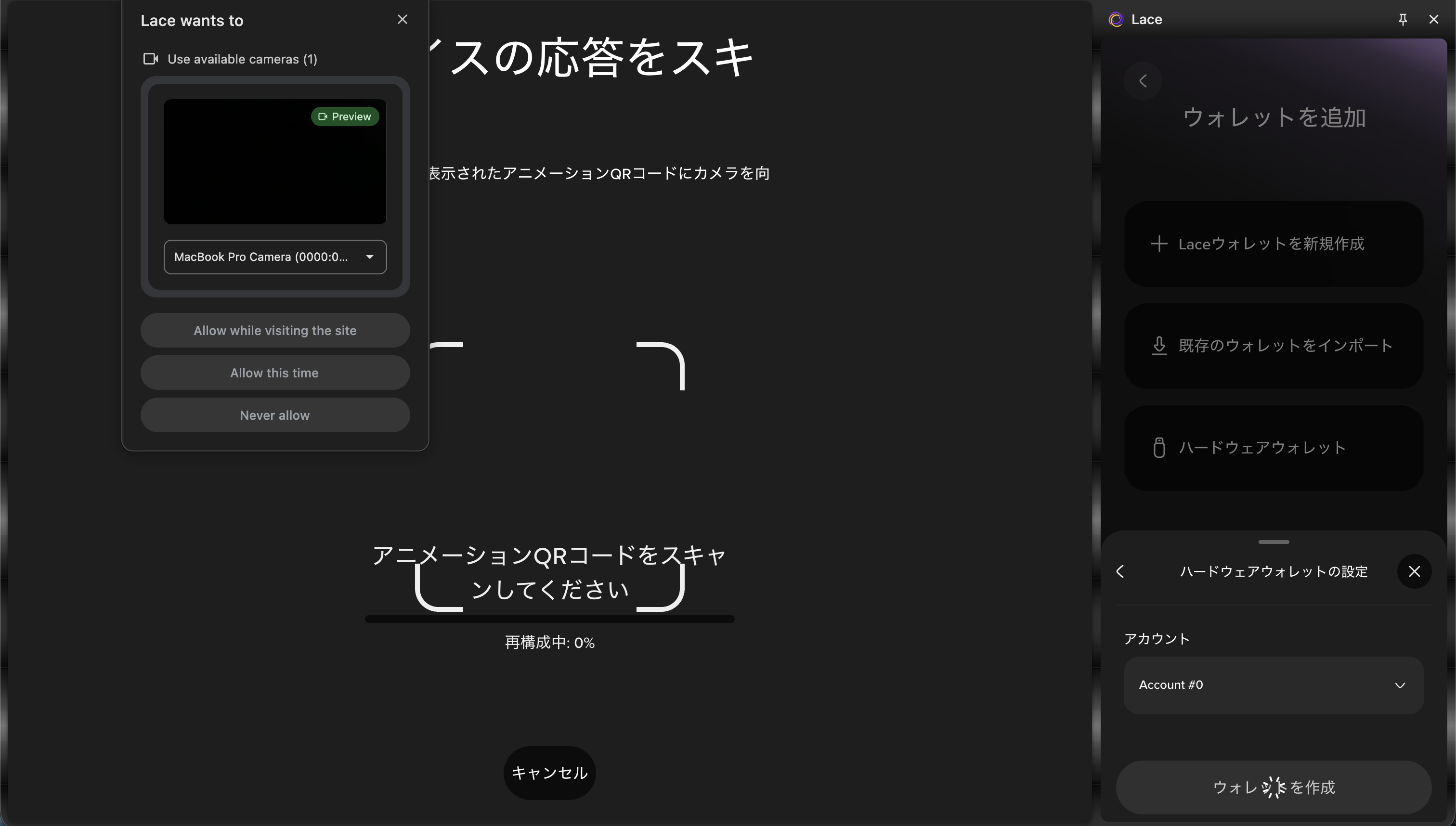
On Lace, select “Continue.” When the pop-up appears, select “Allow while visiting the site” or “Allow this time” to enable QR code scanning.
-
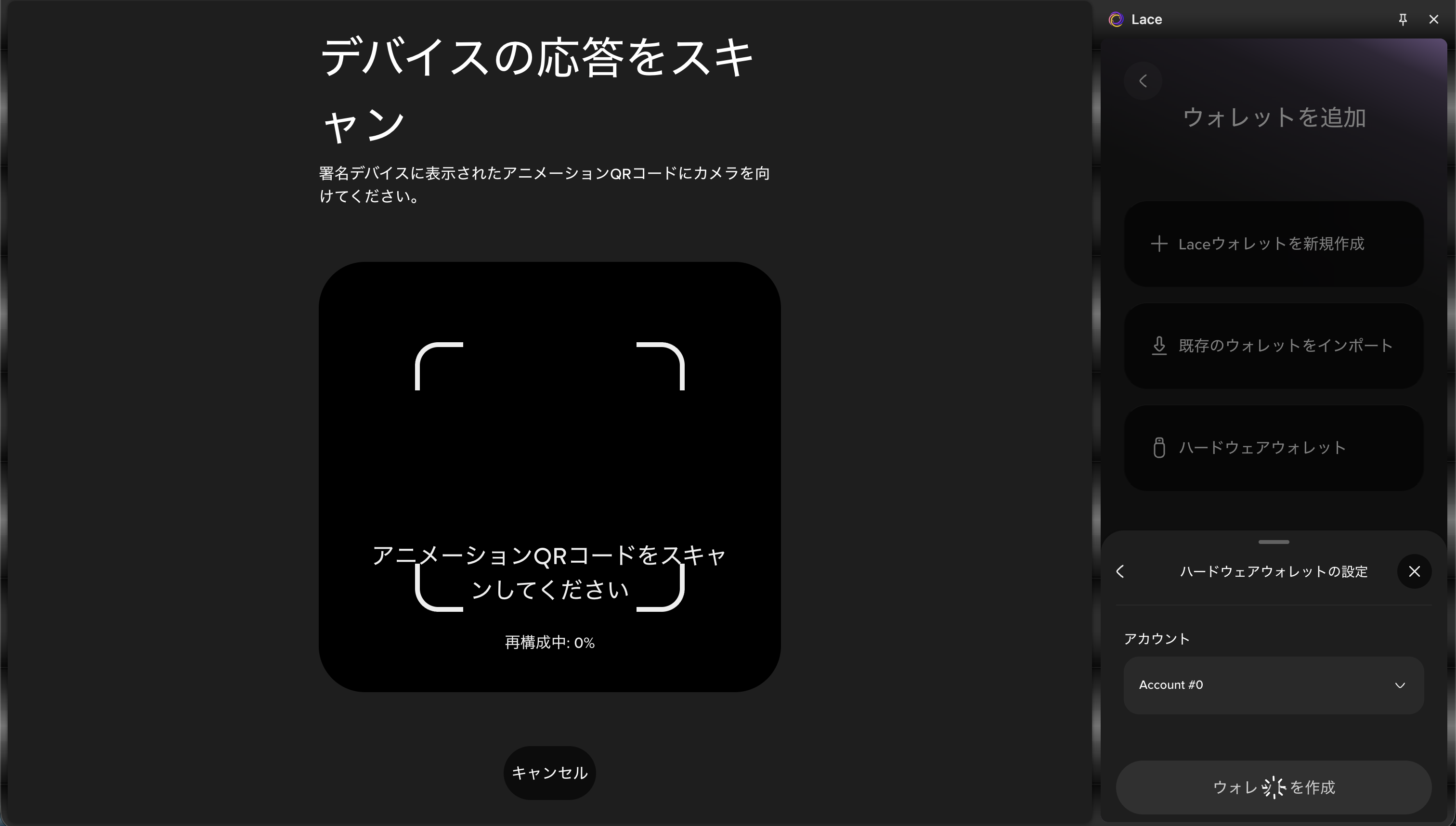
When “Scan device response” is displayed, position the QR code shown on the Keystone device screen within the frame.
-
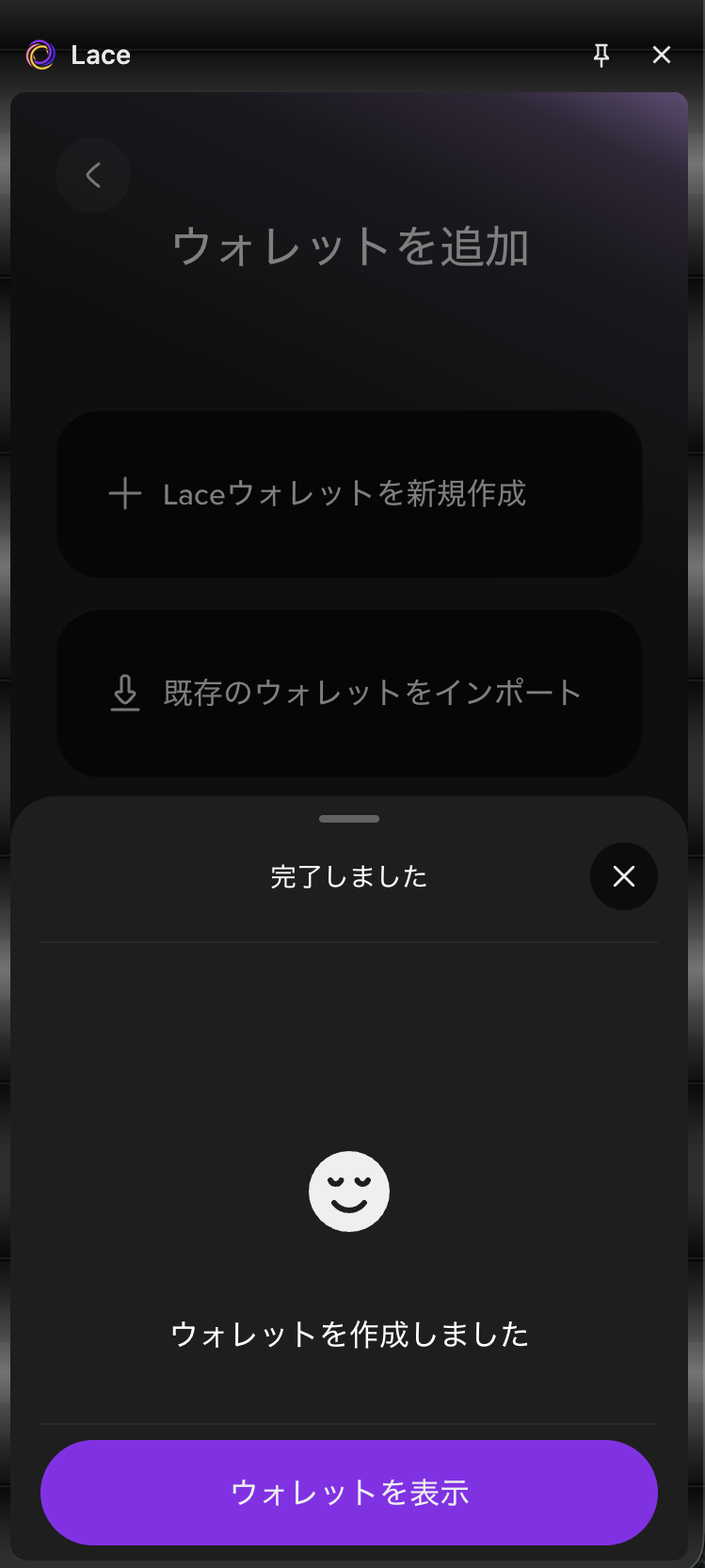
When “Wallet created” is displayed, select the “View wallet” button.
-
If desired, update the wallet name under “Update wallet name,” then select “
<” to return to the Account Center.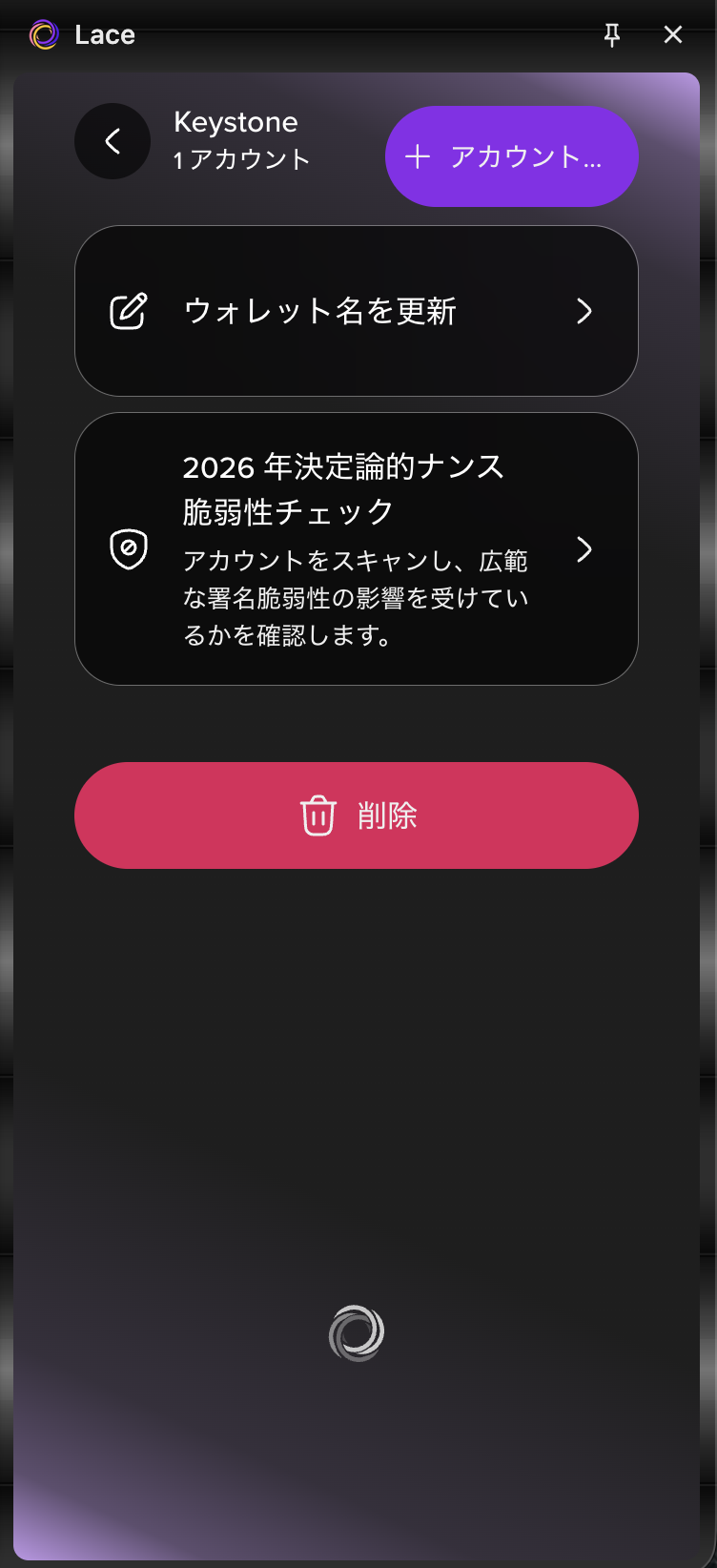
-
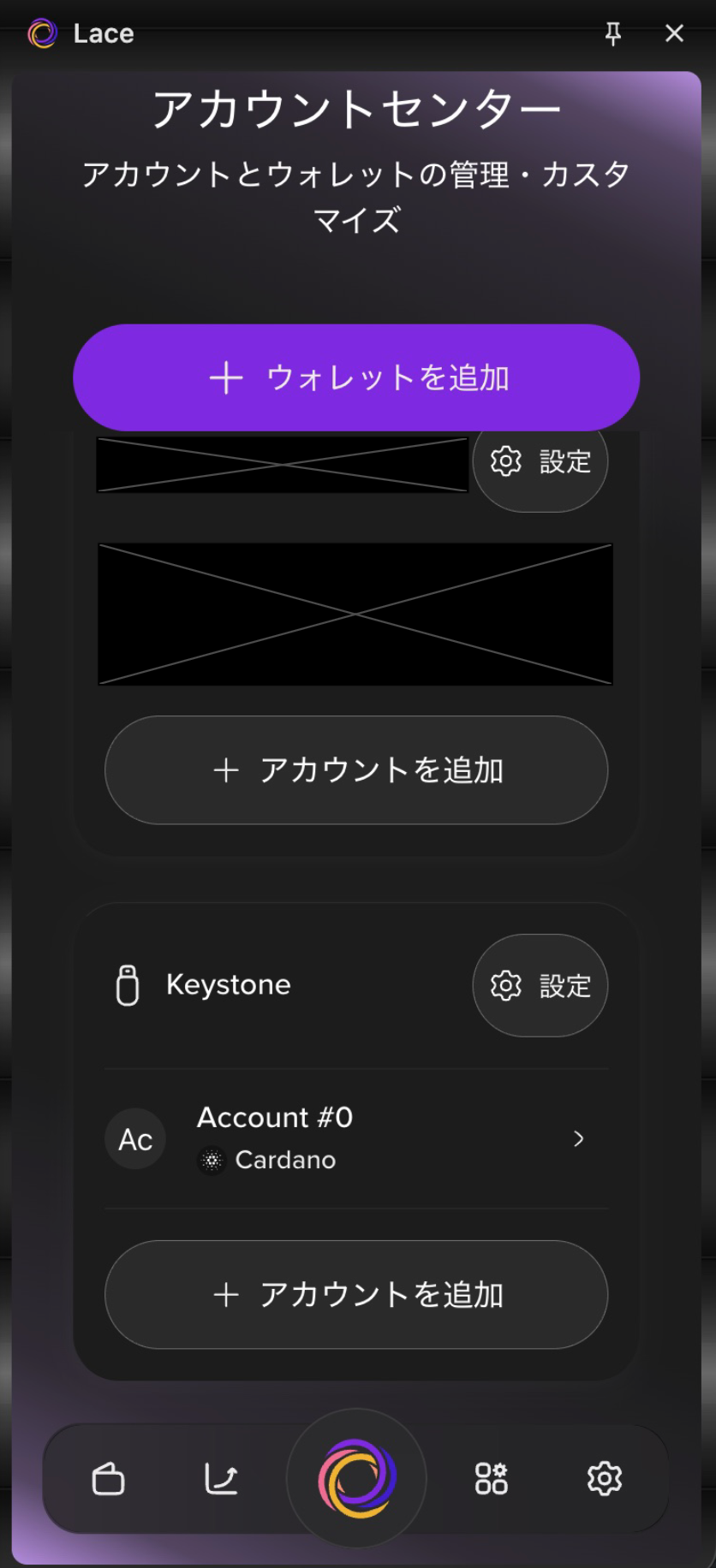
On the Account Center screen, confirm that the wallet has been added to complete the process.