How to Send and Receive
Receive
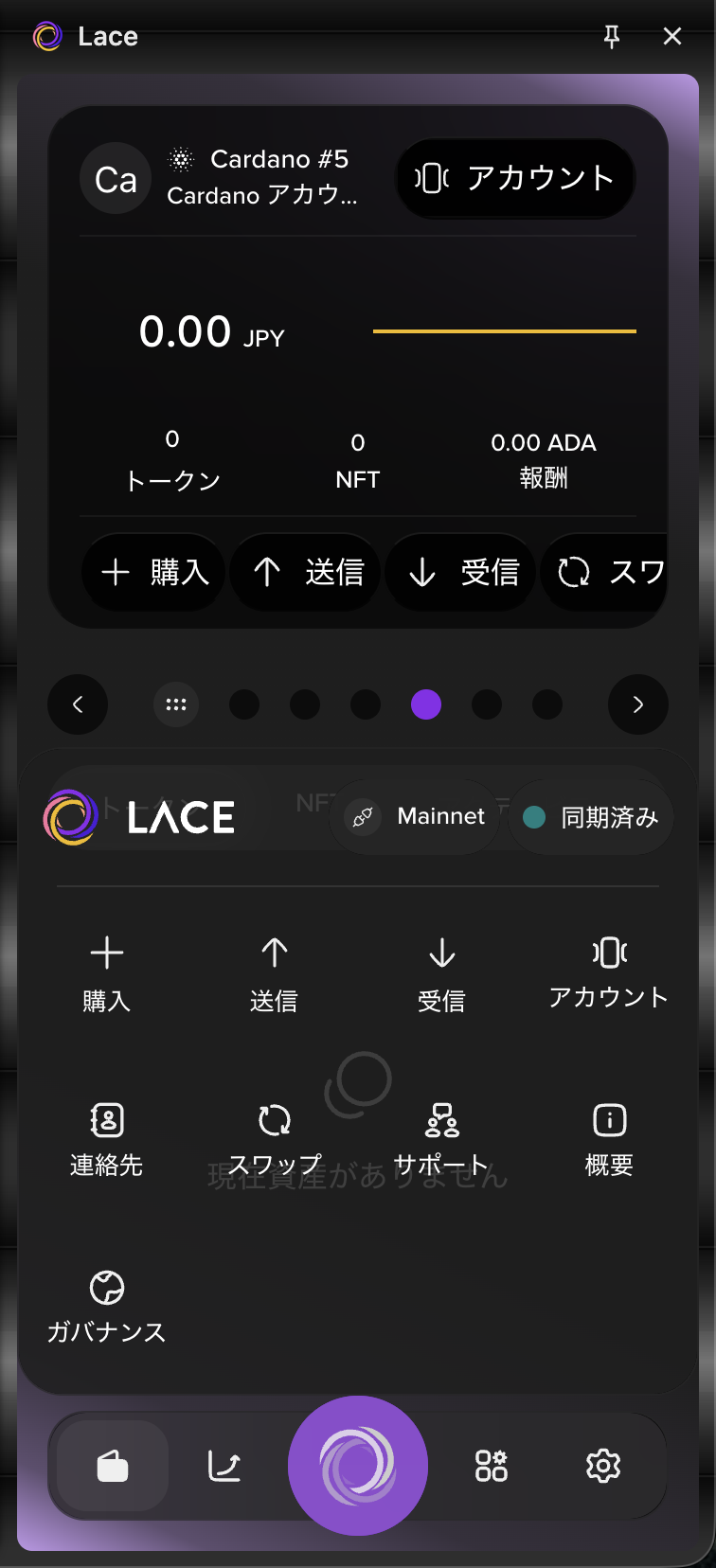
- Select the Lace icon at the bottom of the screen, then select “Receive.”
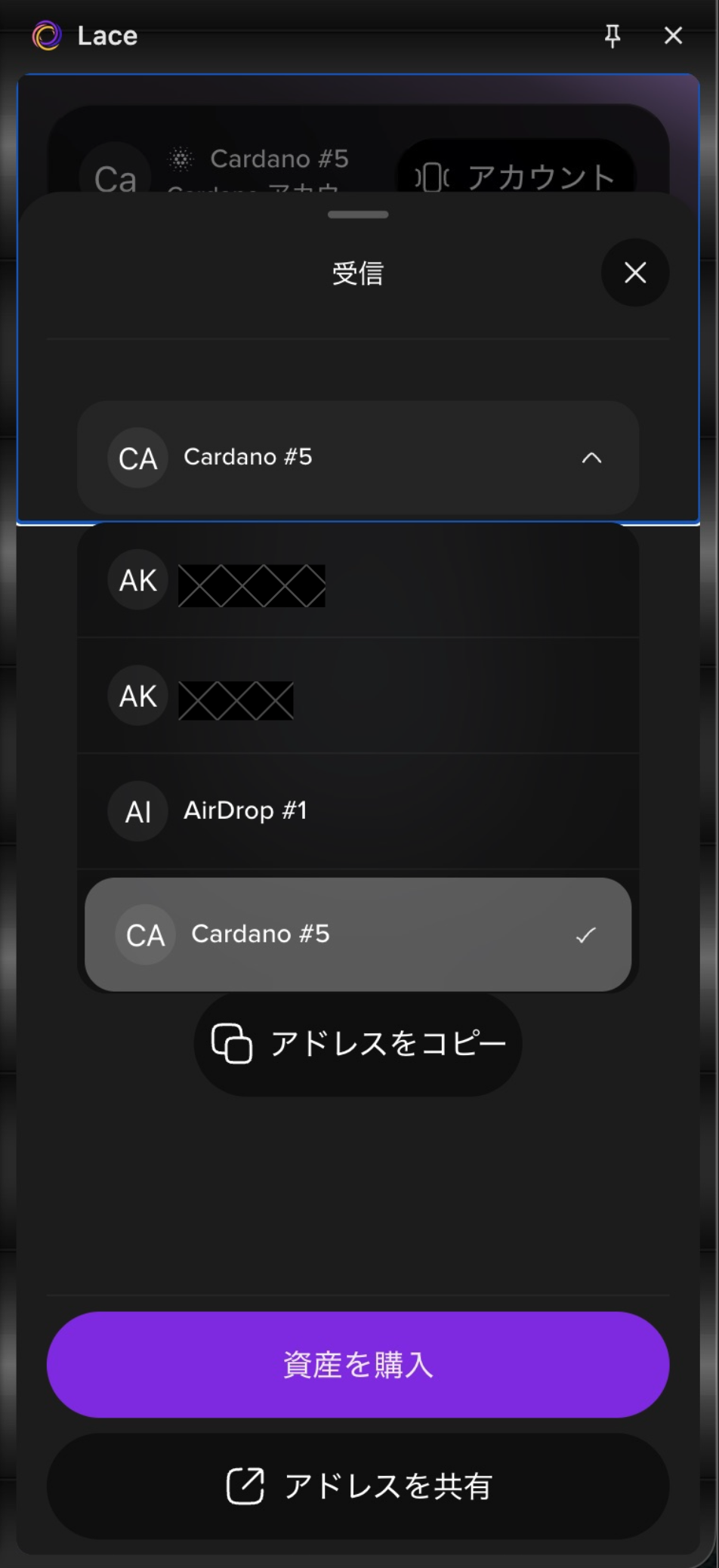
- Select the wallet you want to receive funds with.
- Select “Copy address” to copy the receiving address.
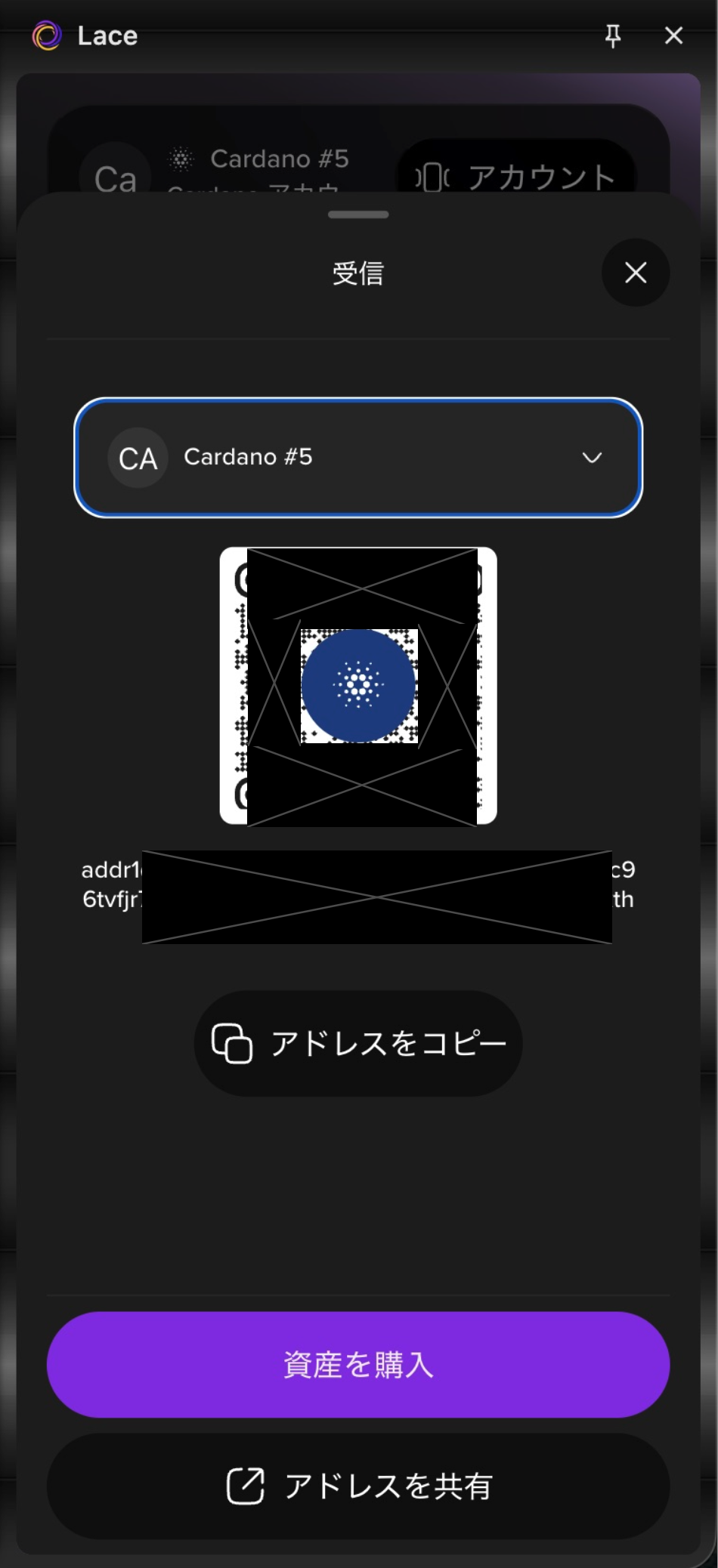
You can also share the receiving address via messages or other methods by selecting “Share address.”
Send
These are the steps for sending funds.
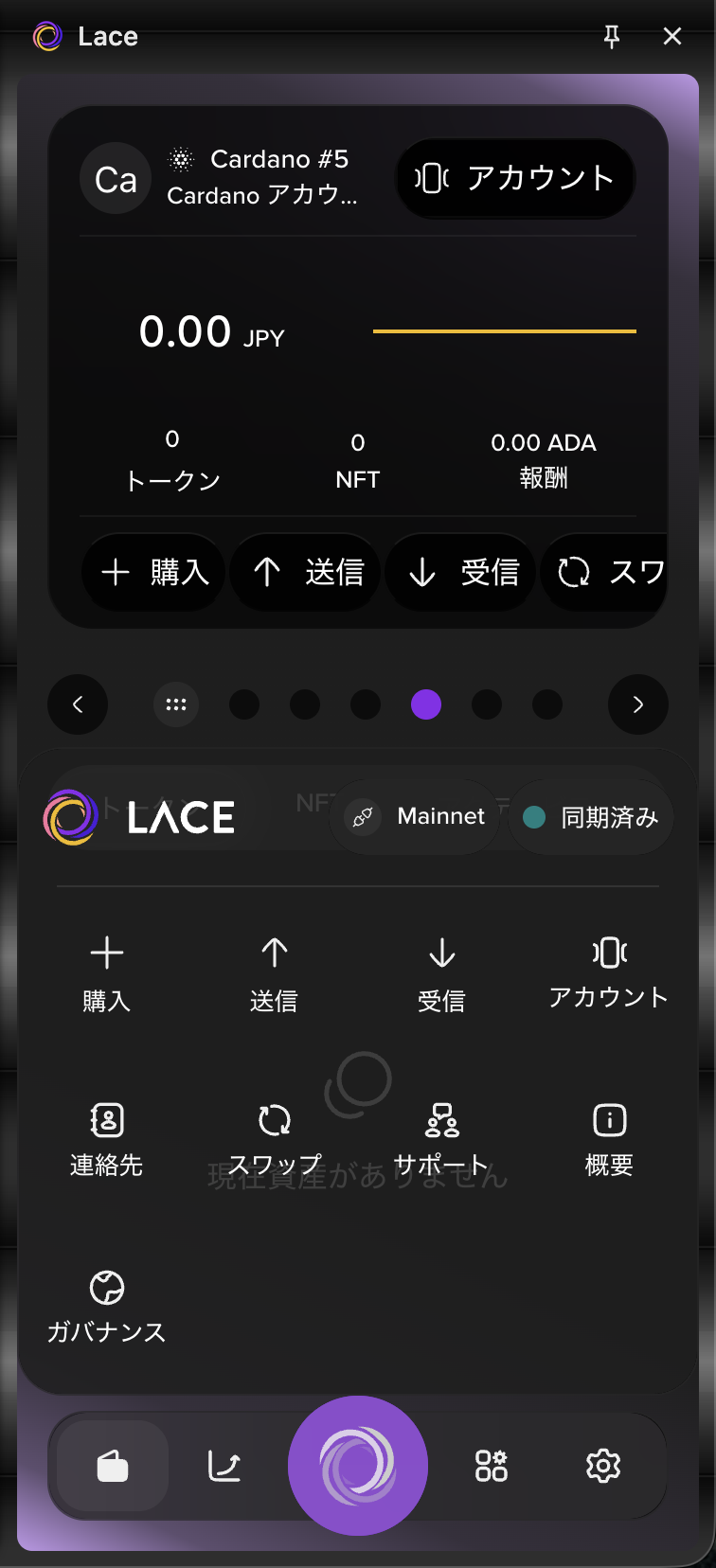
- Select the Lace icon at the bottom of the screen, then select “Send.”
- Select the wallet you want to send funds from.
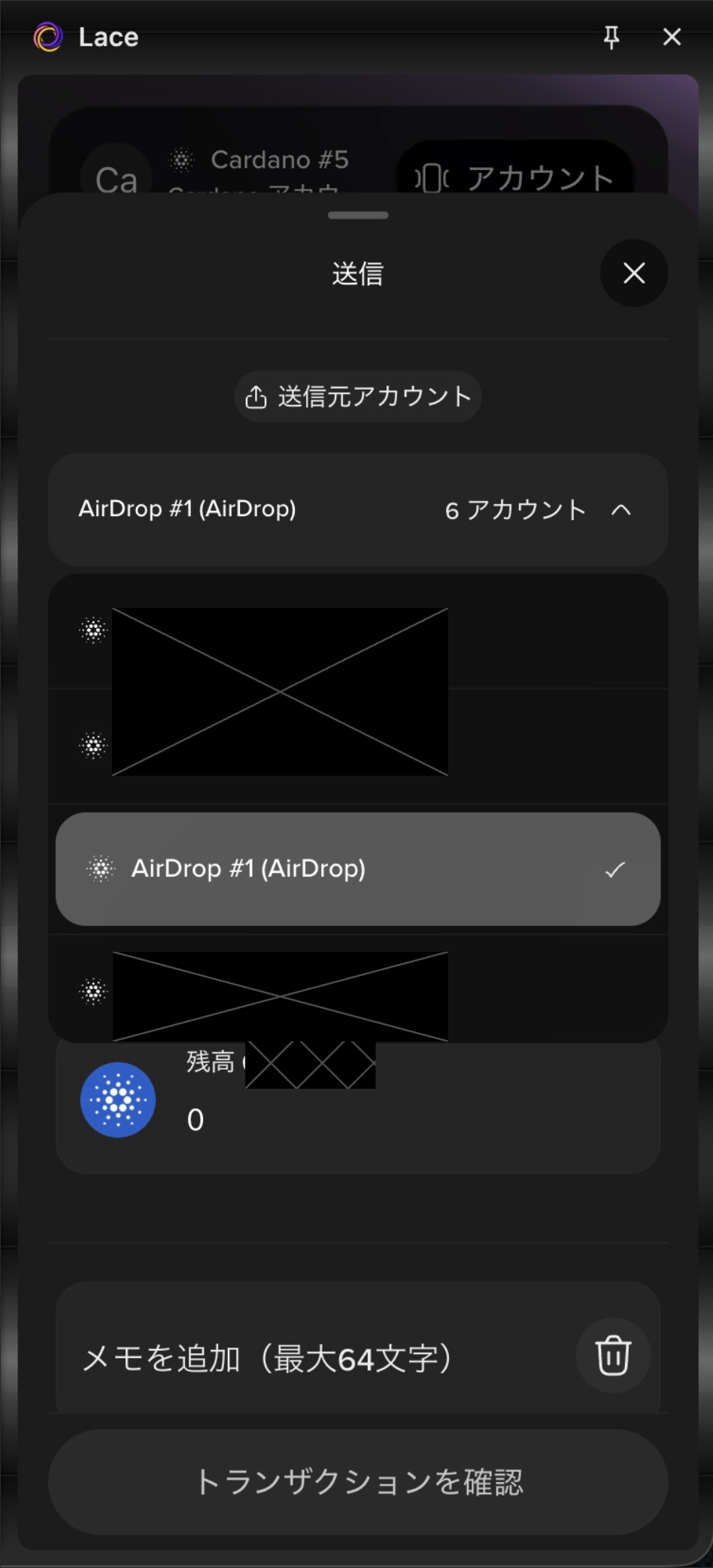
- Paste the recipient’s receiving address into the recipient address field.
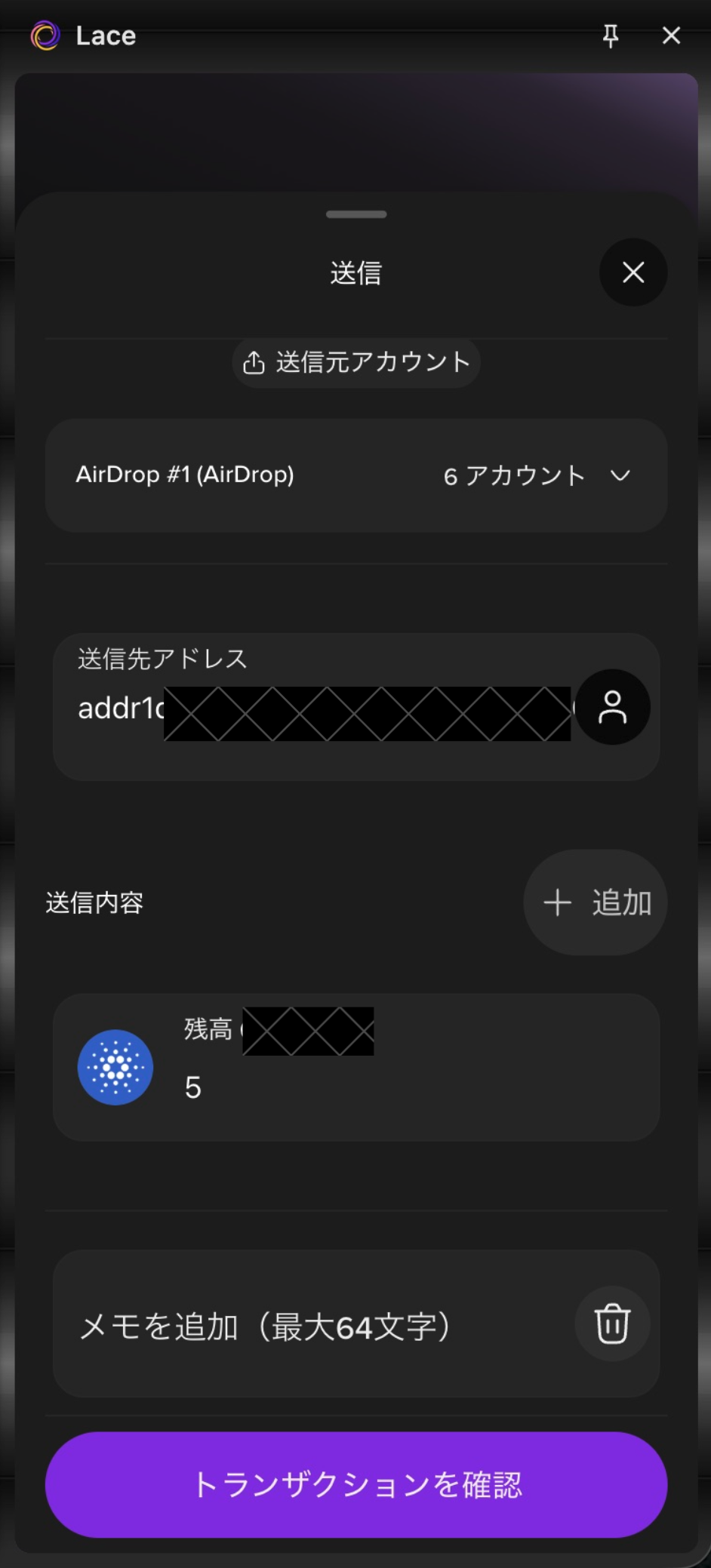
- Enter the amount you want to send in the send amount field.
- Select “Review transaction.”
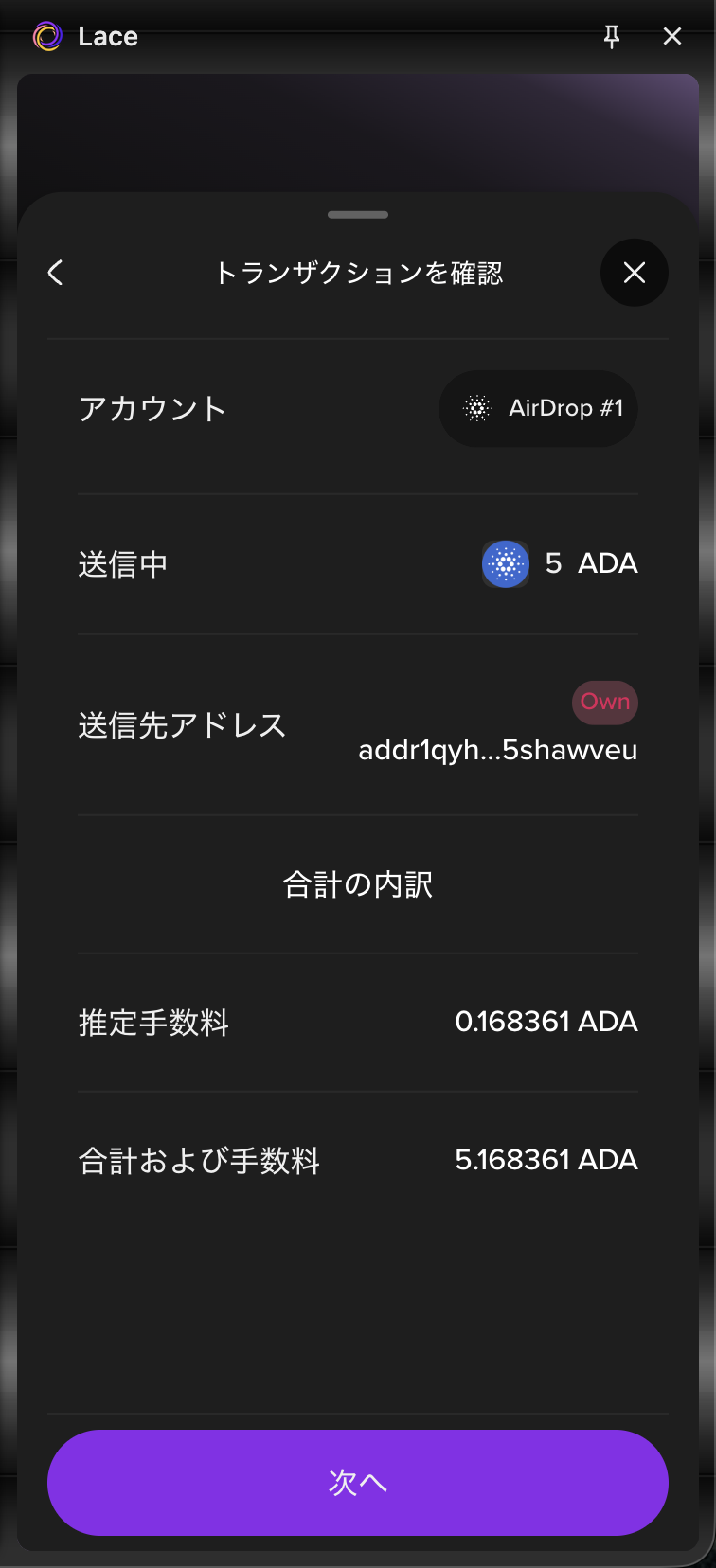
- Review the transaction details and select “Next.”
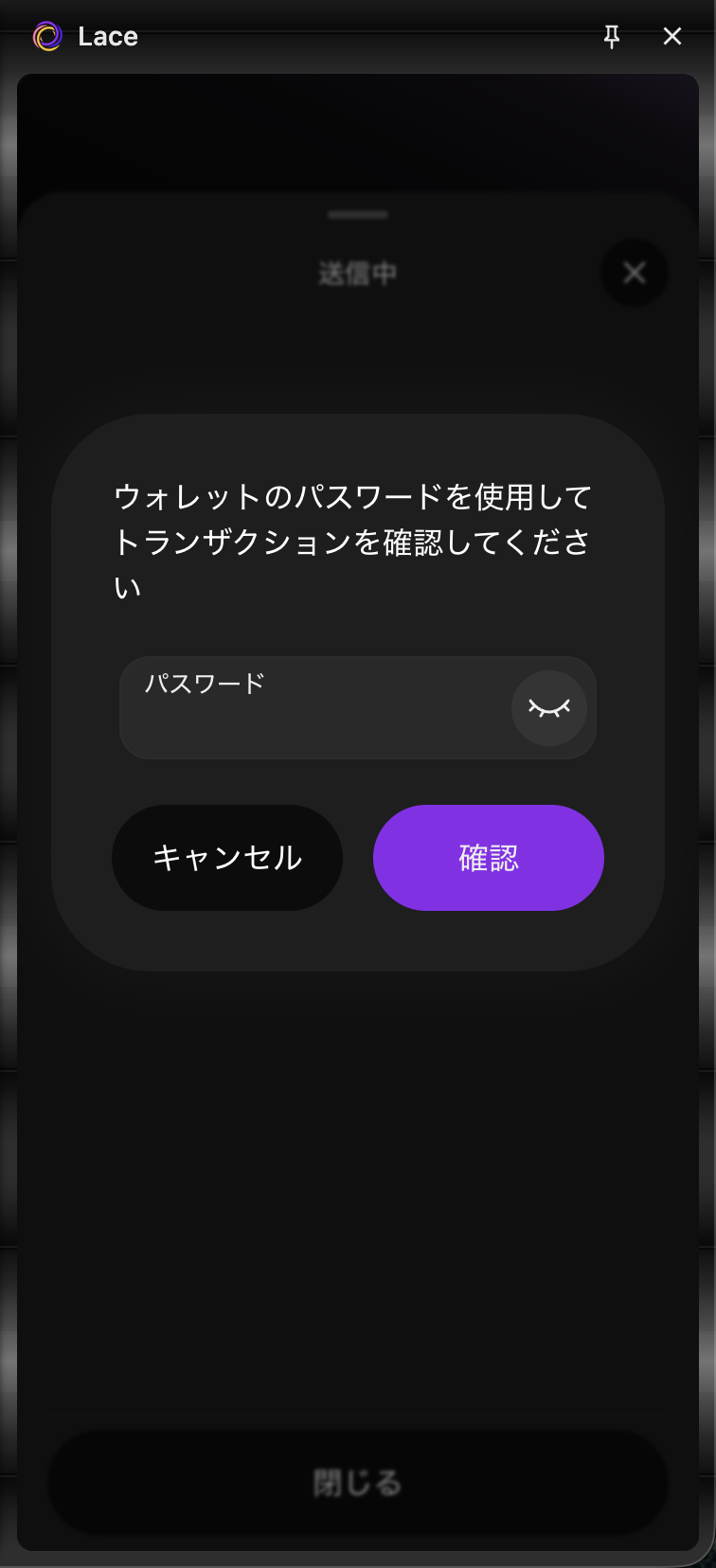
- Enter the password you set during the initial setup and select “Confirm.”
- When “Completed” is displayed, select “Close.”
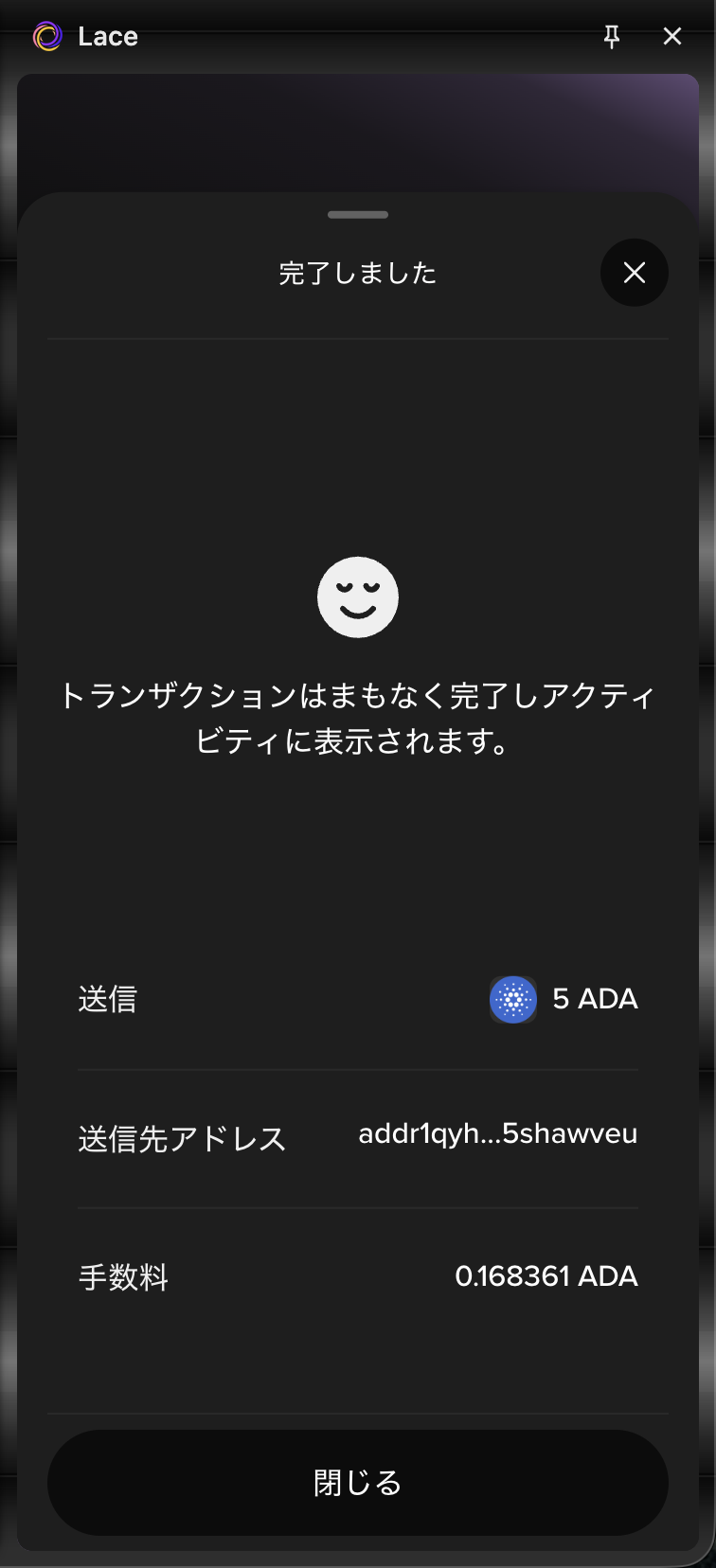
This completes the sending process.
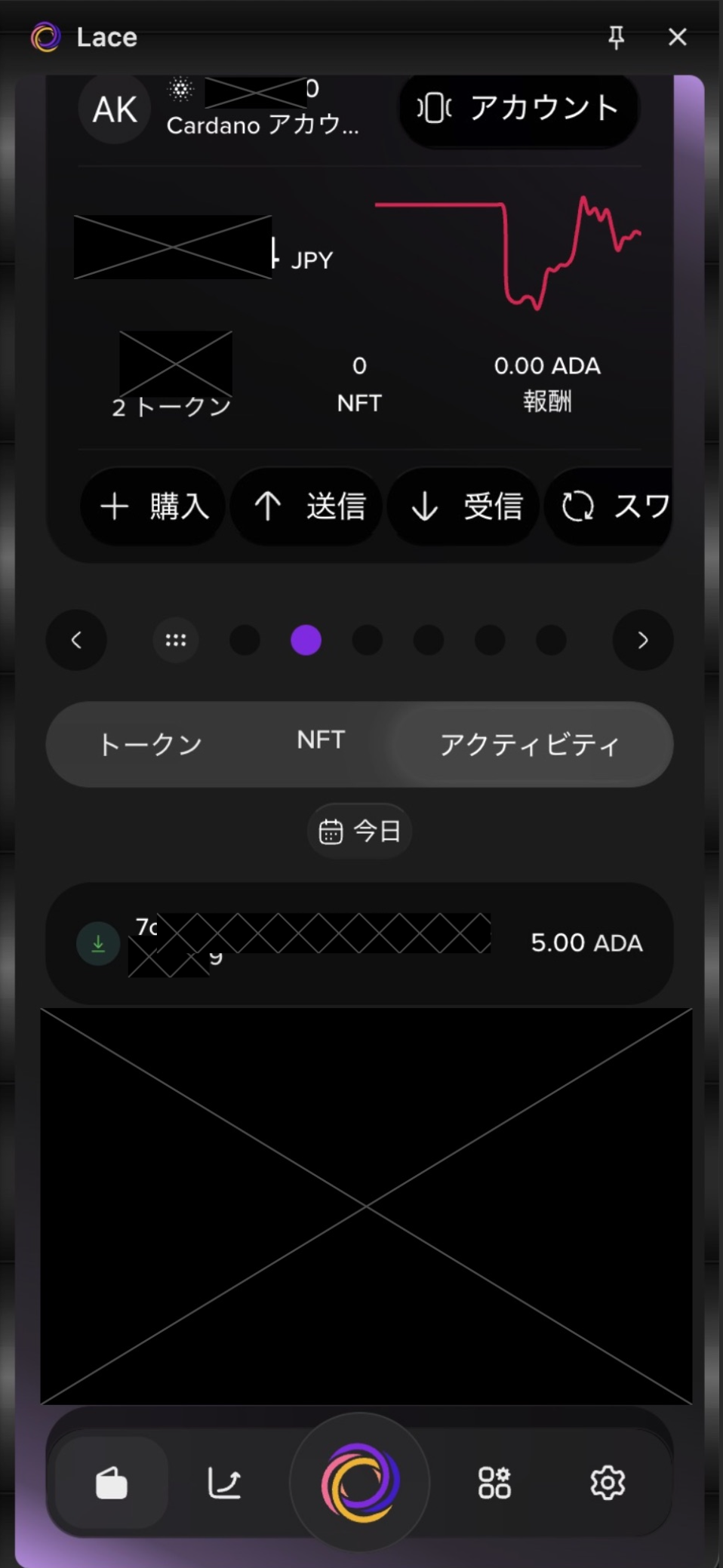
You can view your transaction history from the “Account page” at the bottom of the screen.
Select “<” or “>”, or swipe the screen to switch between accounts.
Receive with Keystone
The receiving process with Keystone is the same as the standard receiving process. Please see here.
Send with Keystone
These are the steps for sending funds with Keystone.
- Select the Lace icon at the bottom of the screen, then select “Send.”
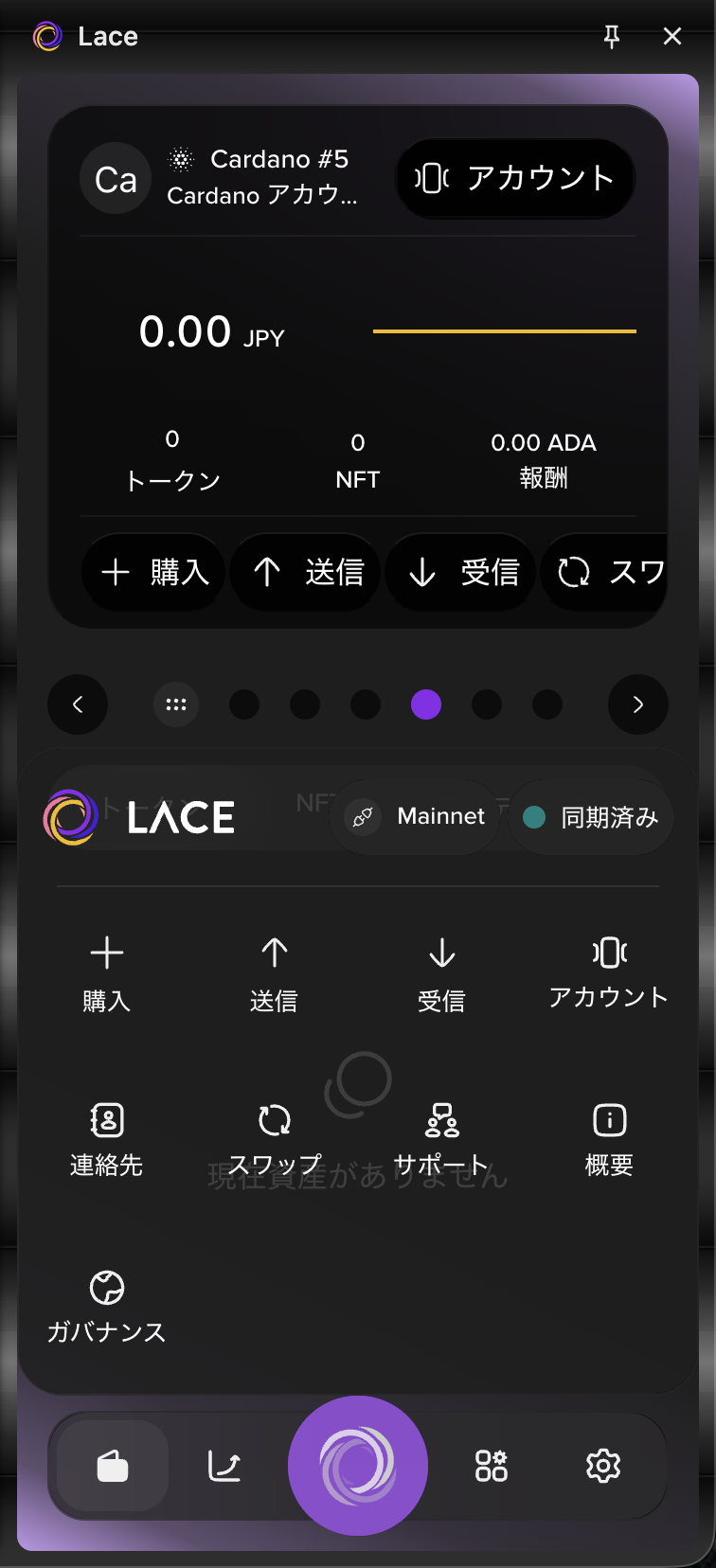
- Select Keystone as the wallet you want to send funds from.
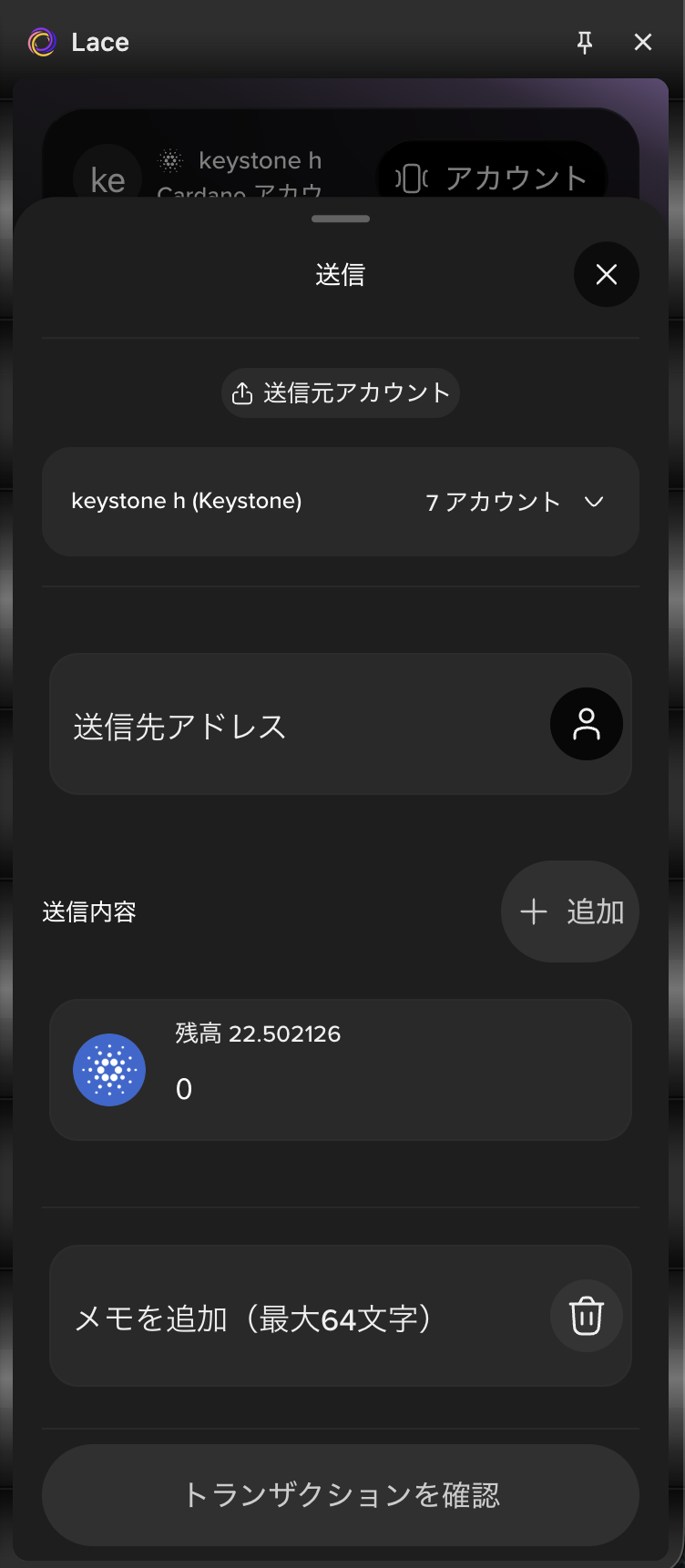
- Paste the recipient’s receiving address into the recipient address field.
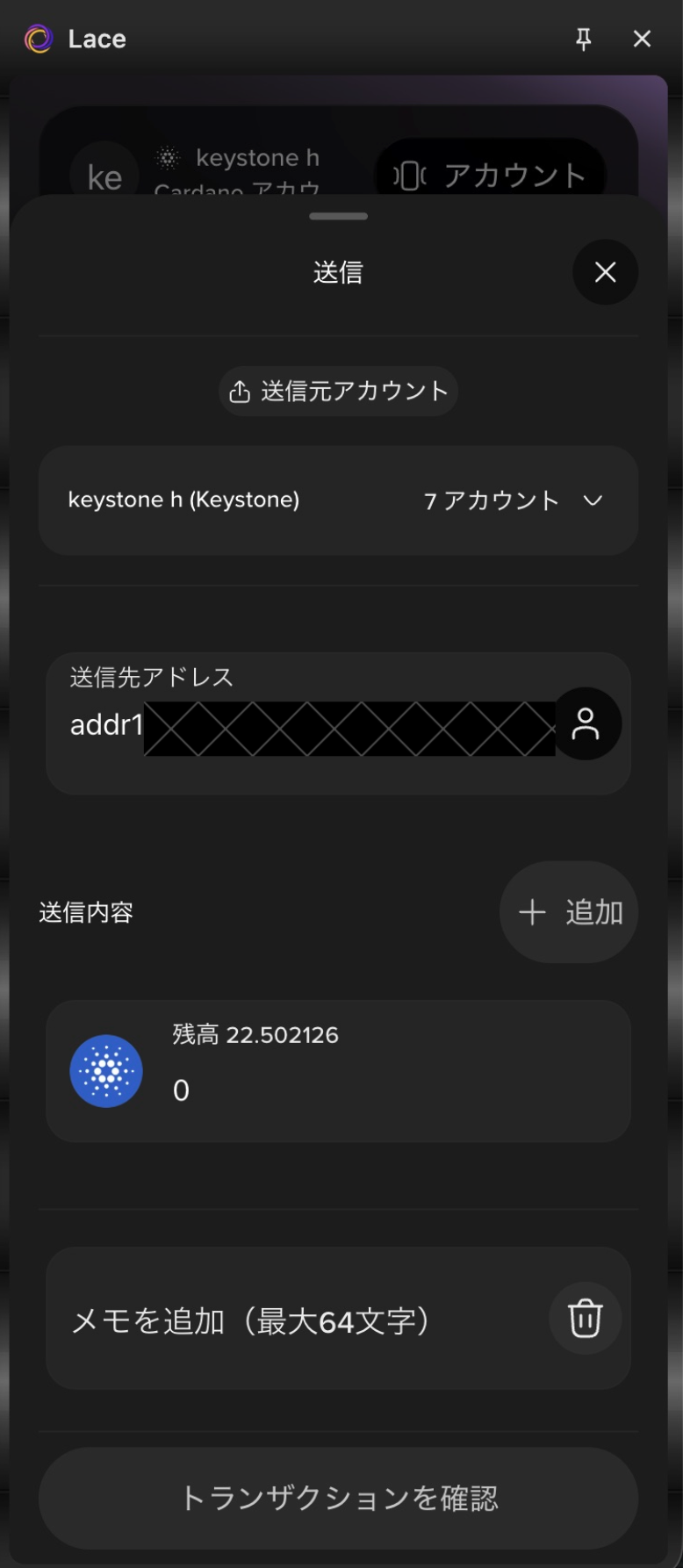
- Enter the amount you want to send in the send amount field.
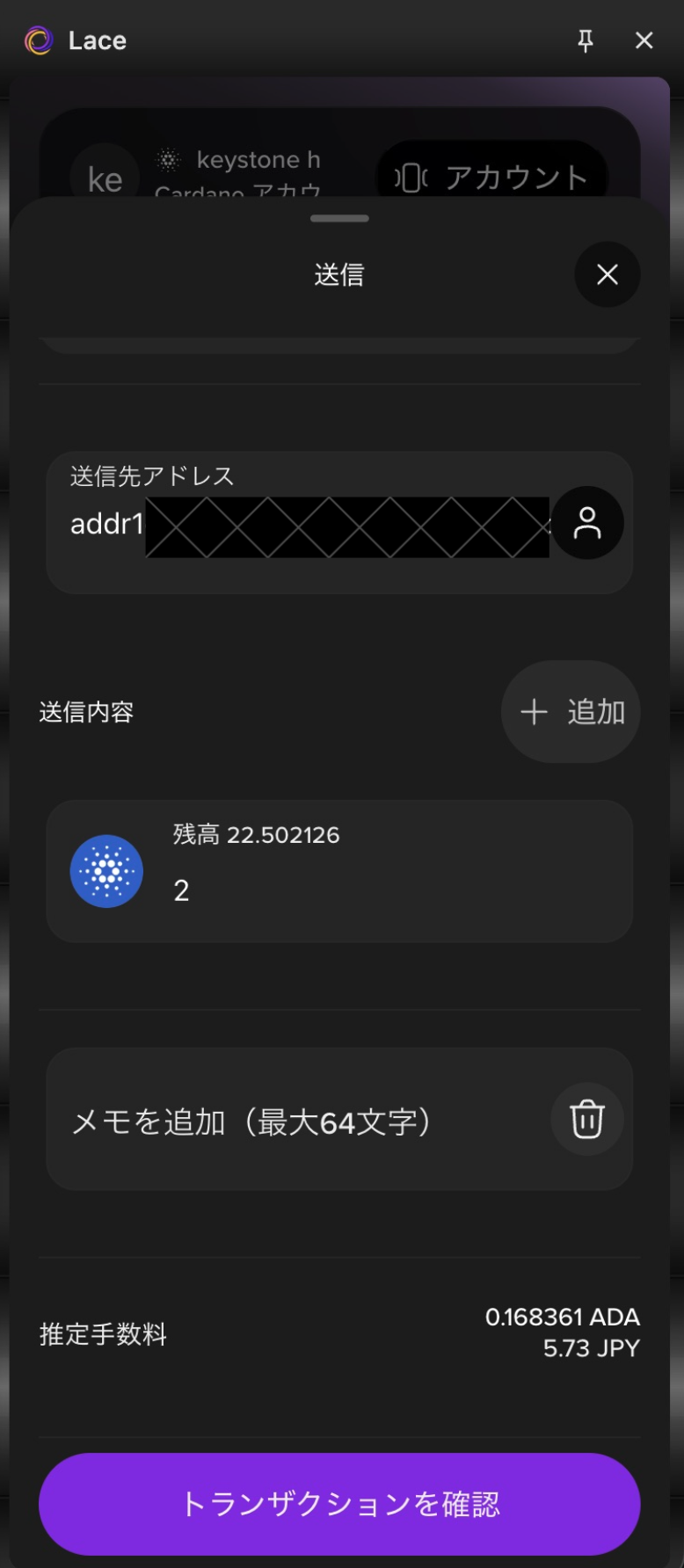
- Select “Review transaction.”
- Review the transaction details and select “Next.”
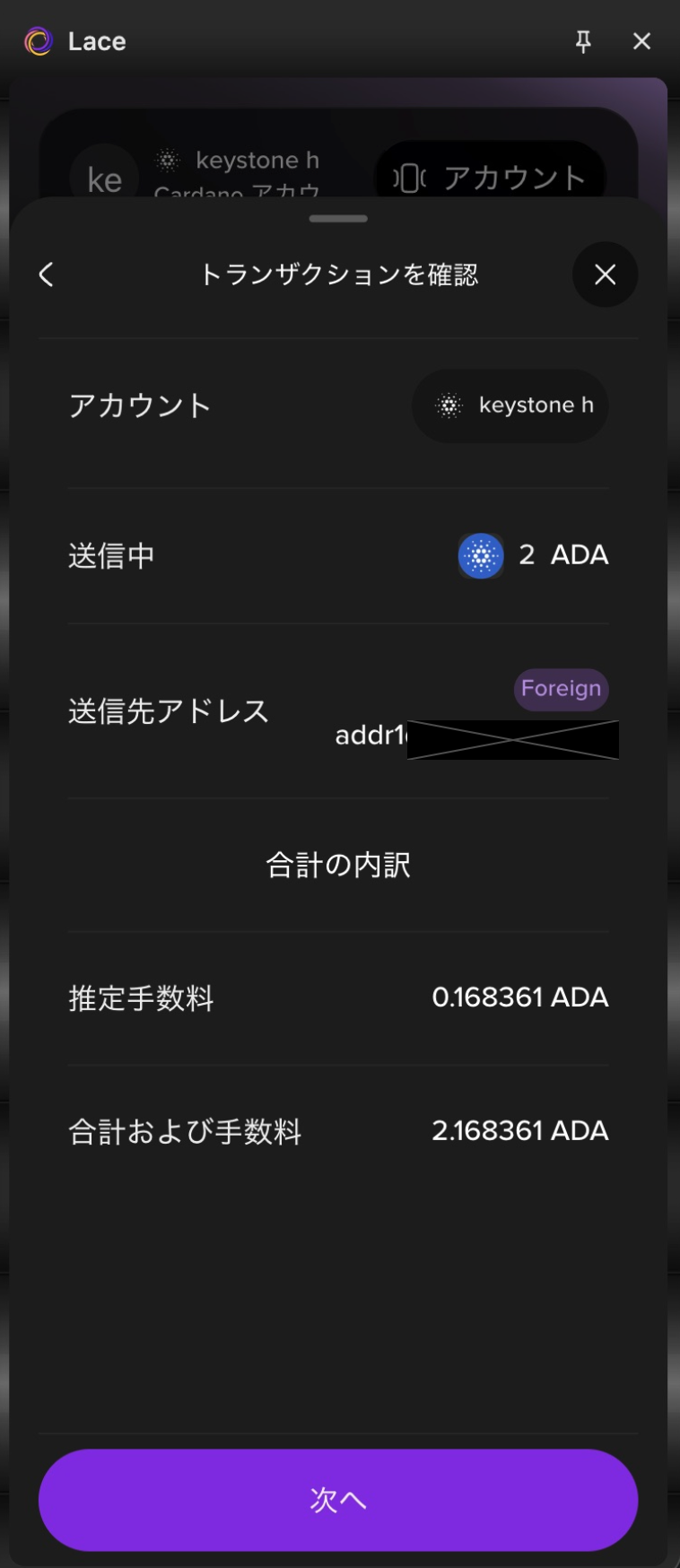
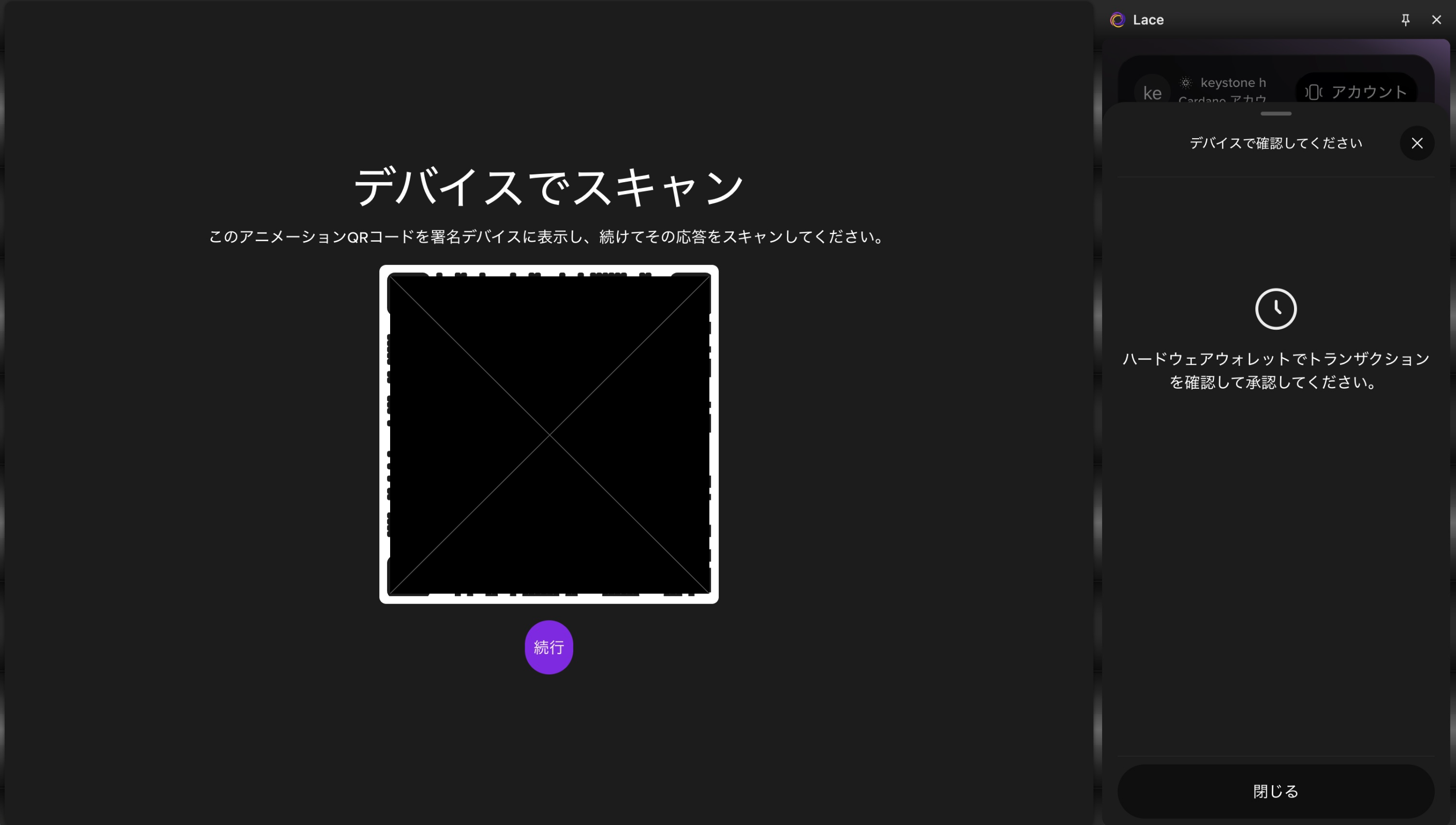
- When “Scan with device” is displayed, open the QR code scanner at the bottom right of the Keystone device screen and scan the QR code.
-
When “Review transaction” is displayed on Keystone, review the details, slide “
>>” to the right, and enter your passcode. -
When a QR code is displayed on Keystone, select “Continue” on Lace to open the scanner.
- When “Scan device response” is displayed, use the camera to scan the QR code displayed on the Keystone device screen.
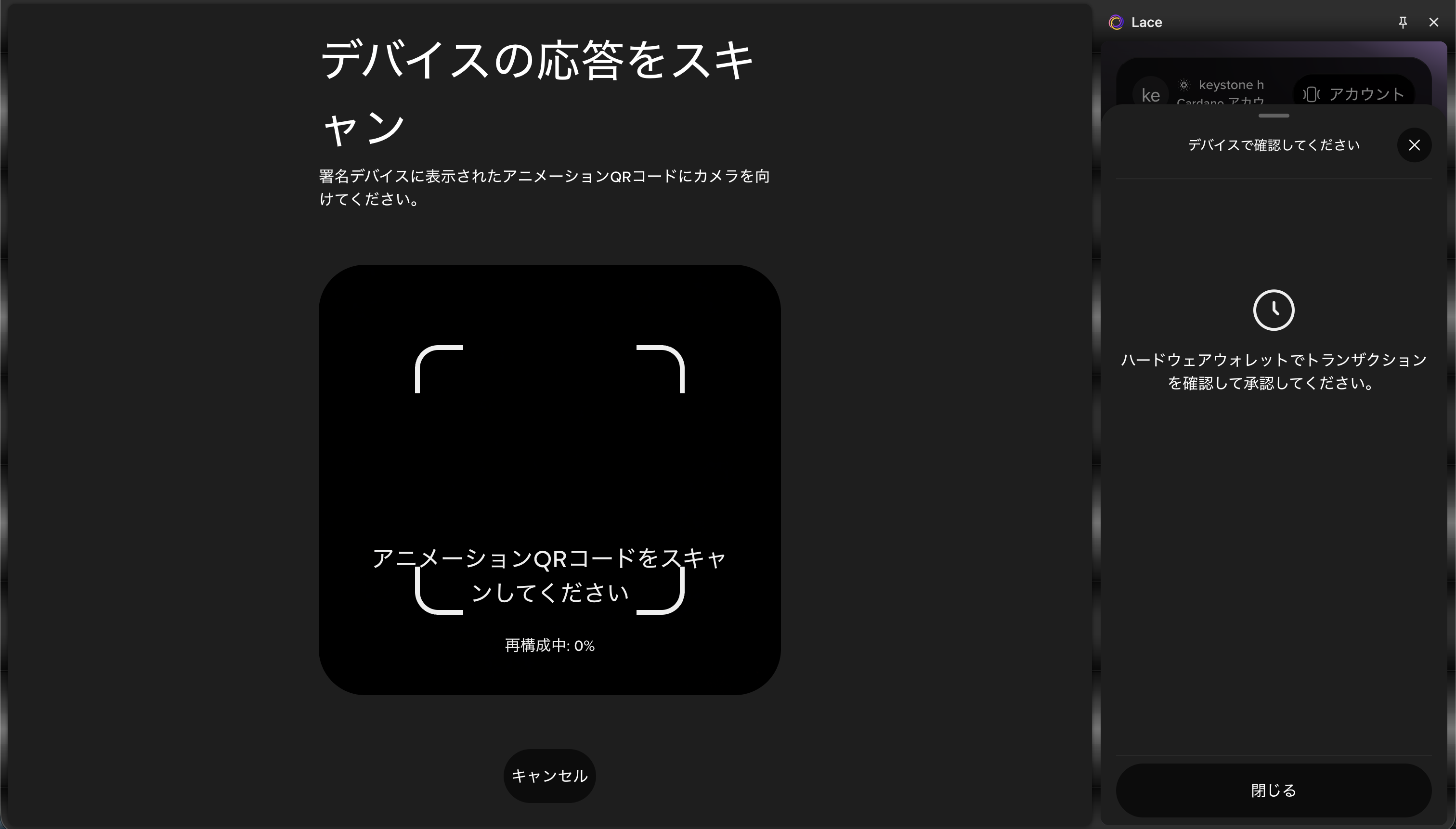
- When “Completed” is displayed, select “Close.”
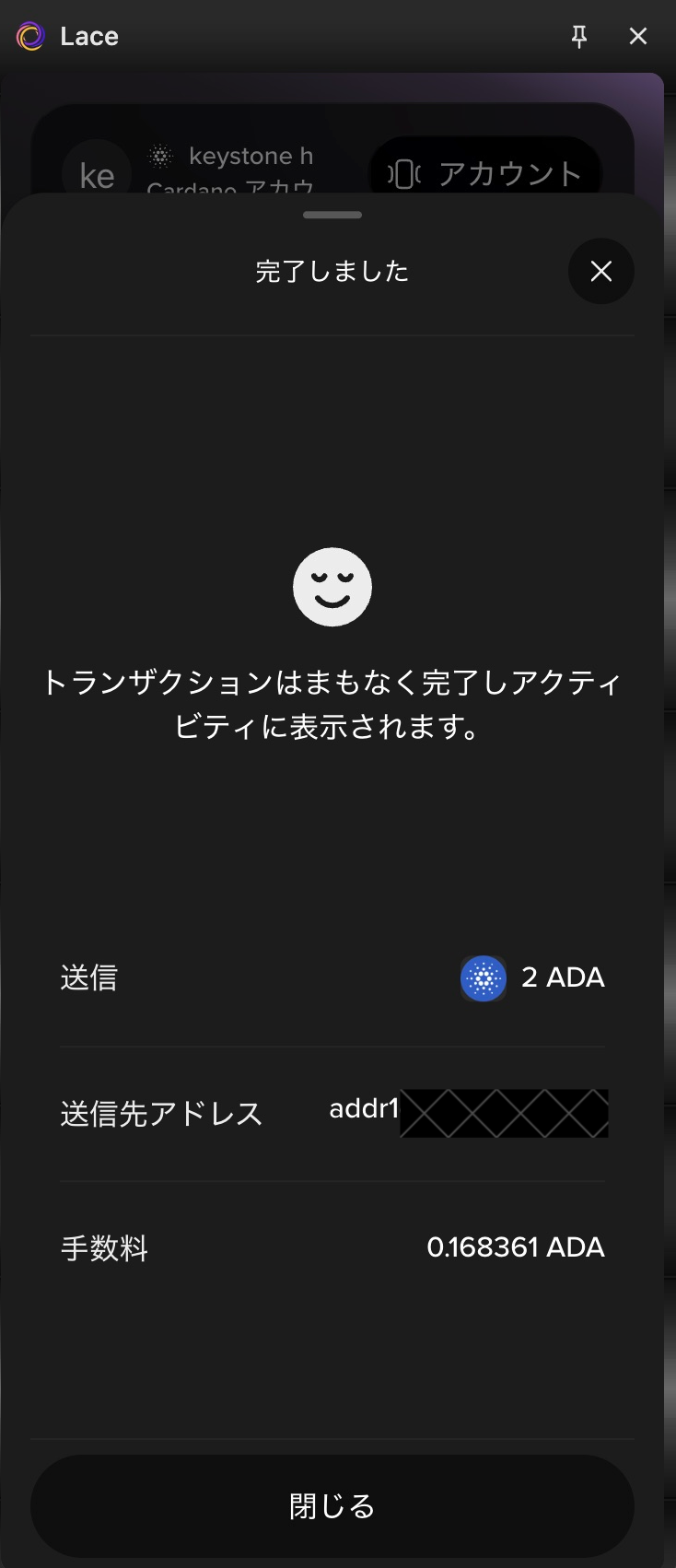
This completes the sending process.
You can view your transaction history from the “Account page” at the bottom of the screen.
Select “<” or “>”, or swipe the screen to switch between accounts.