How to Set Up Typhon Wallet
tip
Typhon Wallet is continuously updated.
This guide is based on the screens available at the time it was created, so the screen layout and displayed content may differ slightly depending on when you use it.
This guide uses the Chrome browser as an example.
Add to Chrome Extensions
Download it from the official URL below.
- After accessing the official URL, select "Use" → "Find a Wallet".

- Scroll down to find "Typhon" and select "Visit Website".
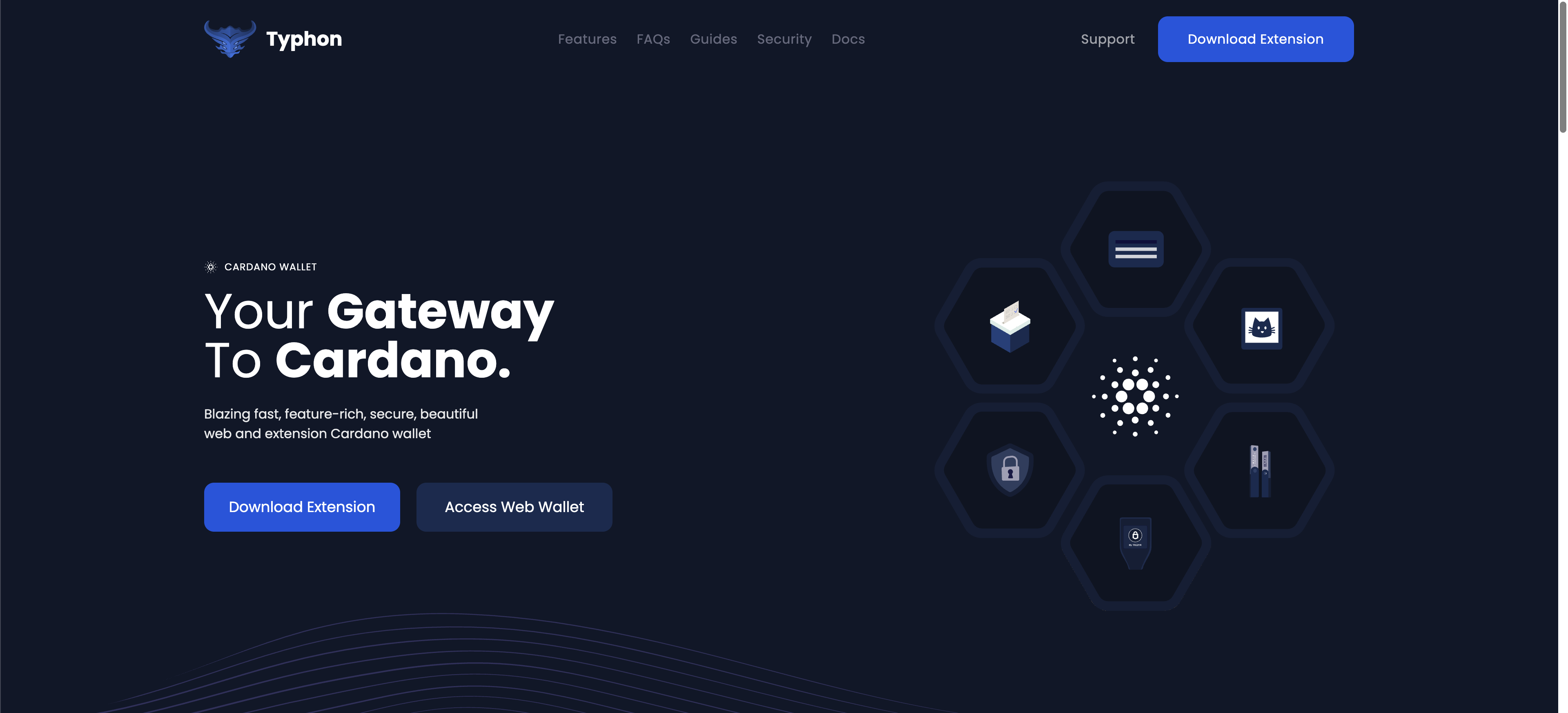
- Once you are redirected to the official download site, select "Download Extension".
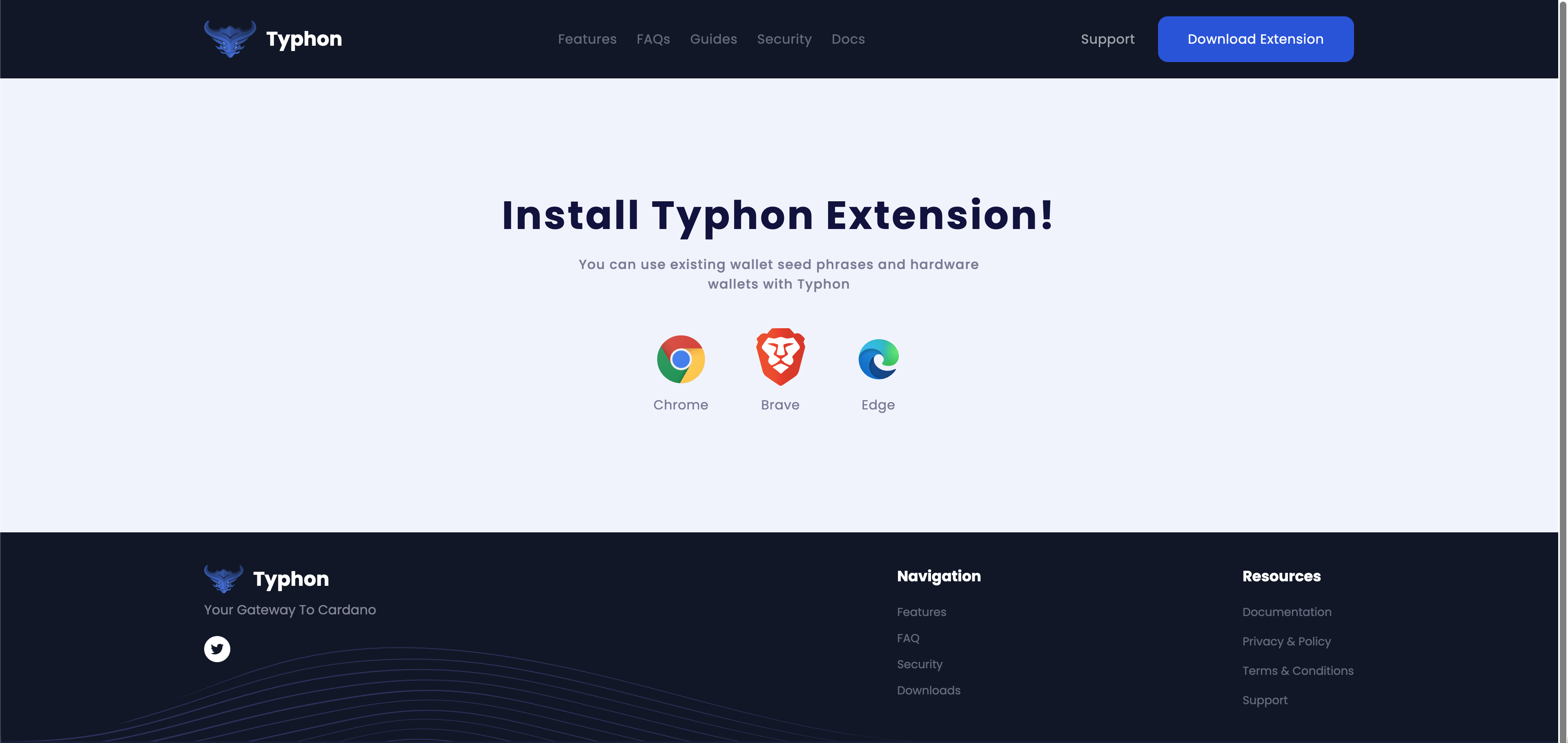
- Select the appropriate option for your browser. Here, select Chrome.
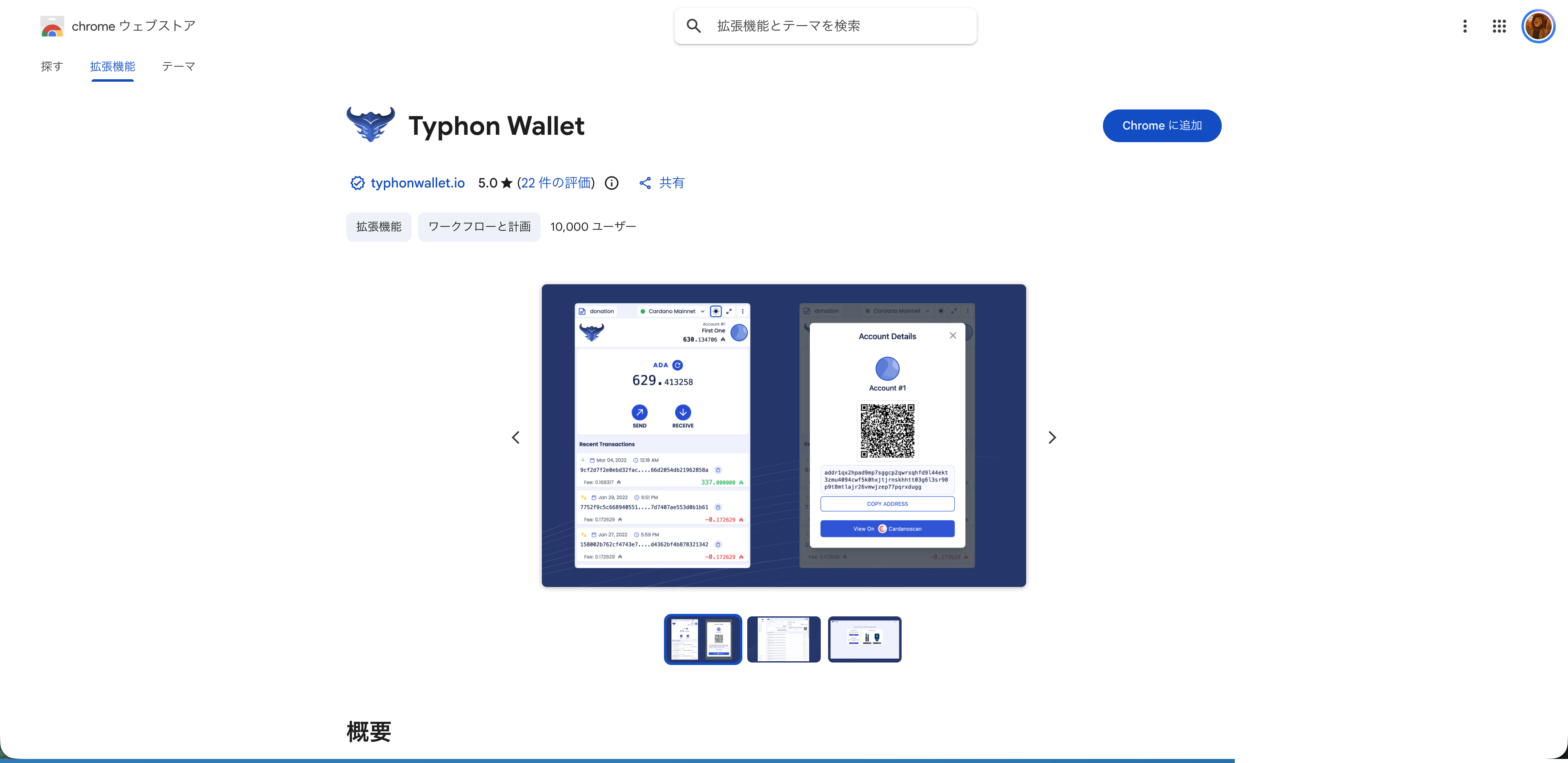
- Select "Add to Chrome" in the upper-right corner.
- Select "Add extension".
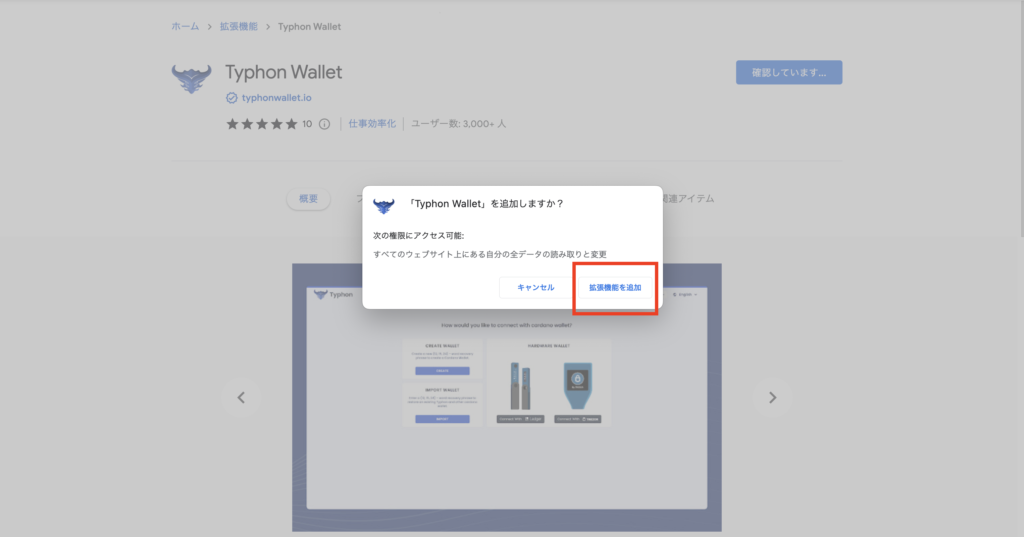
- A pop-up indicating that Typhon Wallet has been added to Chrome will appear.
In some cases, the pop-up may not appear and you may be redirected directly to a page such as "Create wallet".
- Select the Extensions icon in the upper-right corner of the screen.

- Select "Manage extensions".

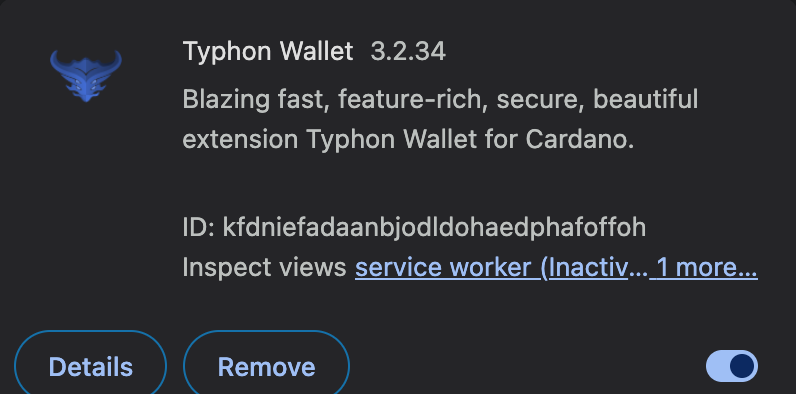
- Confirm that the toggle switch in the lower-right corner is ON.
If it has been installed correctly, it will be enabled.