Restore a Wallet Using a Recovery Phrase
Restore a Wallet
This section explains how to restore a wallet created with Yoroi Wallet or another wallet in Typhon Wallet.
tip
You can change the language setting in Typhon Wallet according to your preference.
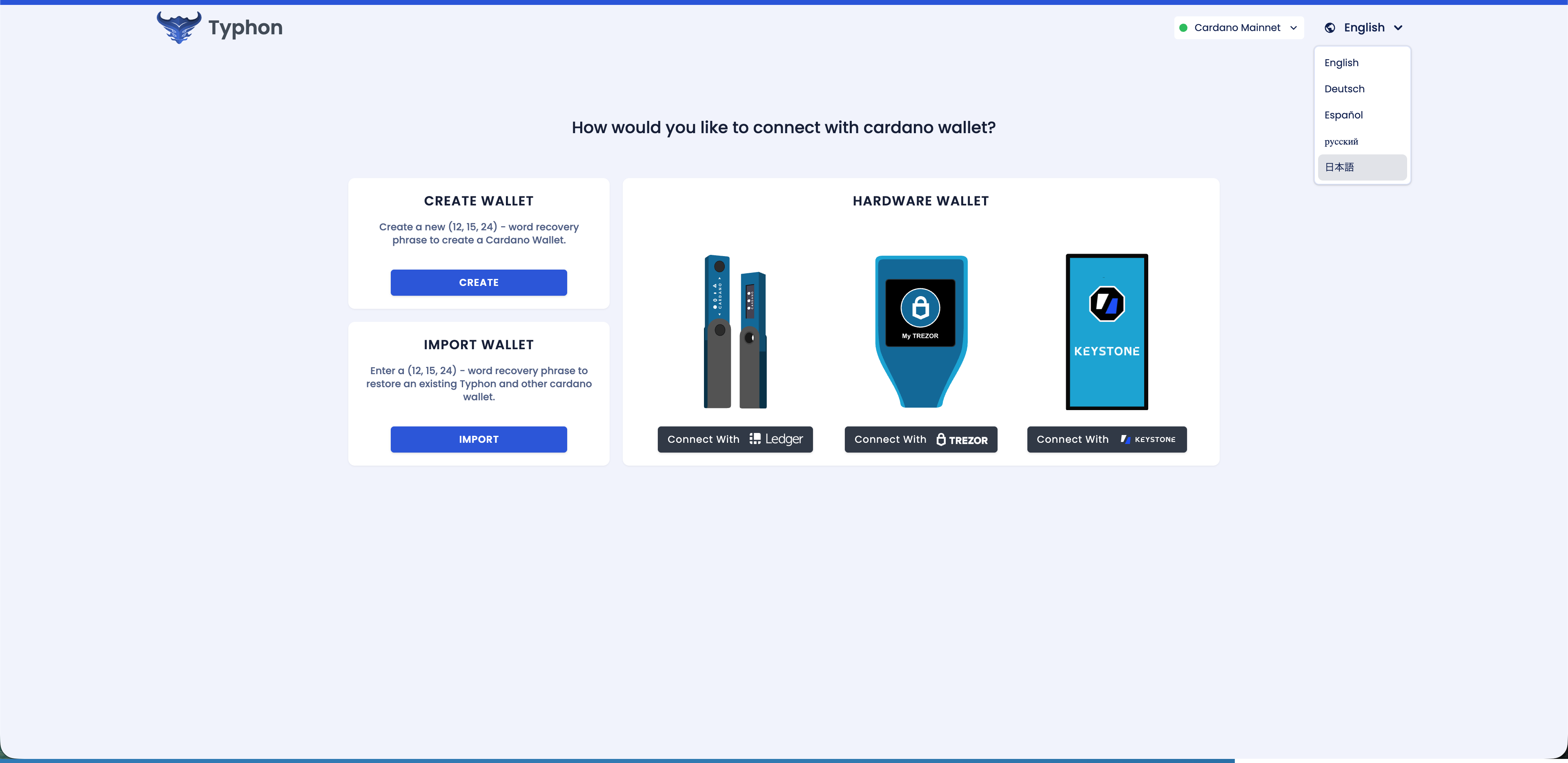
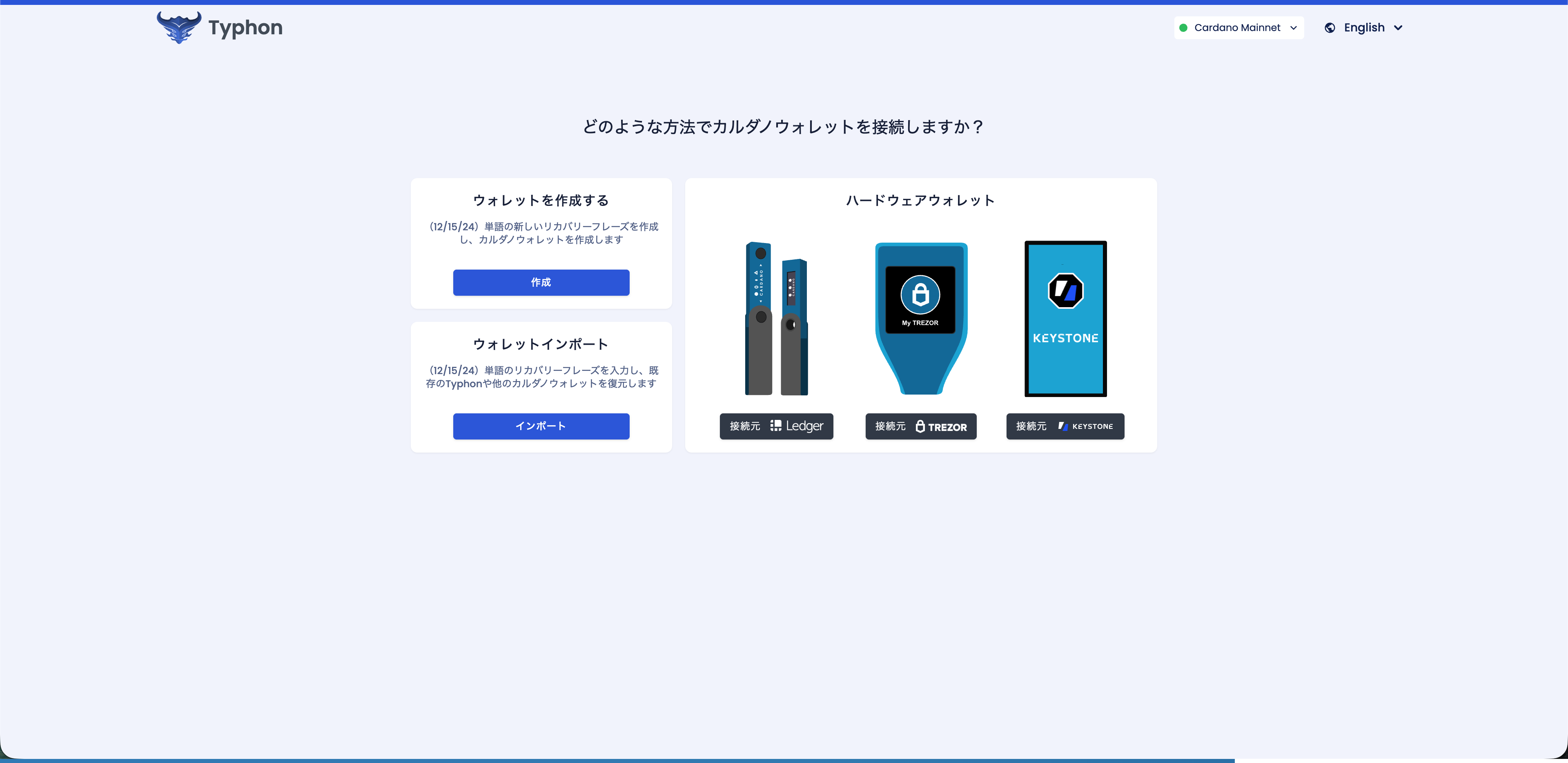
- Select "Wallet Import" → "Import".
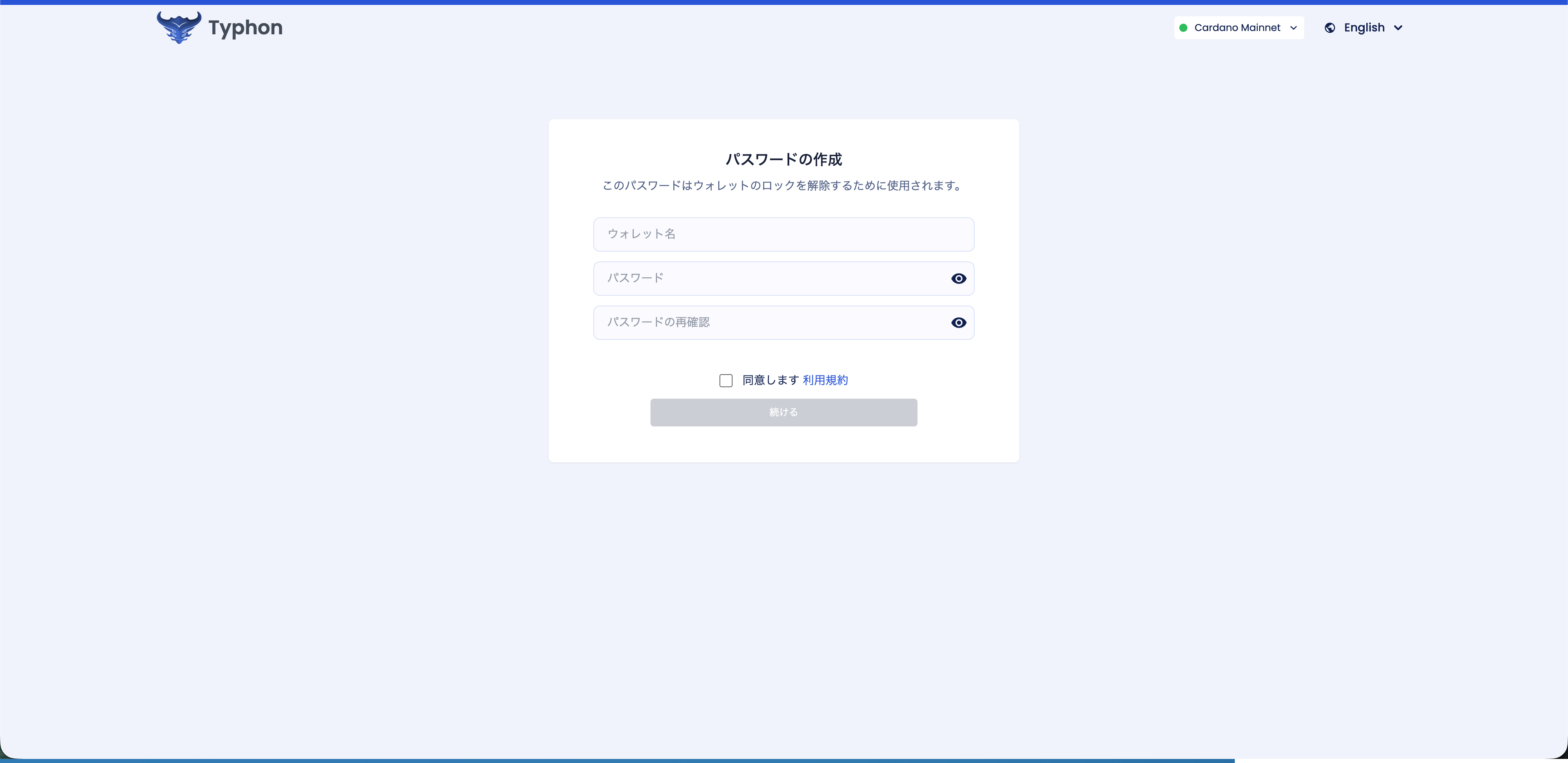
- On the "Create Password" screen, enter the "Wallet Name", "Password", and "Confirm Password", review the Terms of Use, check the box to agree, and select "Continue".
Enter a password of at least 8 characters.
Write down the password on paper or another medium in advance as well.
- On the "Mnemonic" screen, enter the recovery phrase you have stored.
Select "12", "15", or "24" in the upper-right corner according to the number of words in your recovery phrase. In most cases, this should be "15" or "24".
In this example, a 24-word recovery phrase is used to restore the wallet.
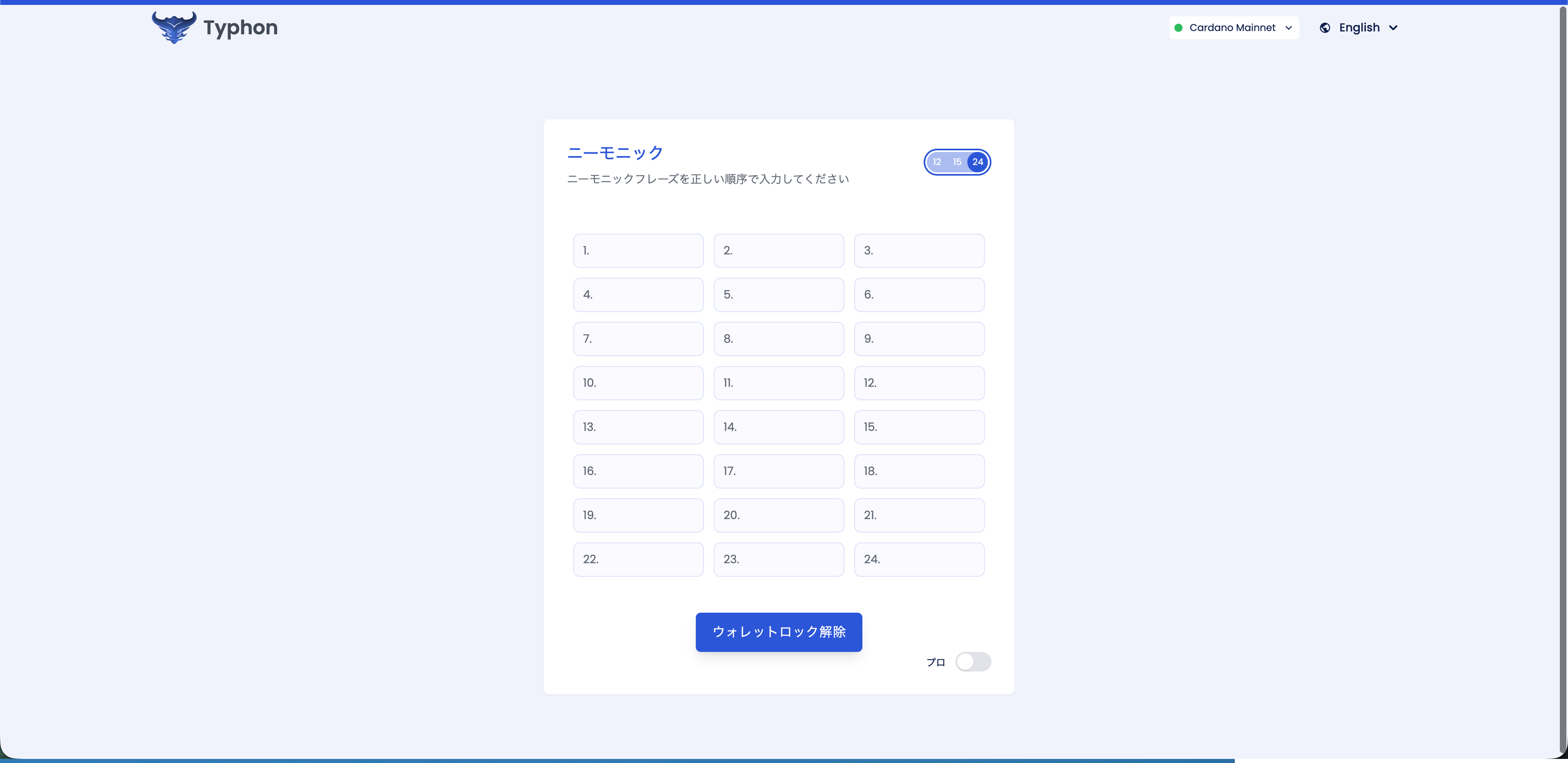
- After entering everything correctly, select "Unlock Wallet".
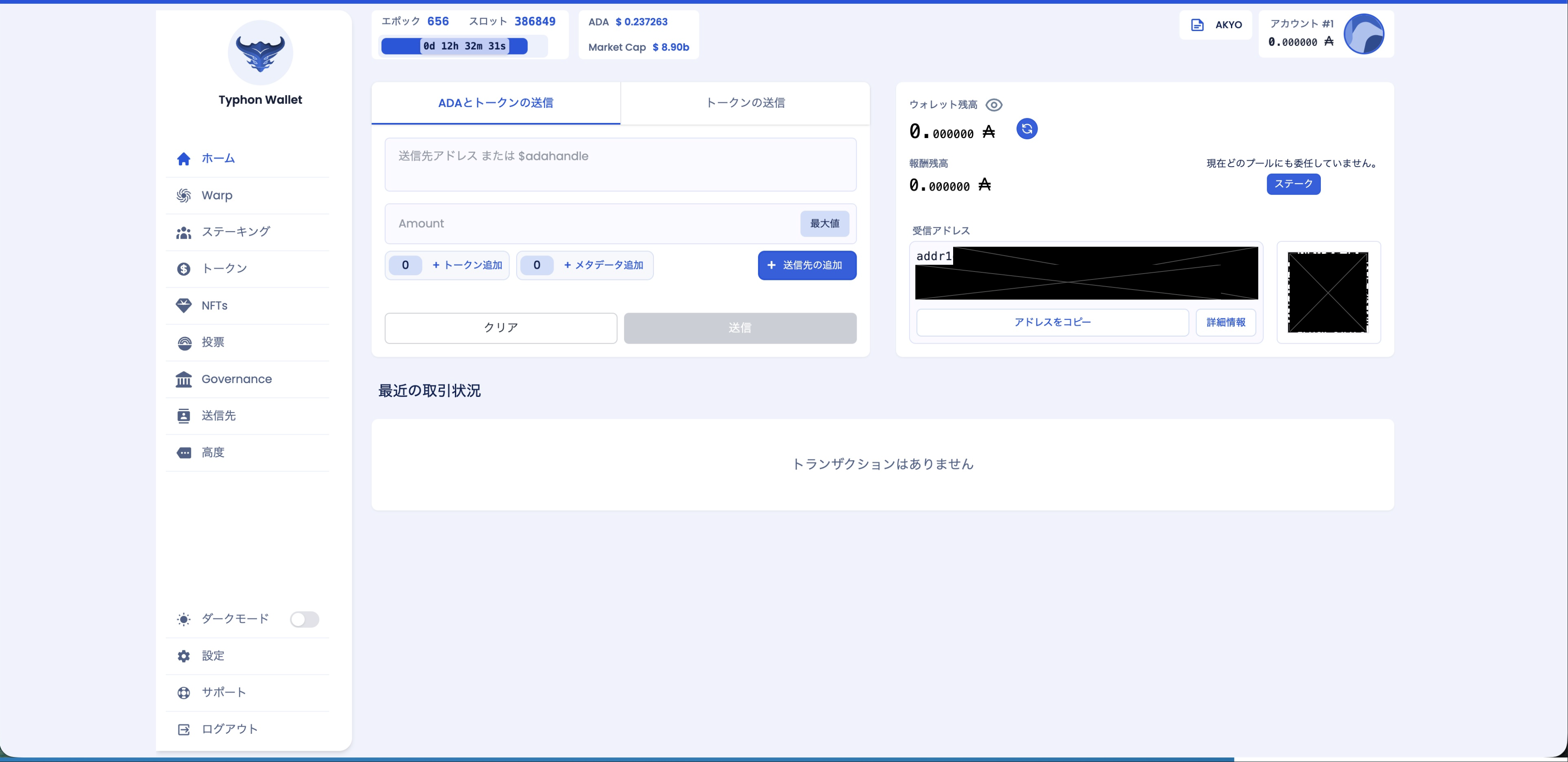
- The wallet created with Yoroi Wallet or another wallet has now been restored.