Restore the wallet using the recovery phrase
Restore
-
Select "Add Wallet", then select "Restore".
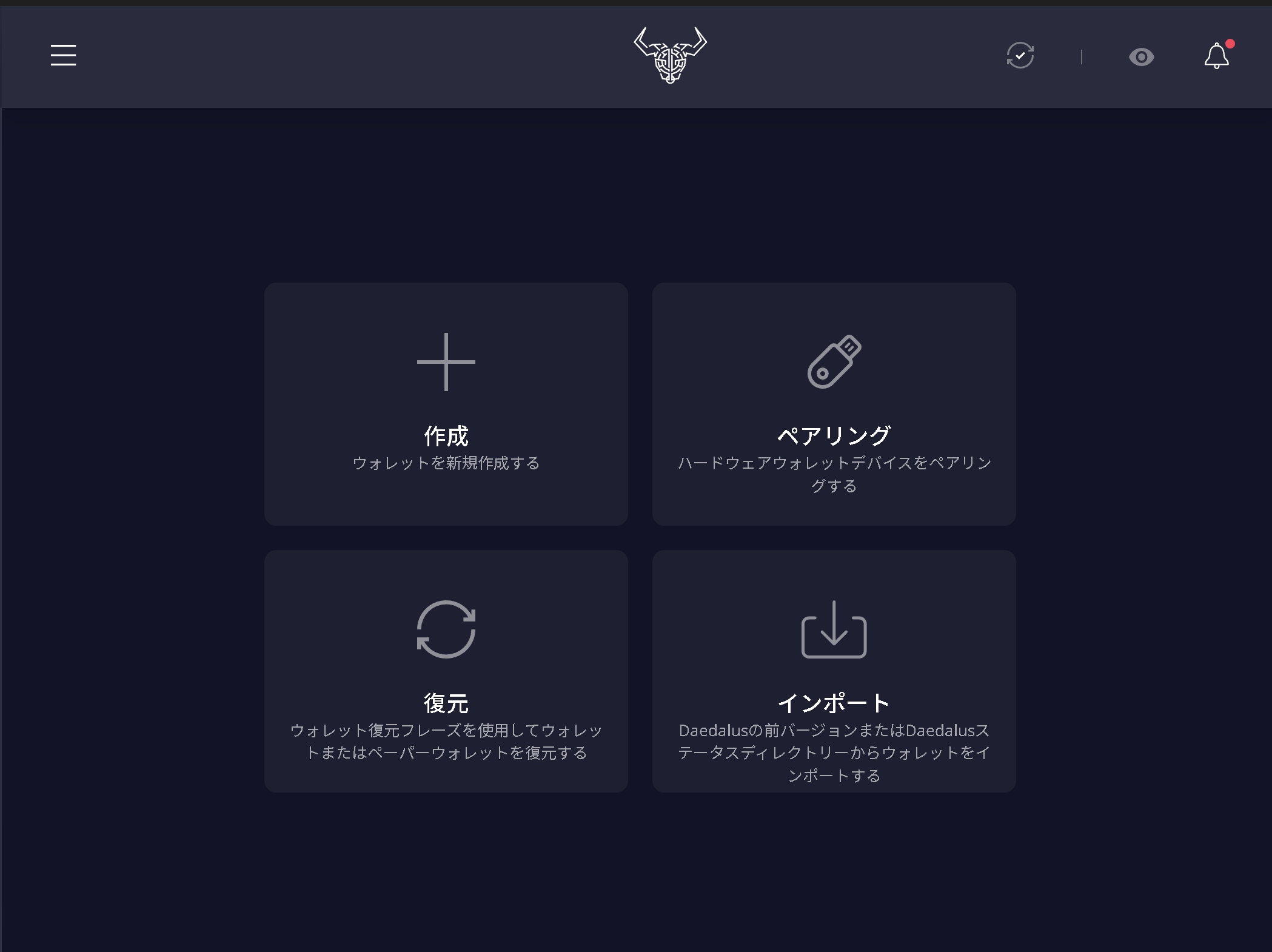
-
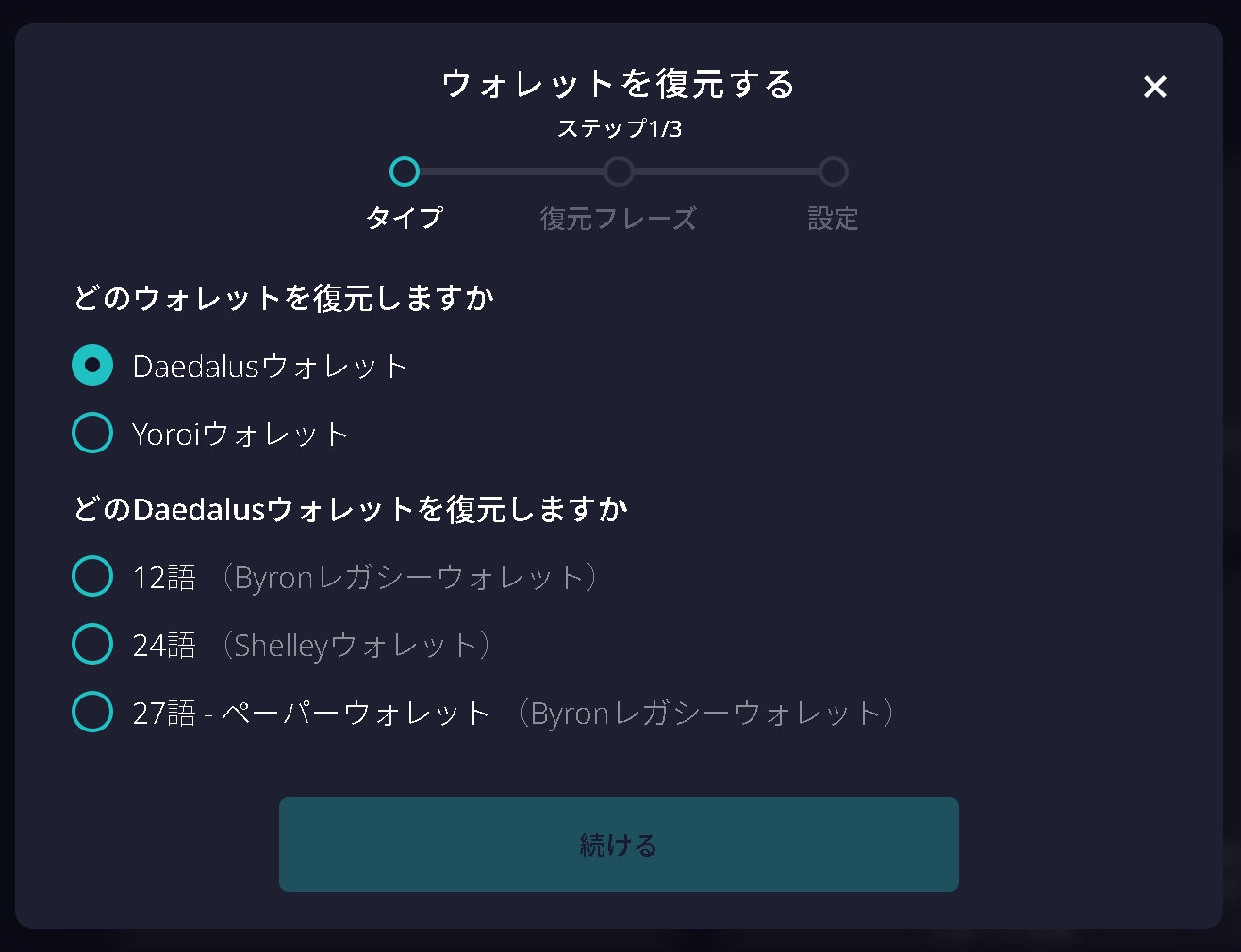
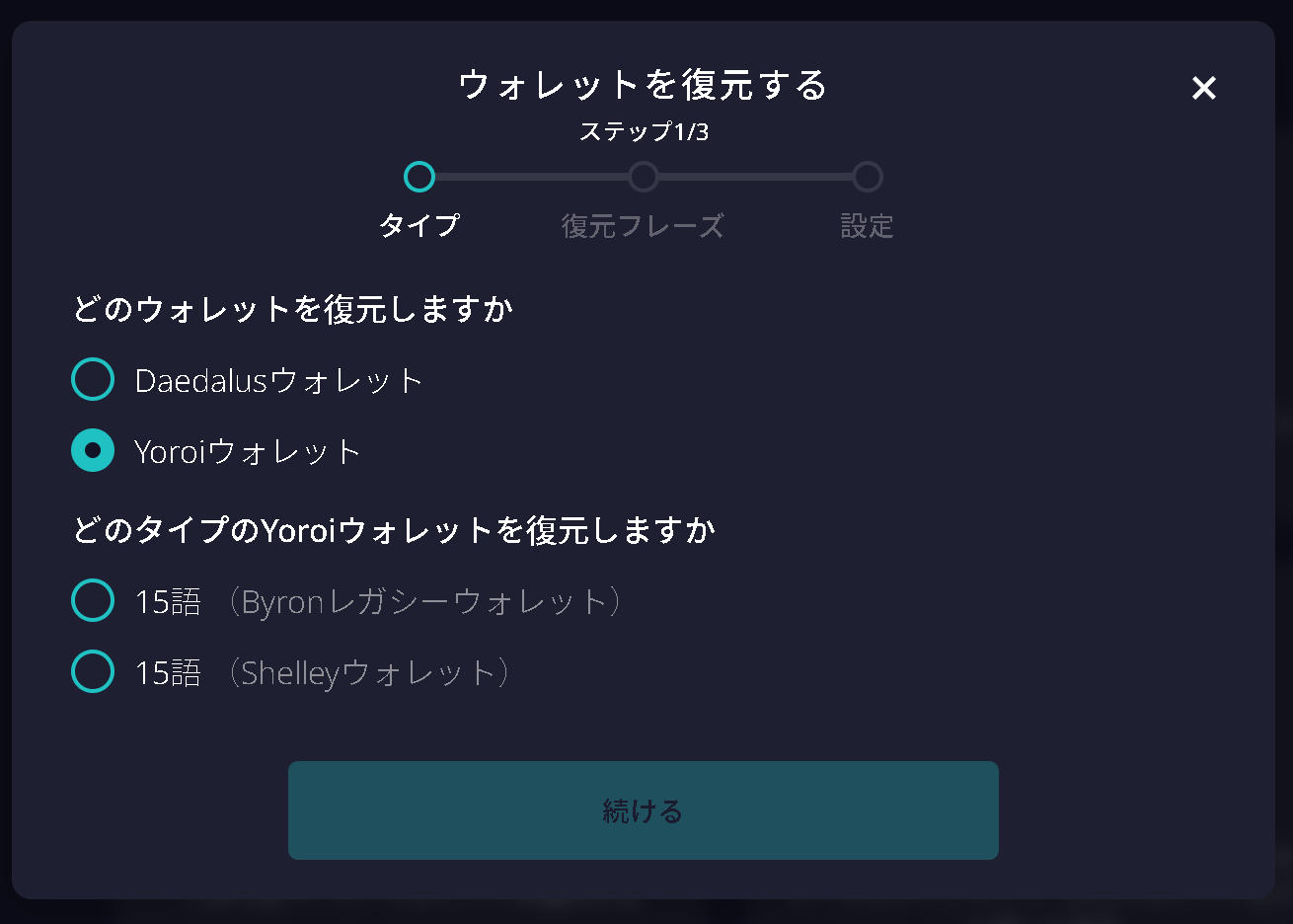
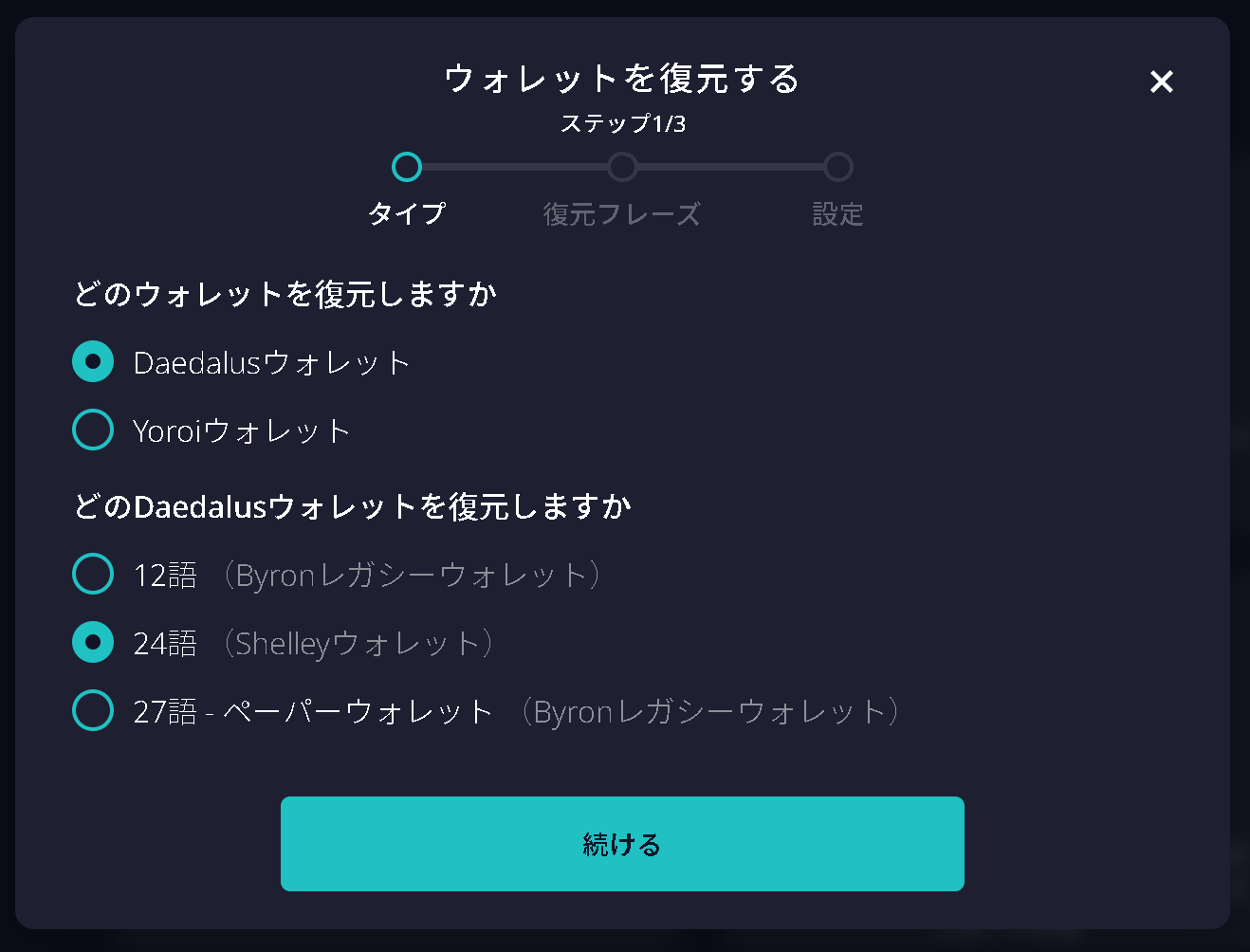
On the "Restore Wallet" screen, select the type of wallet you want to restore.
Note: Although the options are divided into Daedalus Wallet and Yoroi Wallet, they are actually distinguished by the number of recovery phrase words (12, 15, 24, or 27 words). Wallets created with Yoroi use a 15-word recovery phrase.
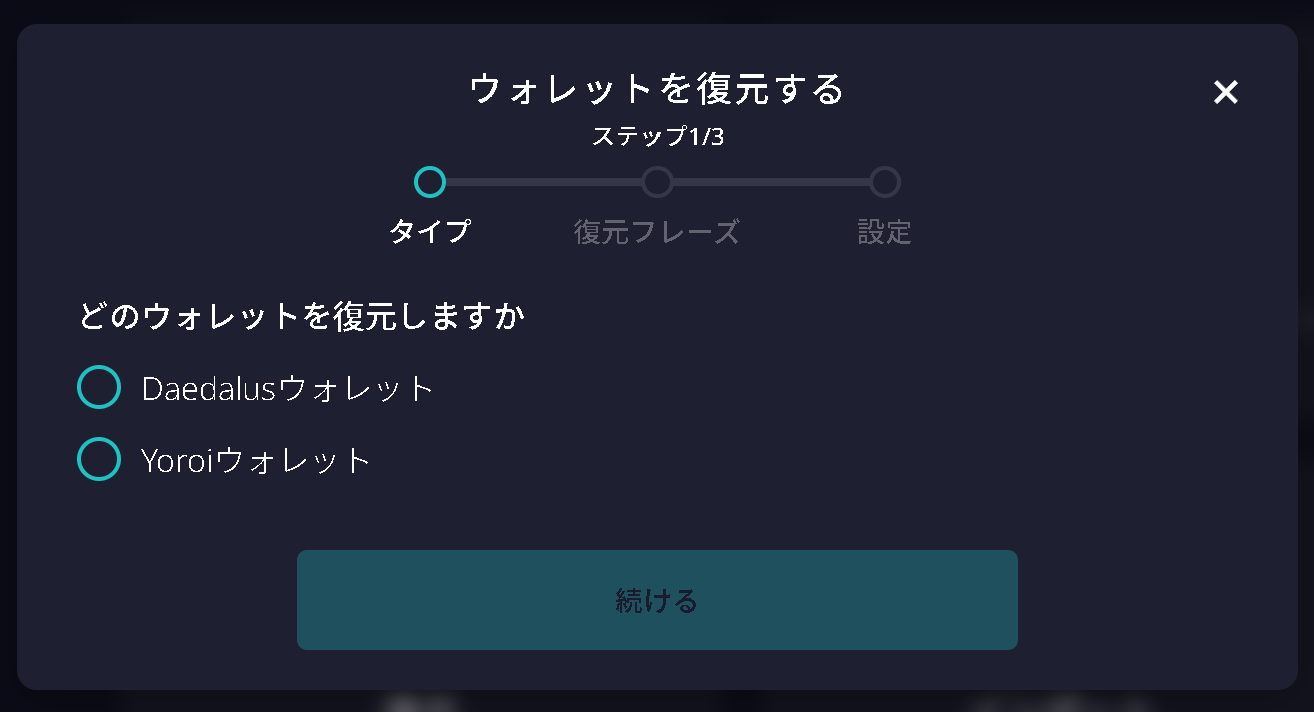
Which wallet would you like to restore?
Daedalus Wallet
Yoroi Wallet
Note: Yoroi has been rebranded as SecondFi. However, SecondFi was affected by an attack that exploited a security vulnerability and is currently operating in isolation mode (only functions for checking whether your wallet has been compromised are available). After restoring your wallet, create a new wallet and transfer your assets to it. In addition, SecondFi (formerly Yoroi) has announced that its service will be discontinued. Once you have completed the necessary steps, you will no longer be able to use it, so continued use is not recommended.
In this example, we will restore a Shelley (24-word) wallet.
-
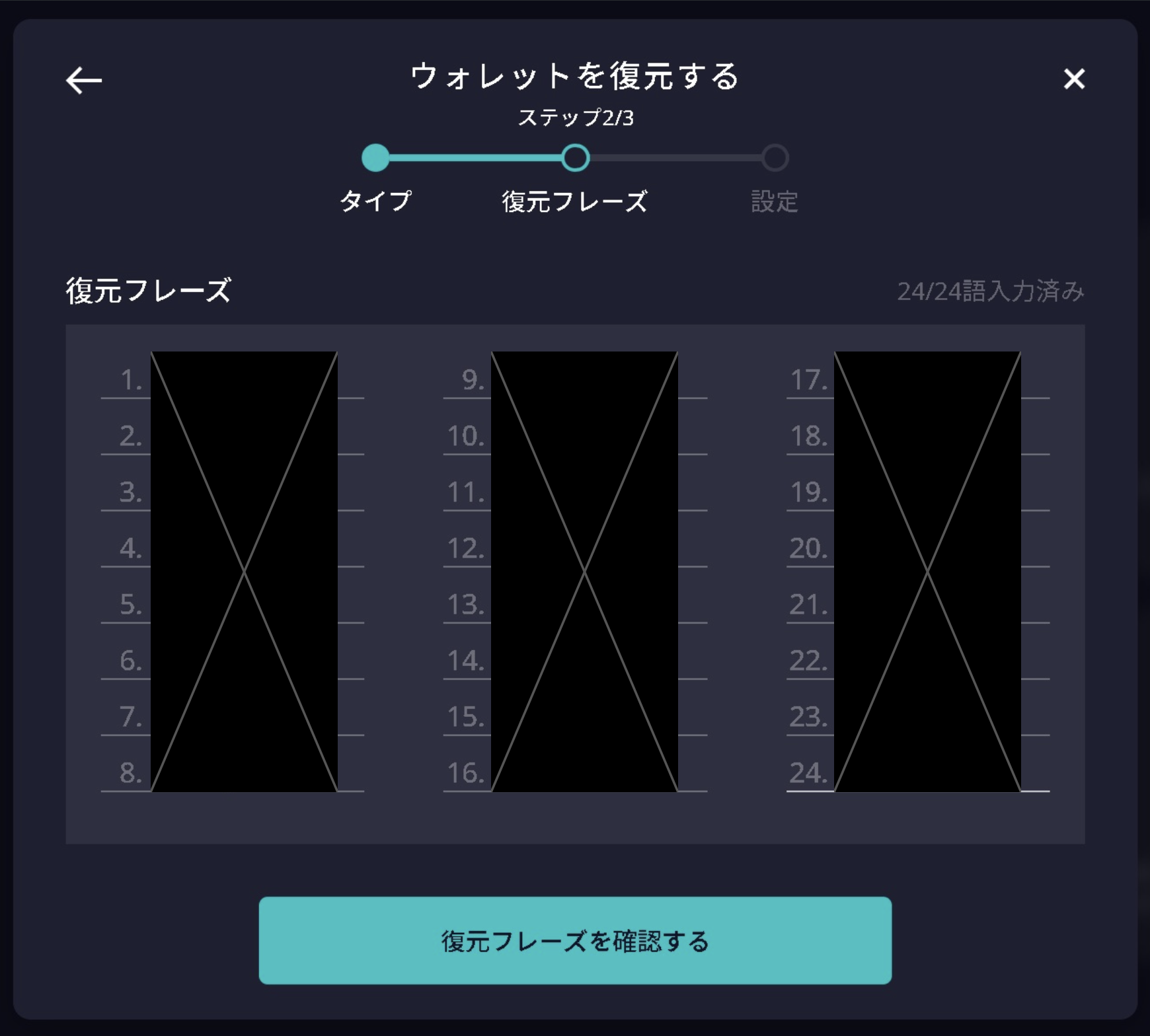
Enter your recovery phrase in the correct order.
-
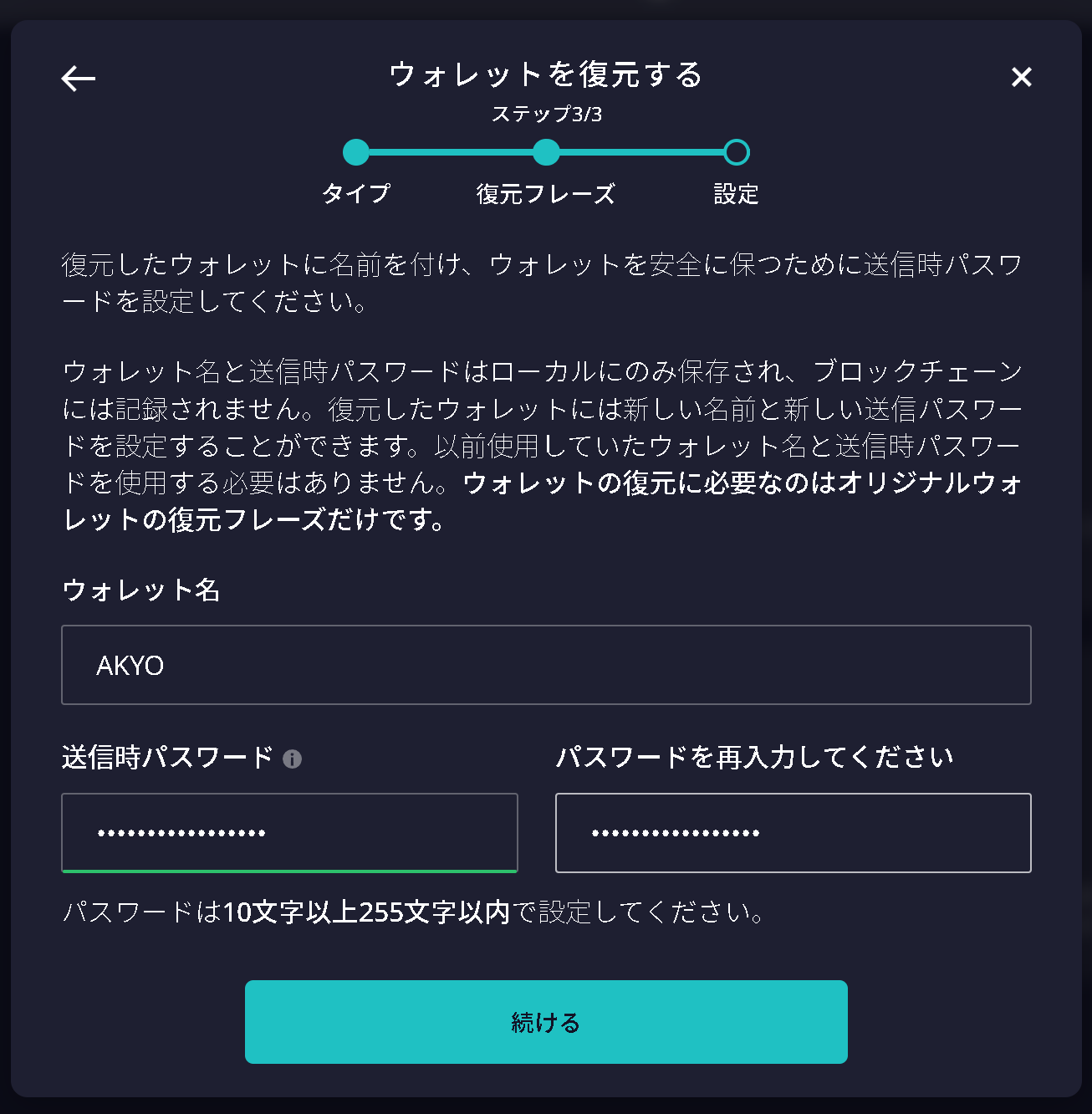
Set the Wallet Name, Spending Password, and Confirm Password, then select "Continue".
-
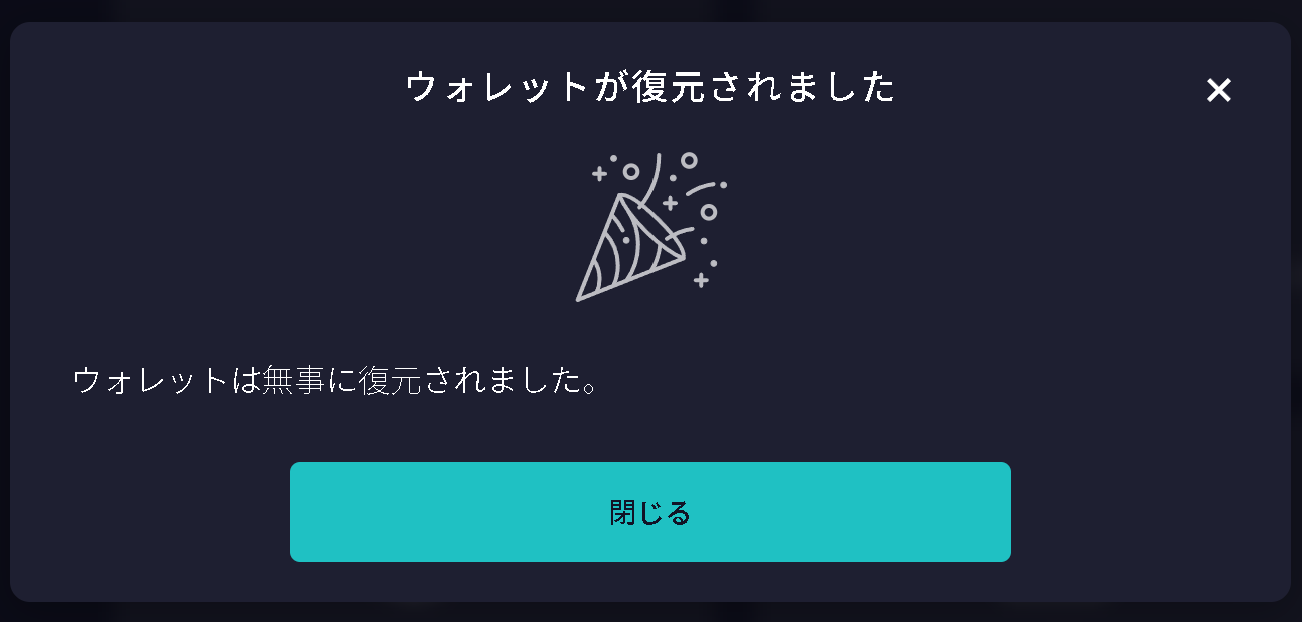
Your wallet has been restored. Please wait until synchronization is complete.