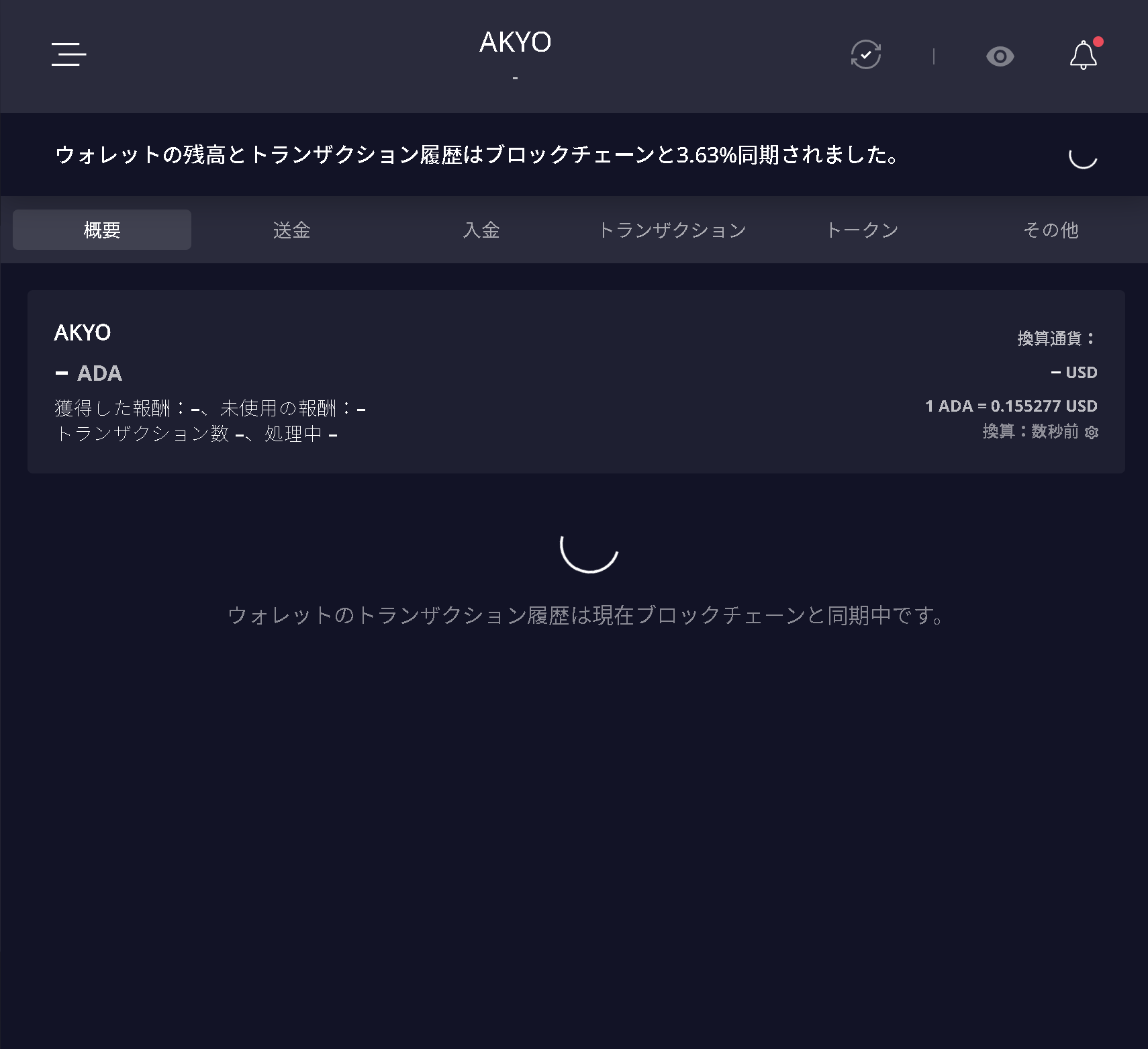
How to Set Up Daedalus Wallet
Daedalus is only available as a desktop application for PC (Microsoft Windows/Linux) and Apple Mac. There is no mobile version of Daedalus for Android or iOS.
Since no mobile app exists, never download any application claiming to be Daedalus on mobile devices.
Recommended Hardware Requirements
- 64-bit dual-core processor
- 24 GB RAM (32 GB recommended)
- 250–300 GB of available disk space (storage requirements will continue to increase over time)
- Broadband Internet connection
The initial installation typically takes about 30 minutes to 1 hour, depending on your computer's performance.
Daedalus is continuously updated.
This guide is based on the interface available at the time these instructions were created, so the layout and displayed content may differ slightly depending on the version you are using.
Download and Installation
Please download Daedalus from the official website below.
https://cardano.org
-
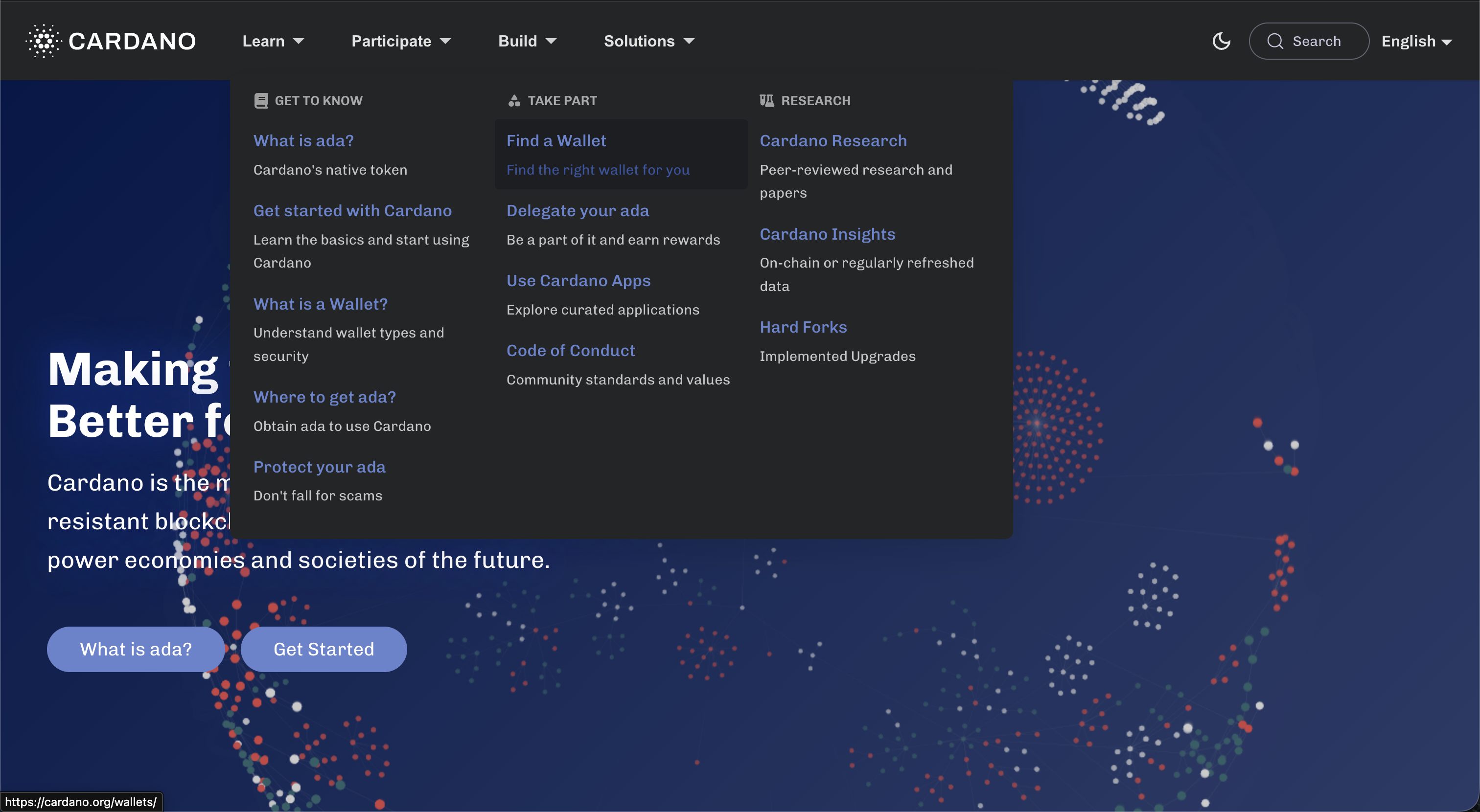
Once you access the official website, select "Learn" → "TAKE PART" → "Find a Wallet".
-
Scroll down to find "Daedalus", then select "Visit Website".
-
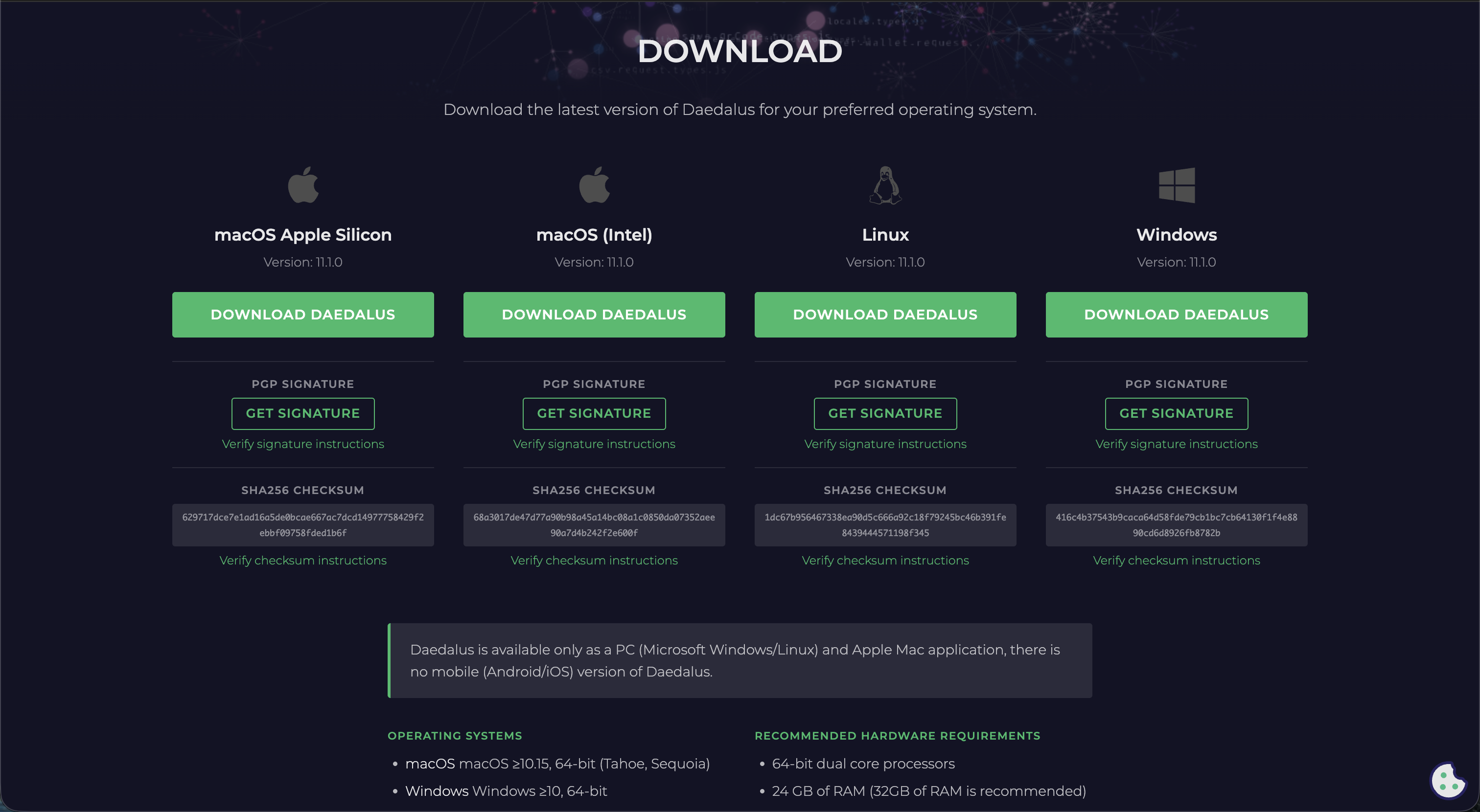
Once you are redirected to the official download page, select "DOWNLOAD", then choose "DOWNLOAD DAEDALUS" for your computer's operating system to begin the download.
-
After the download is complete, you will find a file with a name similar to
daedalus-11.1.0-*****-mainnet-*********-*********-darwin.pkgin your Downloads folder. Open the file and install Daedalus just as you would any other application.
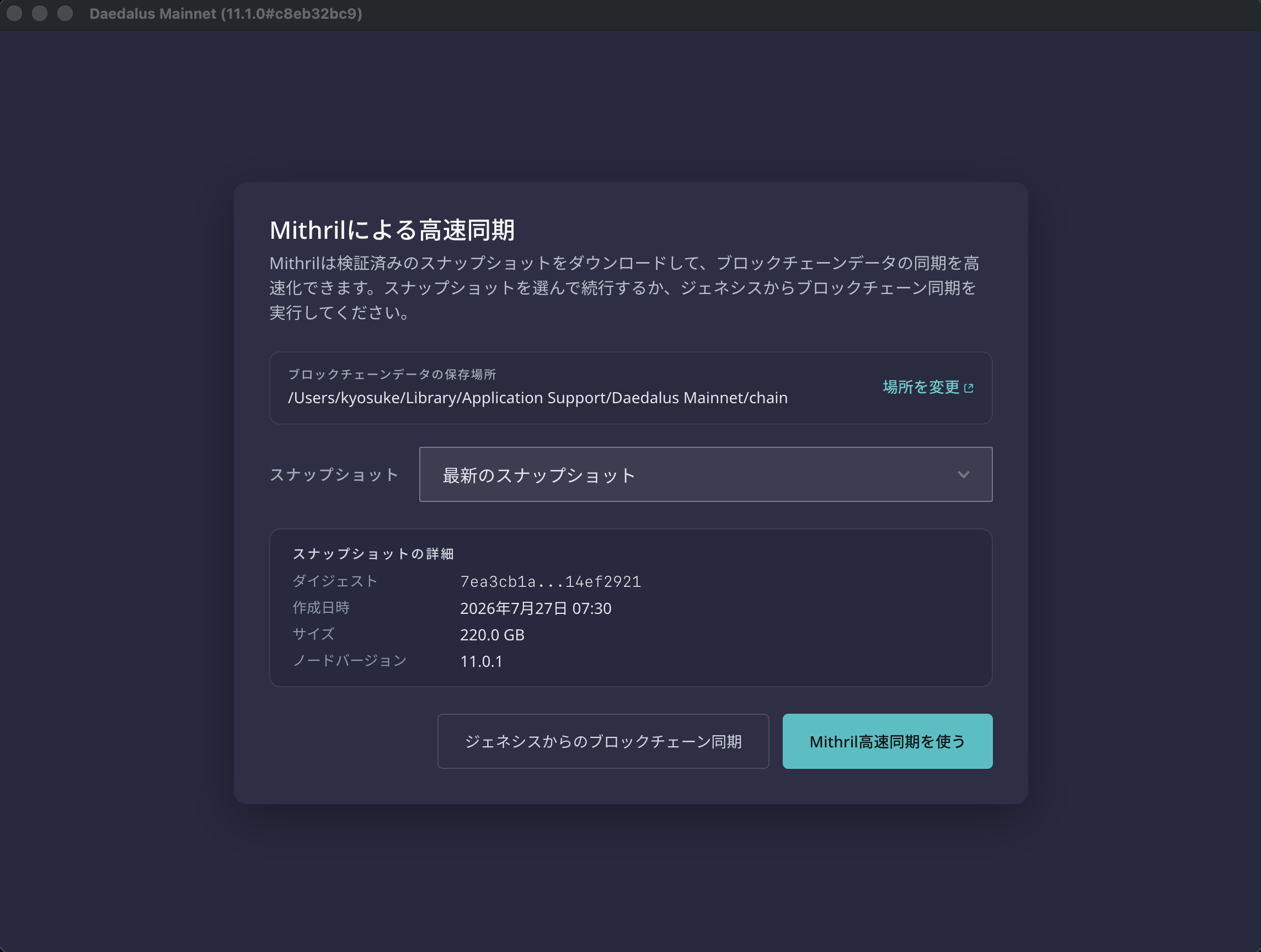
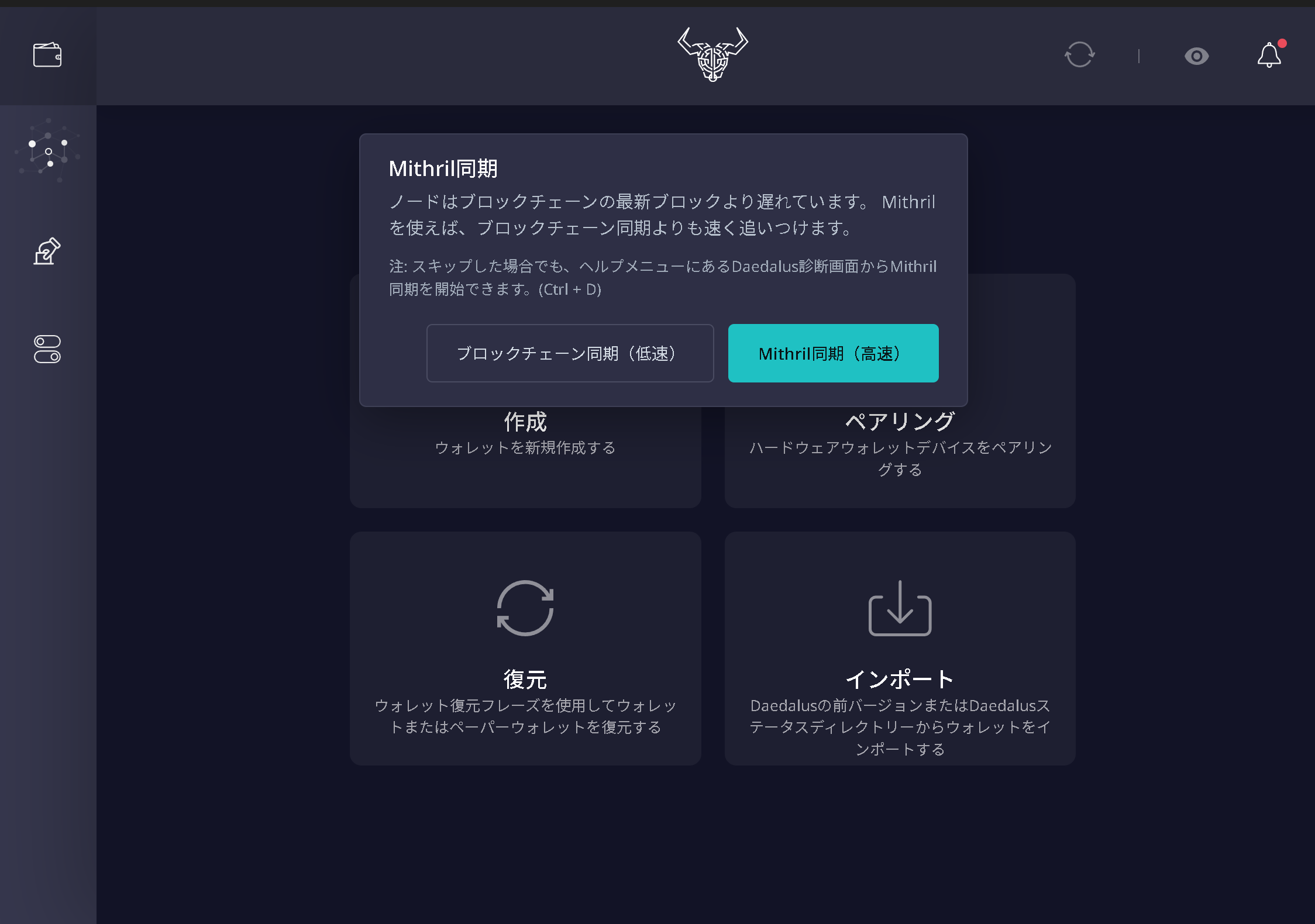
Note: After installation, as you proceed through the setup, you will see a "Use Mithril Fast Sync" button. We recommend using this option, as it significantly speeds up the synchronization process.
Creating a Wallet
-
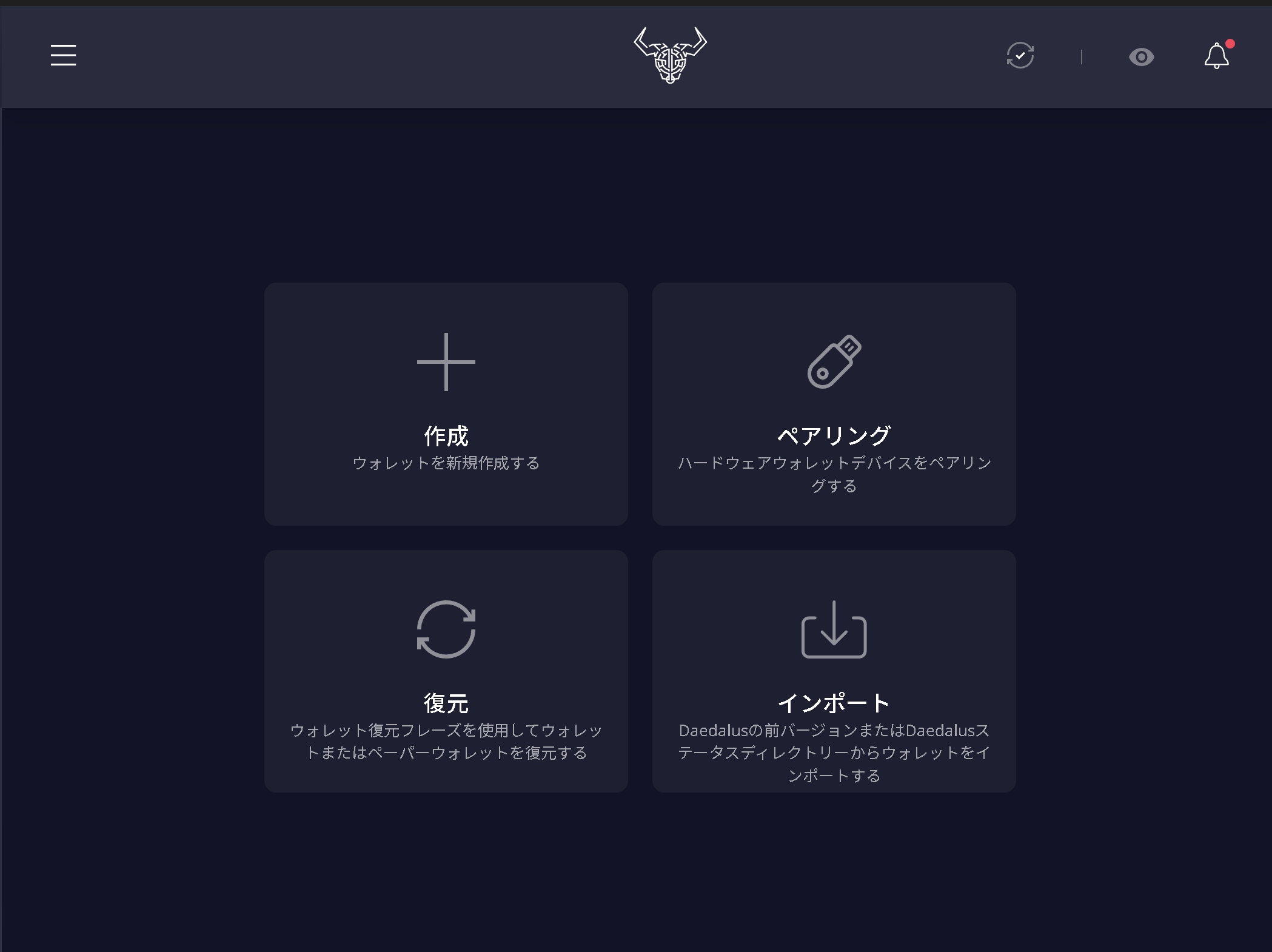
Click "Add Wallet", then click "Create".
-
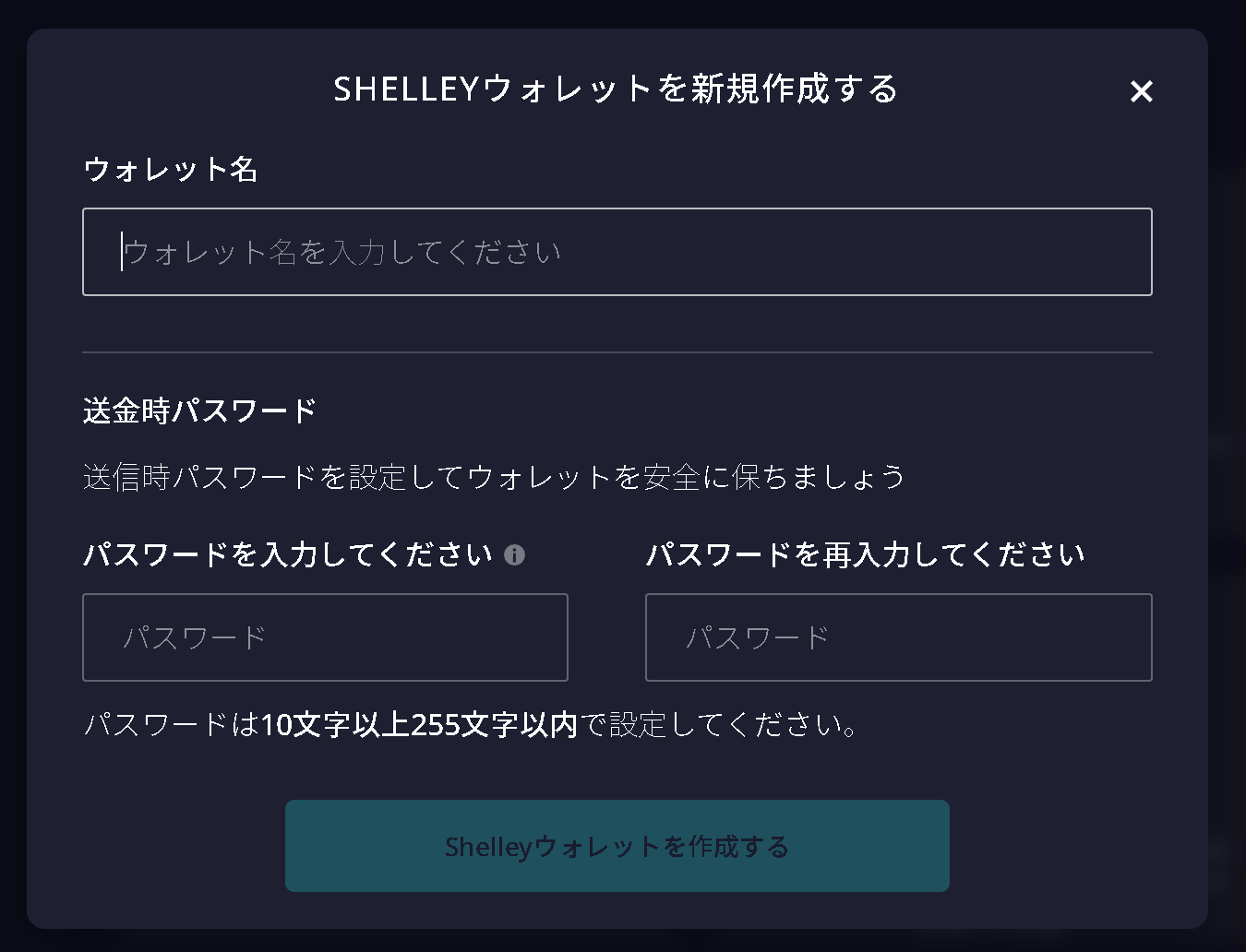
You may choose any name you like for the "Wallet Name".
Set your Spending Password to between 10 and 255 characters.
Write it down on paper or another secure medium, and be sure to keep a backup.
Then click "Create a New Shelley Wallet".
-
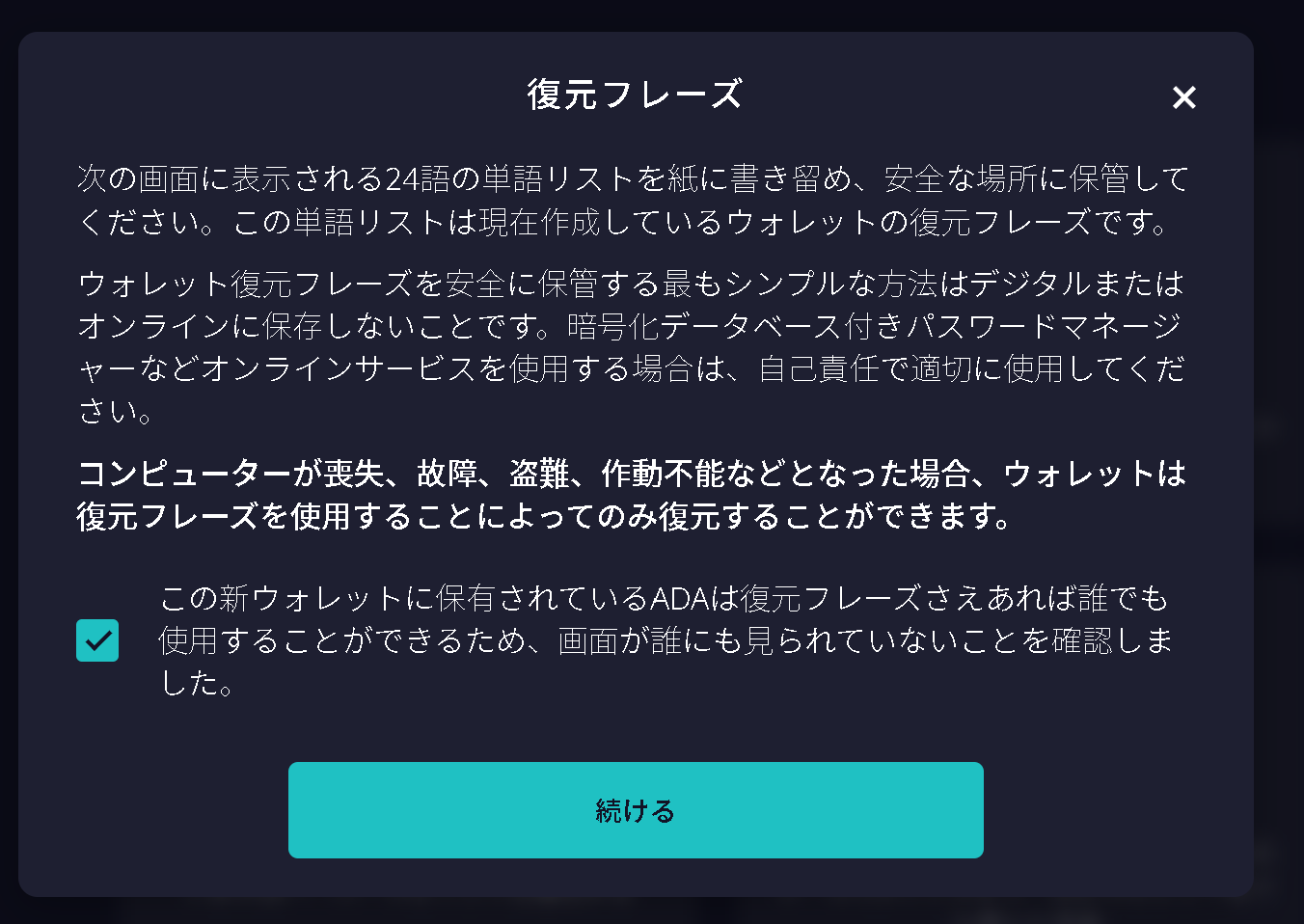
Once you have confirmed that no one else can see your screen, check the box and click "Continue".
-
Carefully write down the 24-word recovery phrase on paper in the correct order.
Then click "Yes, I have written down my wallet recovery phrase".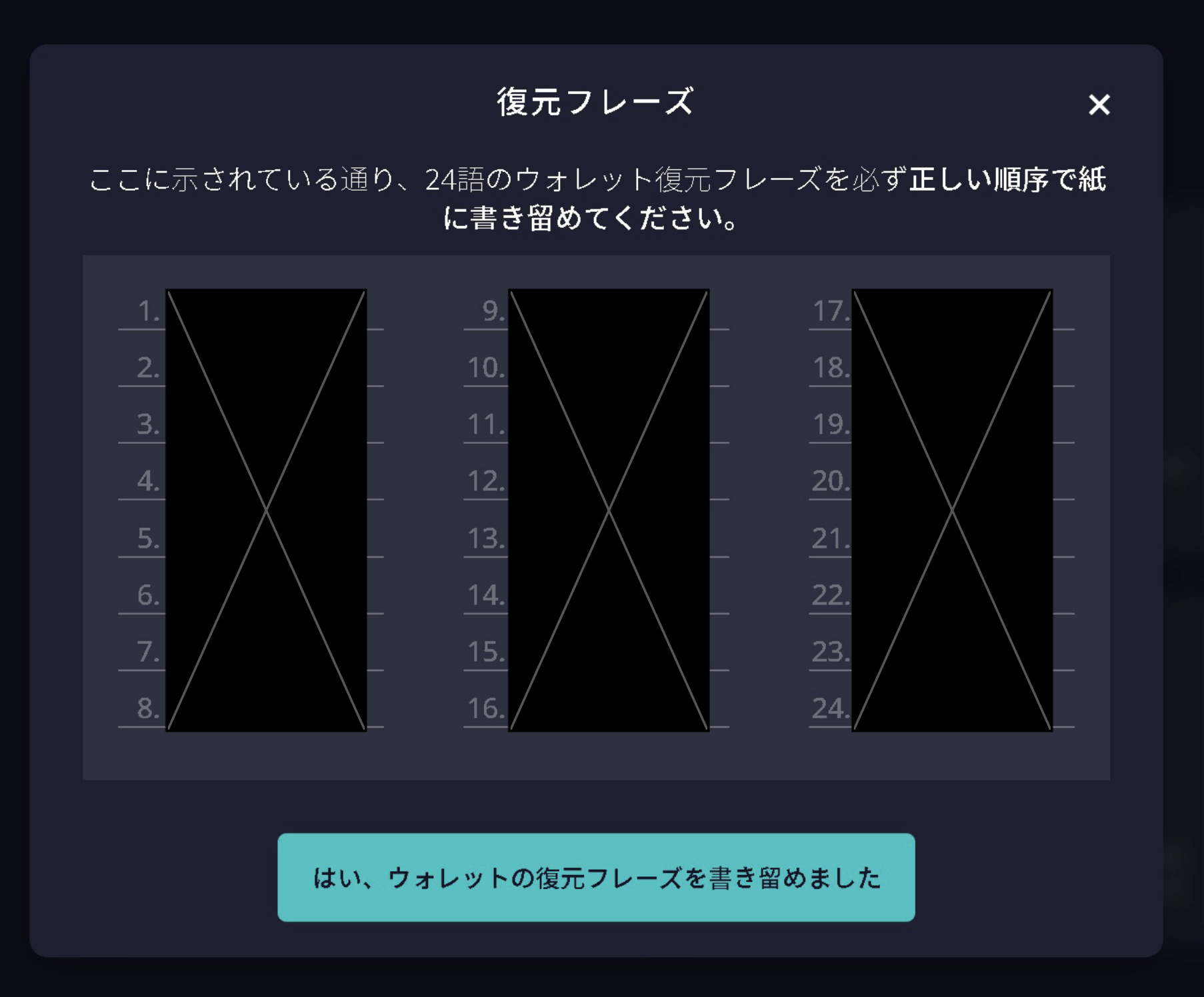
-
Enter the 24-word recovery phrase you wrote down in the correct order.
Then click "Confirm".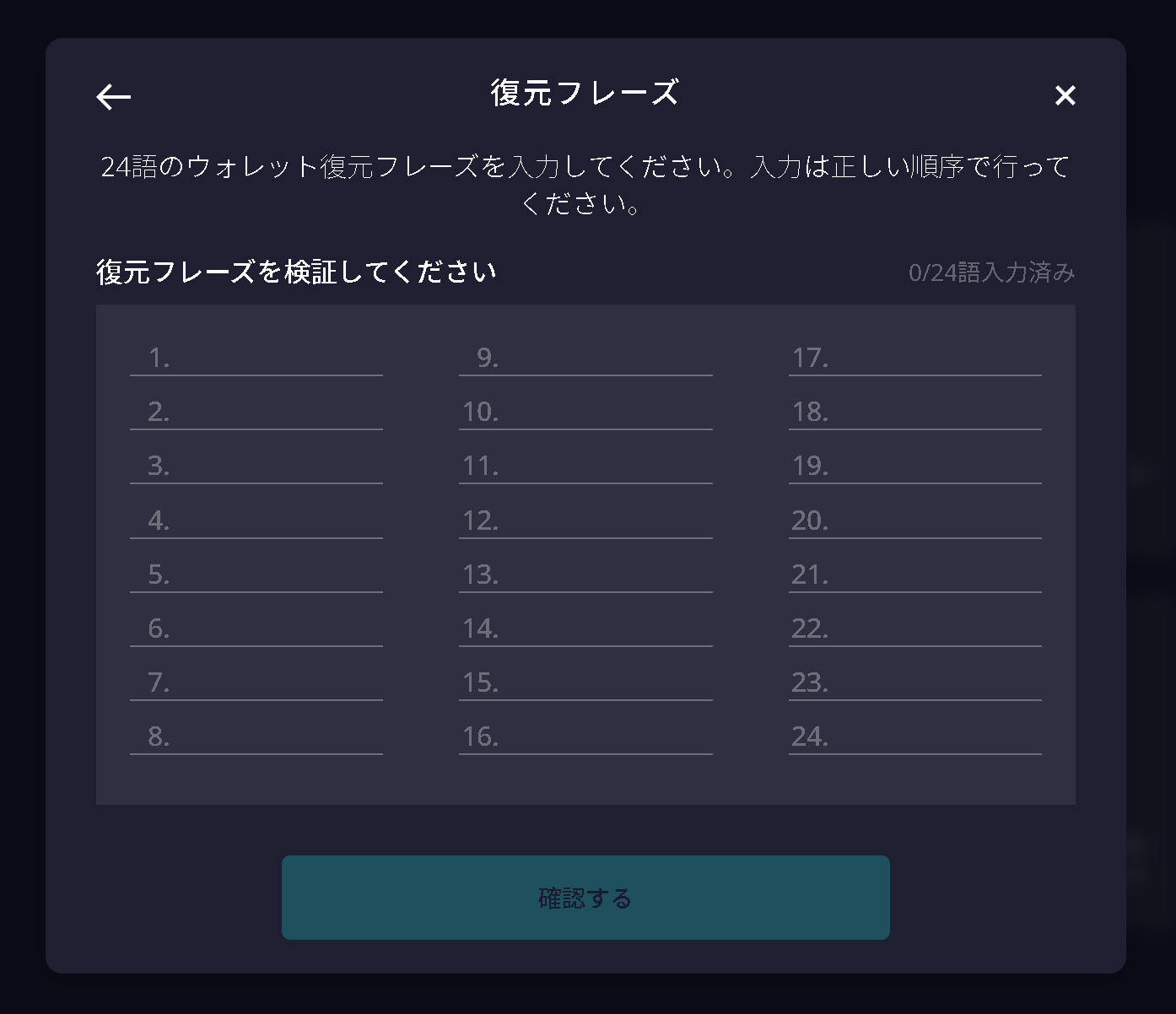
-
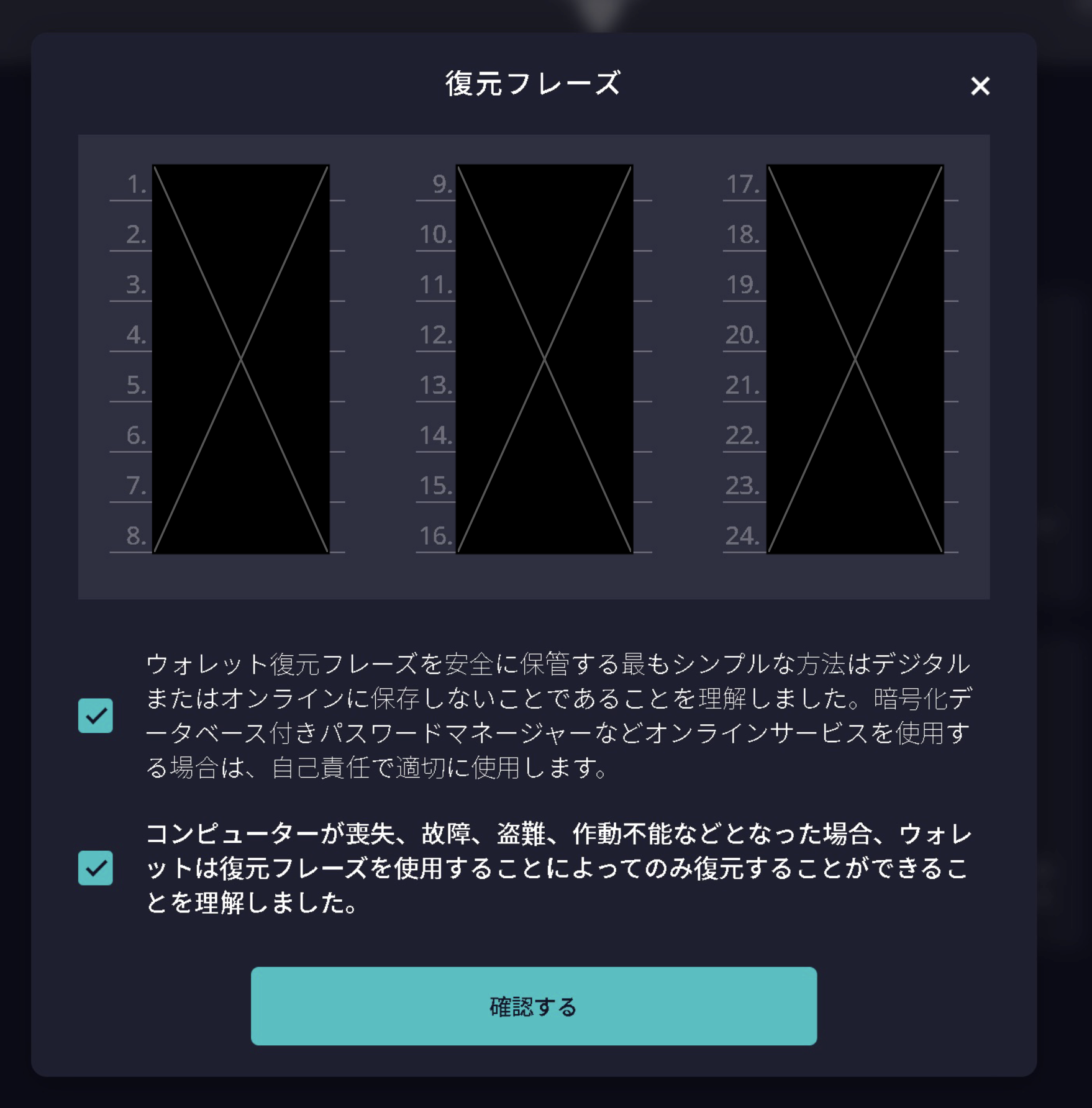
After you have read and understood the information, check the box and click "Confirm".
-
Your new wallet has been created.
Once synchronization with the blockchain is complete, your wallet setup is finished.