Update the Firmware
Update the Firmware
There are two ways to update the firmware: via a microSD card or via USB.
Firmware cannot be updated via USB using a smartphone, so use a microSD card when updating from a smartphone.
Using a microSD Card
Prepare a microSD card and a microSD card reader.
A 32 GB or 64 GB microSD card is recommended.
-
Select "Via MicroSD Card".
-
Make sure the Keystone device has at least 40% battery remaining before proceeding.
-
Select the URL shown on the Keystone device to display the QR code, then scan it with your smartphone.
https://keyst.one/firmware -
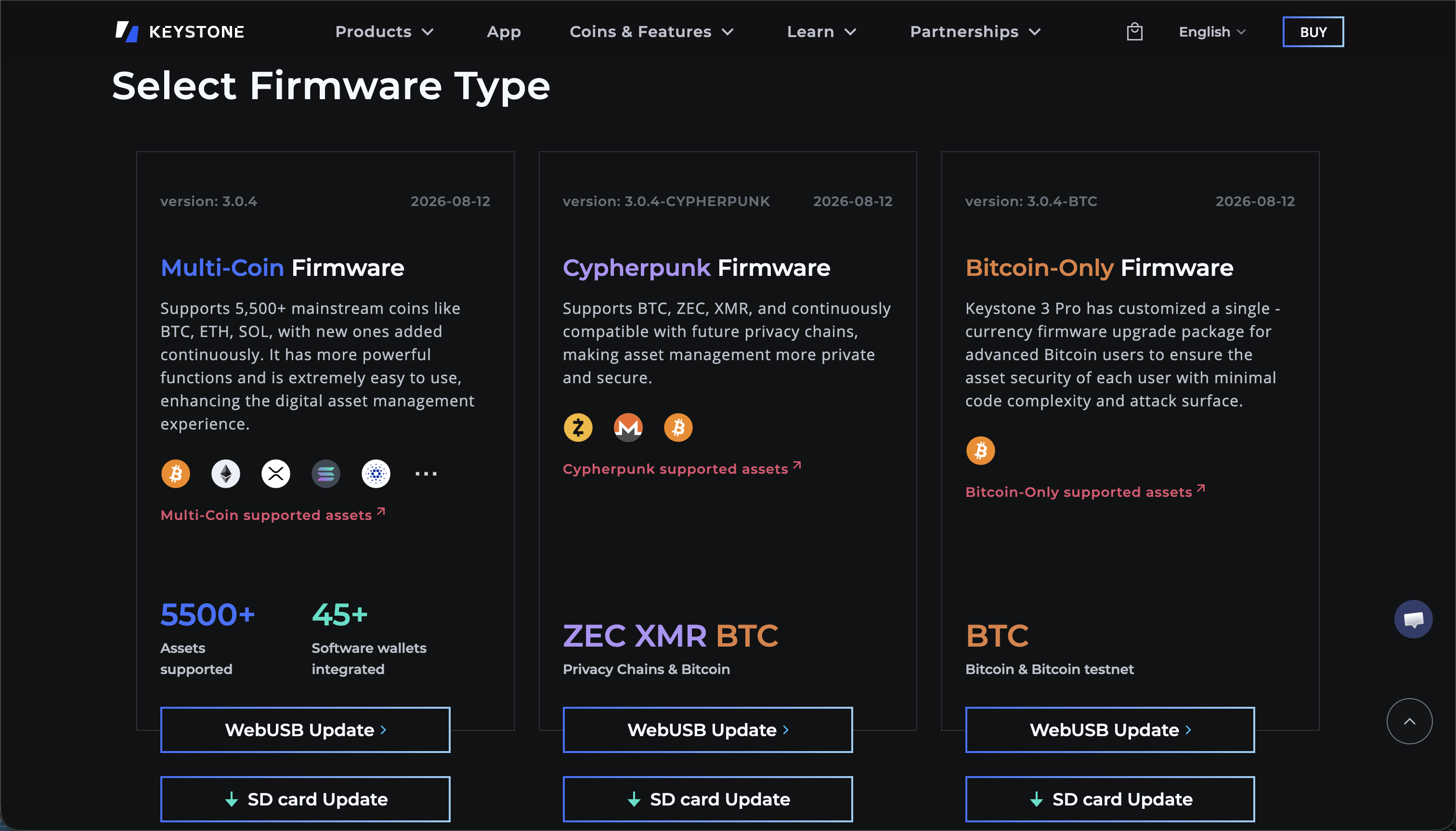
Scroll down the page and select "SD card Update" under "Multi-Coin Firmware" in "Select Firmware Type".
-
Insert the microSD card into the card reader, then connect the card reader to the iPhone's USB-C port.
-
Select the appropriate option based on your current firmware version.
In this example, the firmware version is 2.0.0 or later, so select "2.0.0 or later" on the right.
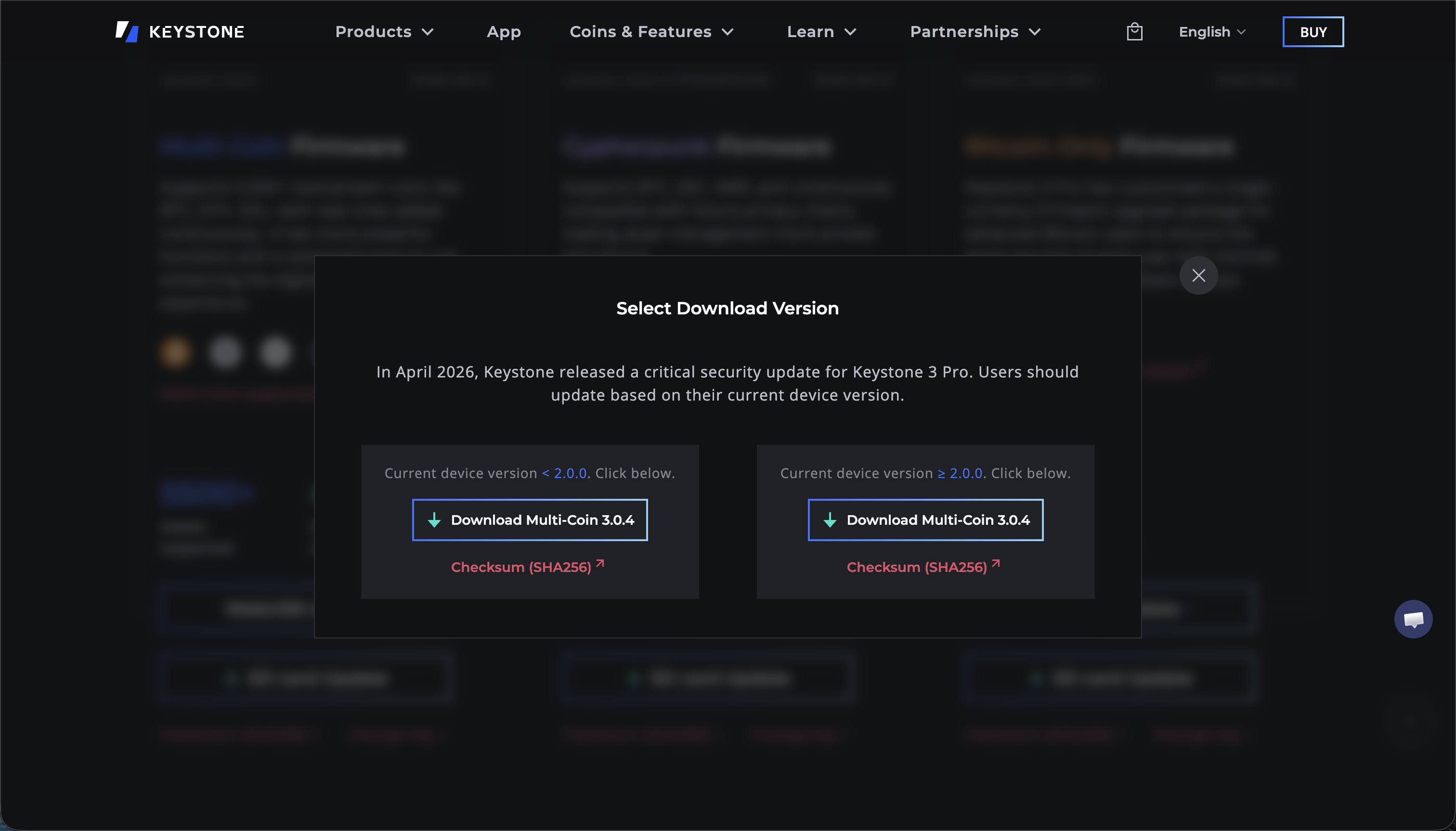
In April 2026, Keystone released an important security update for the Keystone 3 Pro. Follow the appropriate update procedure based on the firmware version currently installed on your device.
- After downloading the firmware, select the icon to the left of the URL, then select "Downloads".
Select the downloaded
keystone3.binfile to open it.
-
After opening
keystone3.bin, select the Share button in the lower-right corner, then select "Save to Files". -
Select the microSD card shown under "Locations".
-
Select "Save" in the upper-right corner.
Once the file has been saved, select the "
×" in the upper-right corner to close it.
Thekeystone3.binfile has now been saved to the microSD card.
-
Disconnect the card reader from the iPhone, remove the microSD card, and insert it into the Keystone device.
-
Select the "Update" button on the Keystone device.
The update will begin. Wait until the process is complete.
The process will proceed from "Upgrade Verification" to "Installing".
- Select "Wallet Preparation" → "Security Upgrade" → "Start".
Once the process is complete, the firmware update is finished.
Using USB
Use a computer for this method.
-
Select "Via USB".
-
Make sure the Keystone device has at least 40% battery remaining before proceeding.
-
Go to the following URL.
https://keyst.one/firmware -
Scroll down the page and select "WebUSB Update" under "Multi-Coin Firmware" in "Select Firmware Type".
-
Connect the computer and the Keystone device using a USB-C cable.
When "Connect to this device?" is displayed on the Keystone device, select "Approve".
-
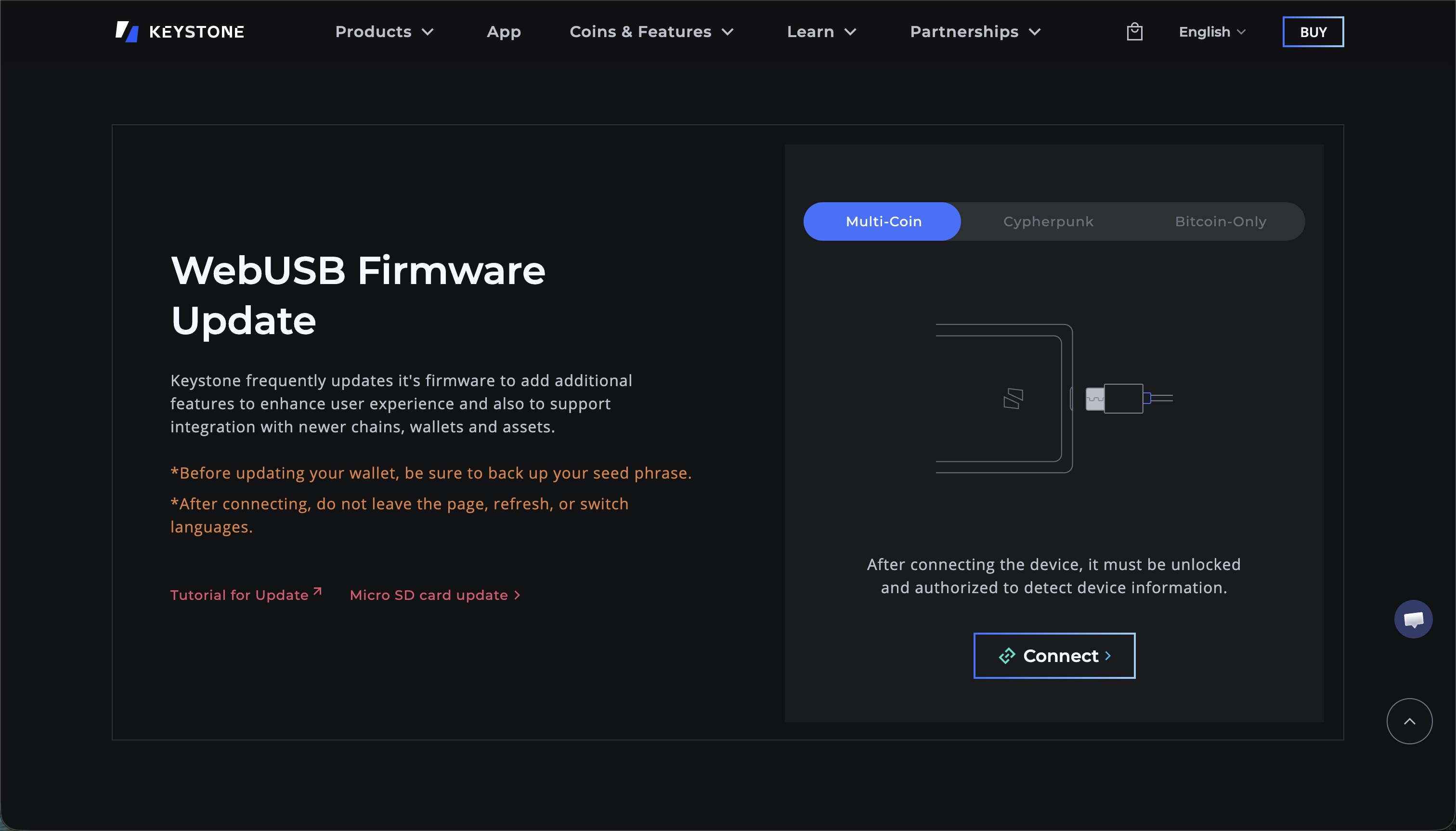
Select "Connect" on the website, then select "Keystone 3 Pro" from the pop-up window to connect the device.
-
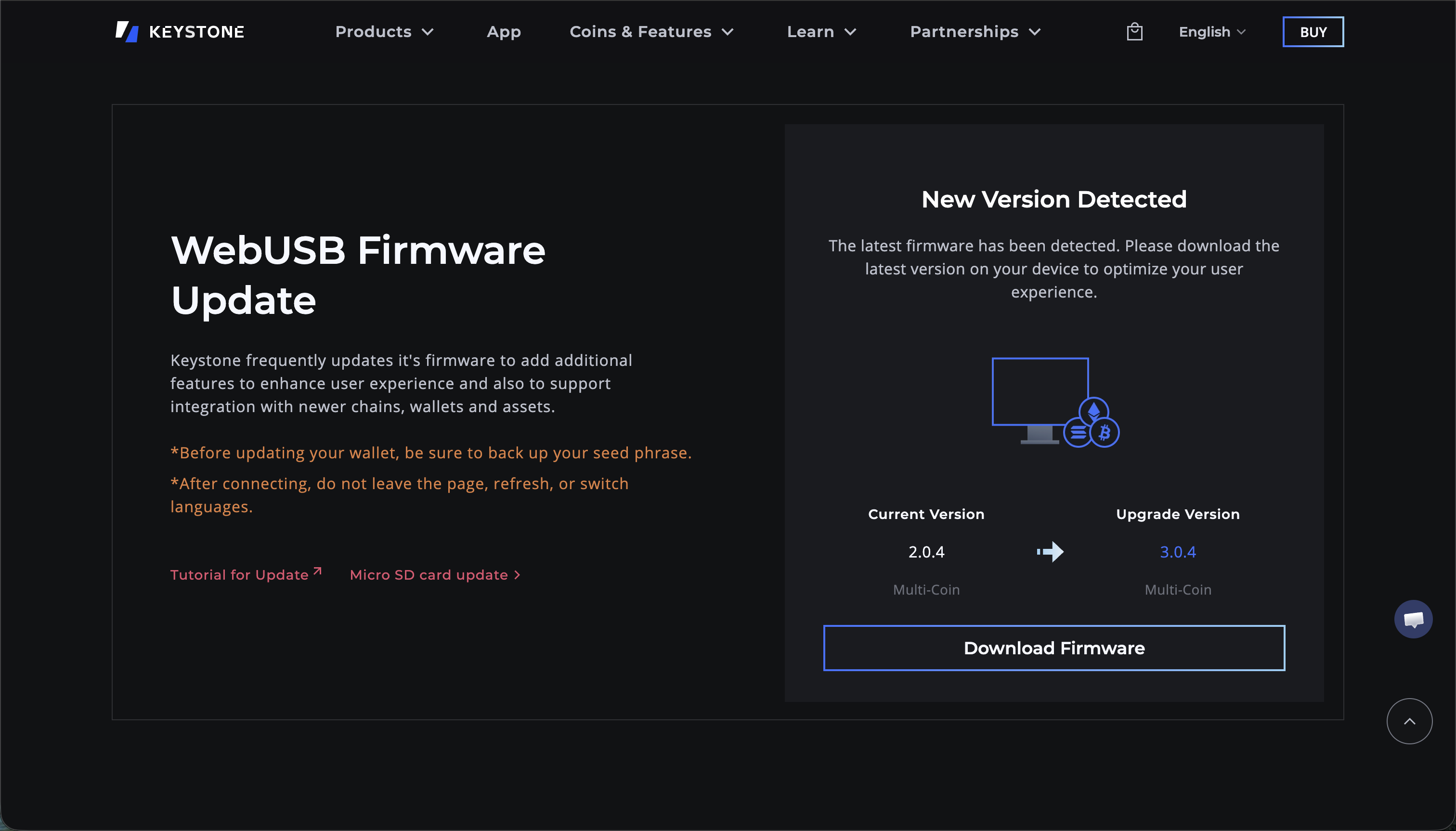
If "New Version Detected" is displayed, a firmware update is required.
Select "Download Firmware".
-
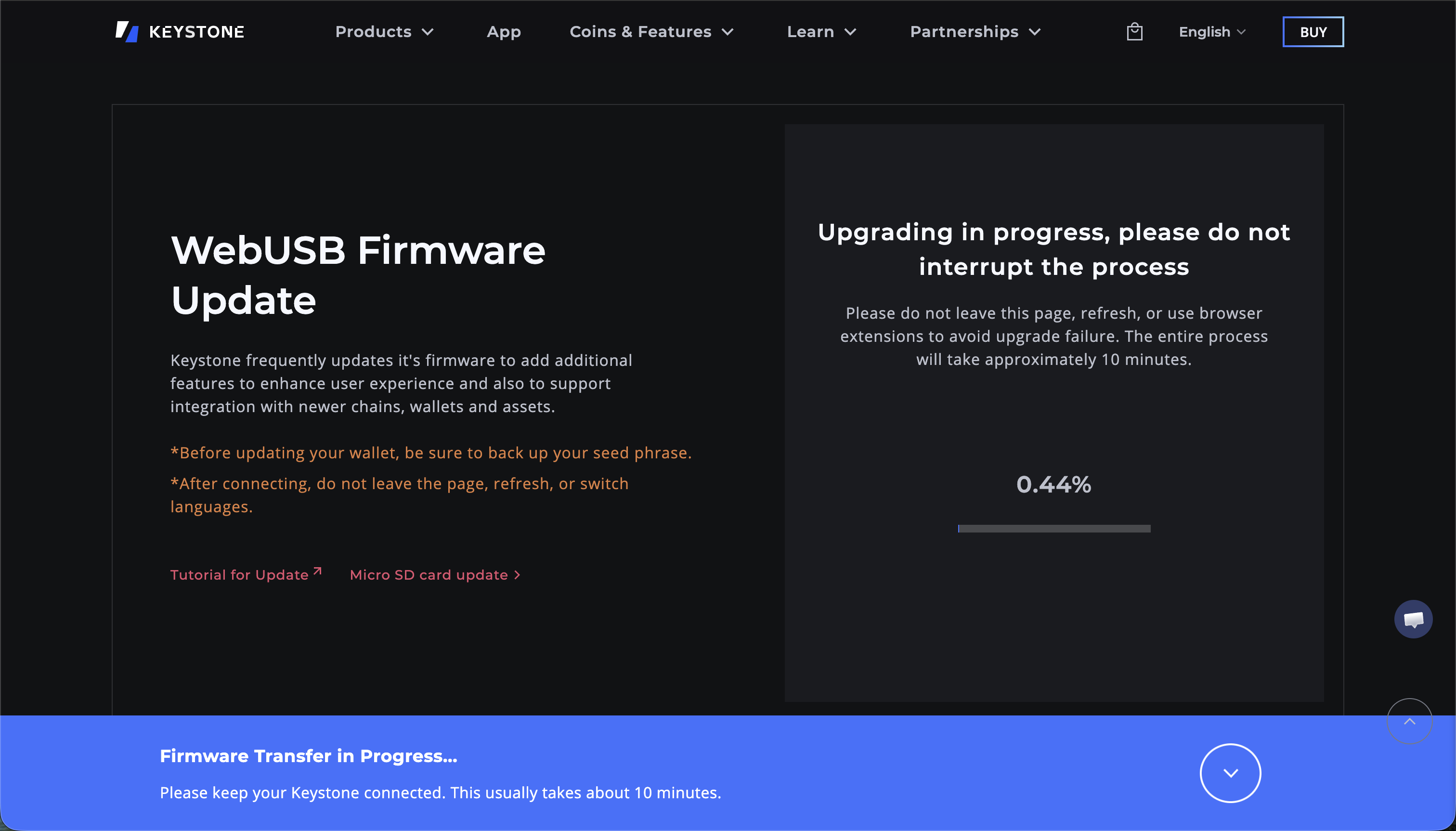
When "Upgrading in progress, please do not interrupt the process" is displayed, wait for the update to proceed.
This takes approximately 10 minutes. Do not disconnect the USB-C cable during the process.
-
When "Download Complete" is displayed, the firmware download is complete.
Installation on the Keystone device takes approximately 5 minutes, so wait until the process is complete.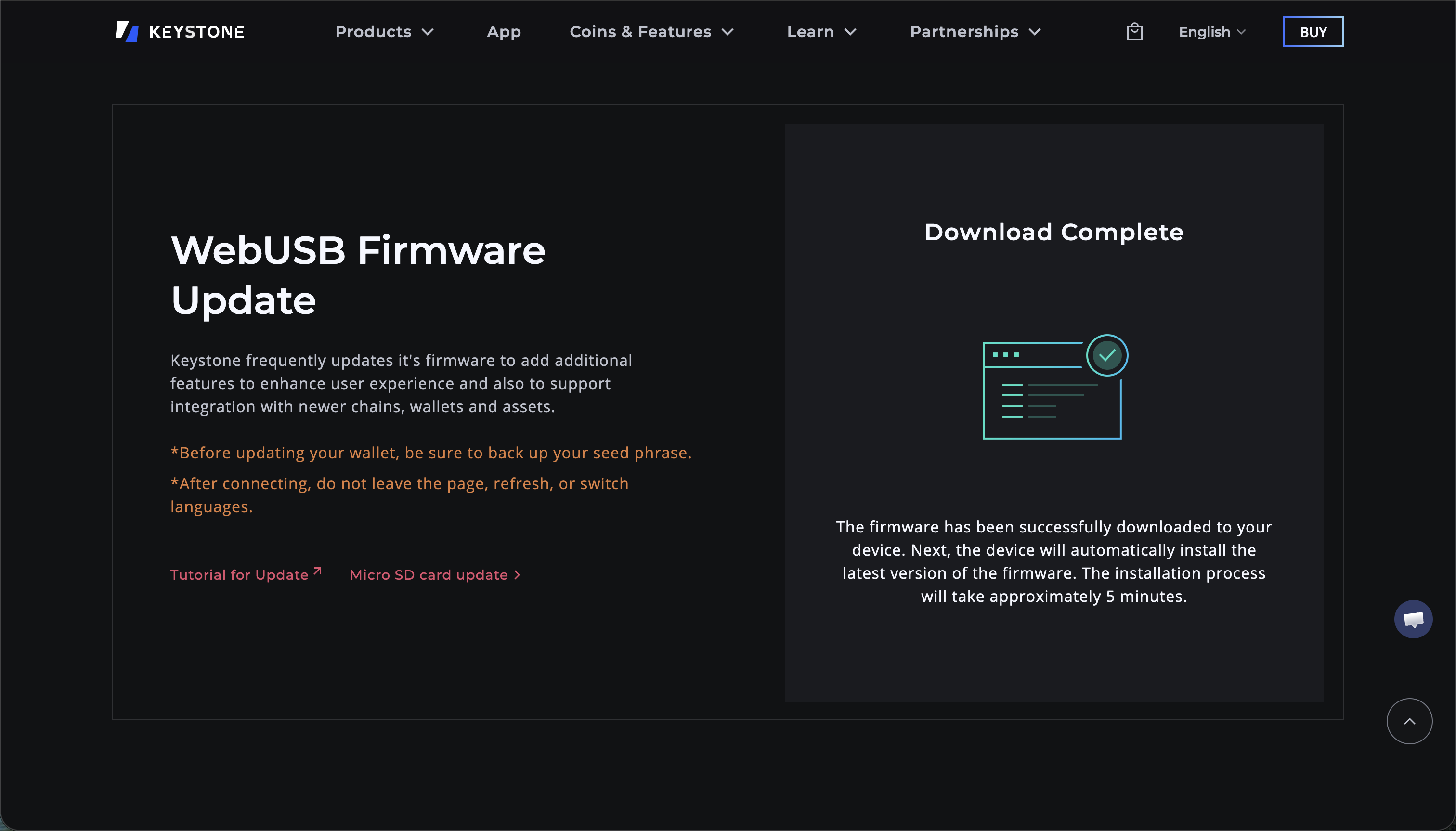
-
Enter your password on the Keystone device.
-
Select "Wallet Preparation" → "Security Upgrade" → "Start".
Once the process is complete, the firmware update is finished.