Verify the Keystone Device
Verify the Keystone Device
When using the Keystone 3 Pro for the first time, start by setting the language.
- Select the language you want to use.
If you want to use Japanese, select "日本語".
- Verify the device to confirm that your Keystone device is genuine and that its firmware has not been tampered with.
Verification
You can use either a computer or smartphone for verification.
The verification process is the same, but the method for opening the authentication page differs.
- If you are using a computer, go to the following URL.
https://keyst.one/authentication
If you are using a smartphone, select the QR code icon under "1. Visit the website to start authentication" on your Keystone device, then scan the displayed QR code using your smartphone's camera app.
-
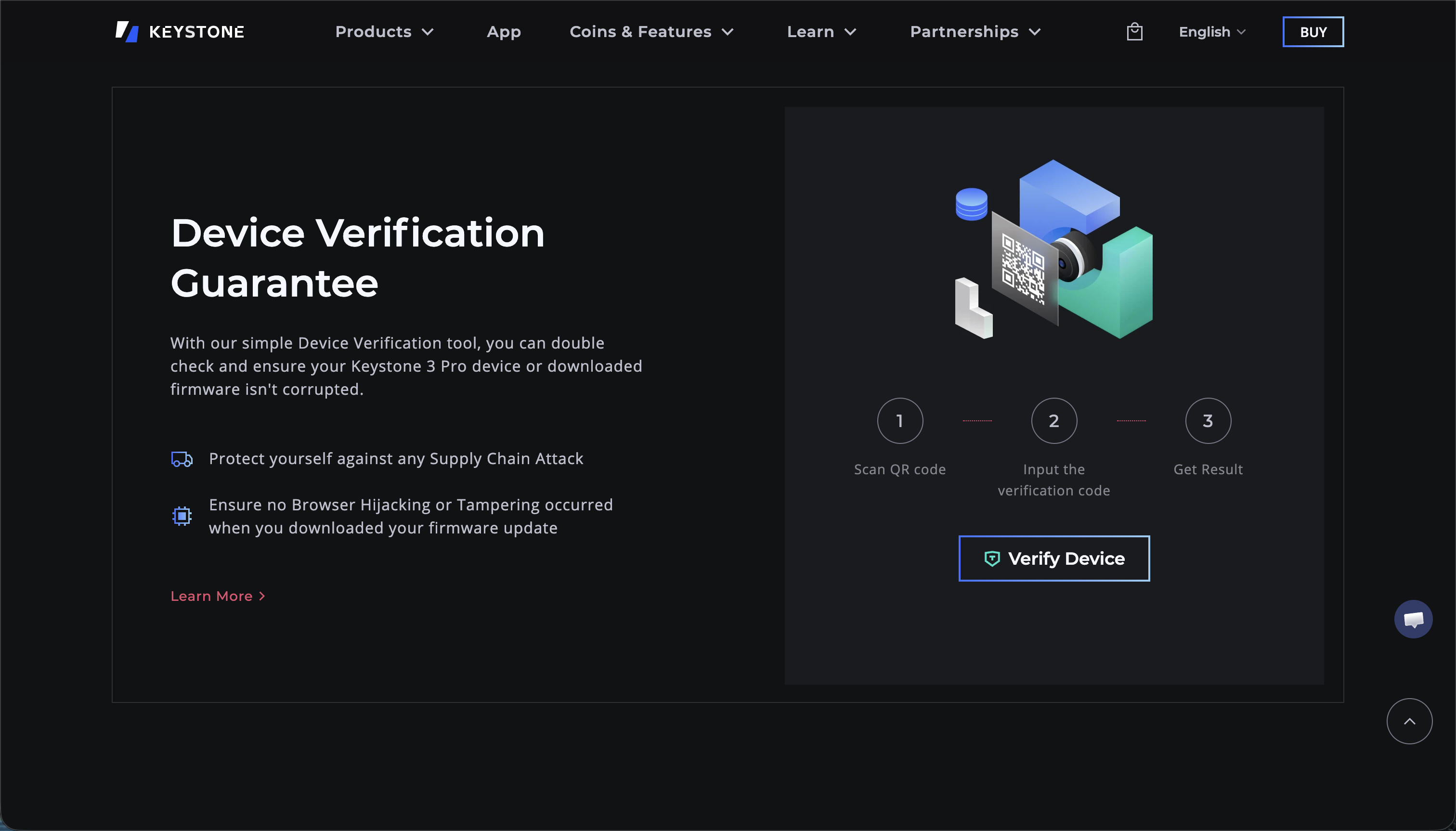
On the website that opens, select "Verify Device".
-
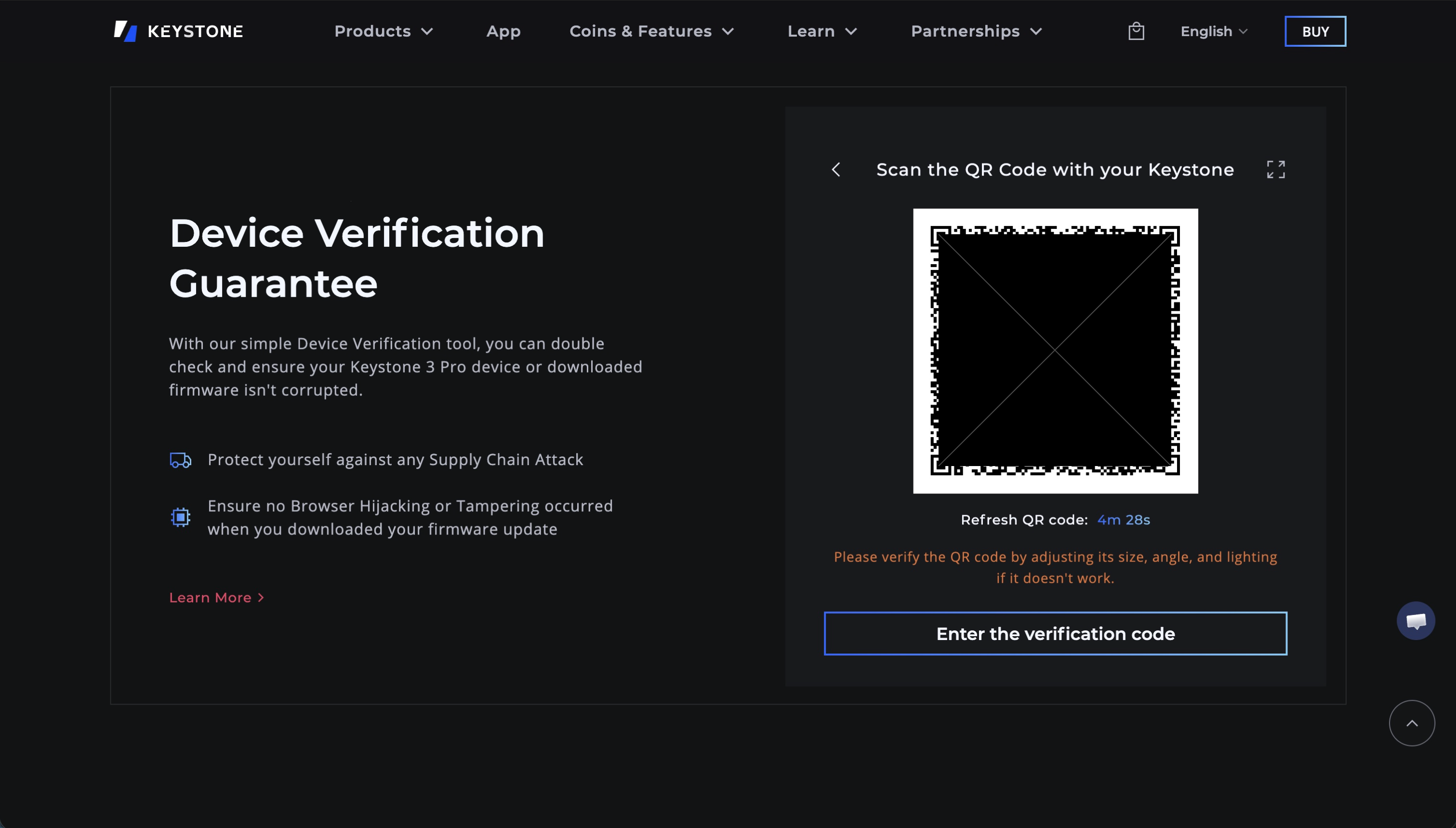
Return to your Keystone device, select "Scan QR Code", and scan the QR code displayed on the website.
-
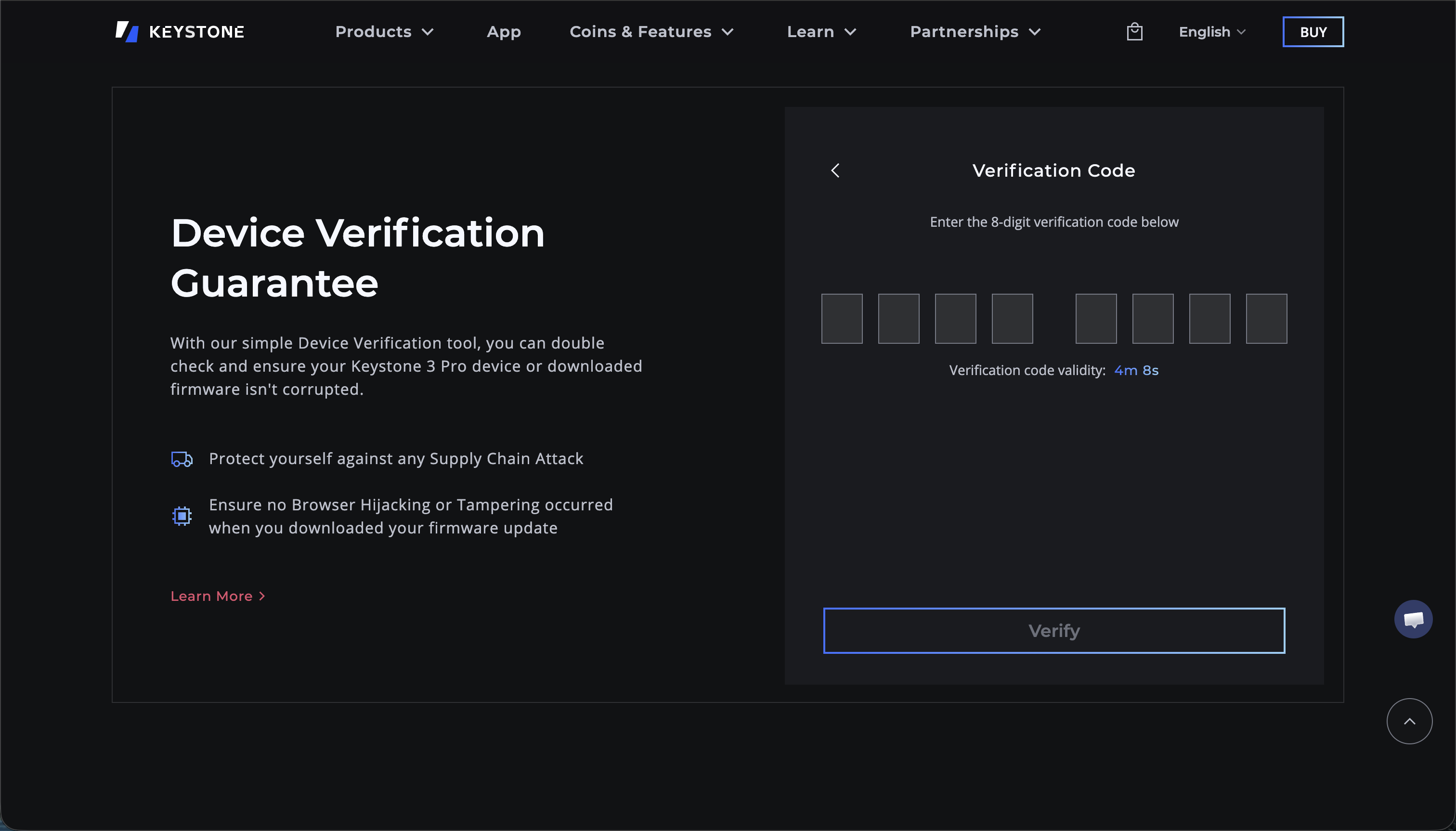
A verification code will be displayed on your Keystone device.
Select "Enter the verification code" on the website, enter the verification code, and select the "Verify" button.
-
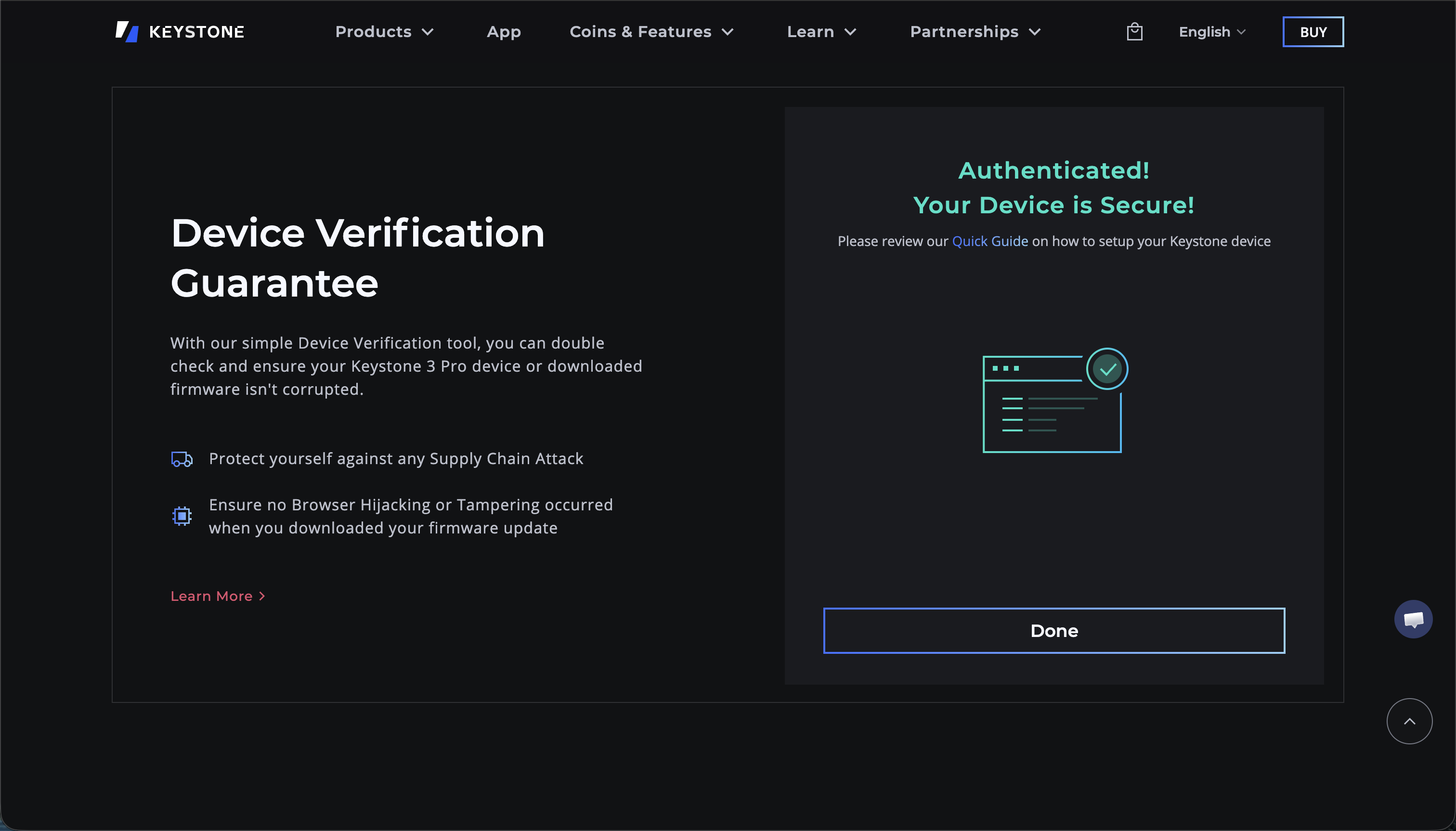
When "Authenticated! Your Device is Secure!" is displayed, select the "Done" button.
Finally, return to your Keystone device and select the "Verified" button.