Setting Up and Using a Passphrase Wallet
Setting Up and Using a Passphrase Wallet
A Passphrase Wallet is a feature that allows you to use a separate wallet from your original wallet by combining your recovery phrase with an optional passphrase.
With Keystone's "Standard Seed Phrase" (12/24 words), you can use a passphrase based on the BIP39 standard.
What Is a BIP39 Passphrase?
Information used to generate your wallet's private keys and addresses is derived from your recovery phrase.
BIP39 allows you to combine your recovery phrase with an optional passphrase.
Even with the same recovery phrase, different passphrases result in different wallets.
| Combination | Wallet You Access |
|---|---|
| Recovery phrase only | Original Wallet |
| Recovery phrase + Passphrase A | Passphrase Wallet A |
| Recovery phrase + Passphrase B | Passphrase Wallet B |
Each wallet also has different private keys and addresses.
A new recovery phrase is not created.
If you combine the same recovery phrase with the same passphrase, you can access the same Passphrase Wallet.
A passphrase works differently from a typical login password.
If you enter a different passphrase, you will not see an error saying that the passphrase is incorrect. Instead, you will access a different wallet corresponding to that passphrase.
For this reason, it is important to record and manage your passphrase accurately.
Benefits of Using a Passphrase
To access a specific Passphrase Wallet, you need both the recovery phrase and the passphrase associated with that wallet.
This means that the recovery phrase alone cannot be used to access that Passphrase Wallet, providing an additional layer of security for your wallet.
If you forget your passphrase, you cannot recover that Passphrase Wallet even if you have your recovery phrase.
You will lose access to the assets in the Passphrase Wallet, so be sure to store your passphrase securely.
Keystone 3 Pro does not store the passphrase you enter on the device.
You must enter the passphrase accurately each time you access a Passphrase Wallet.
When you restart or reset your Keystone device, it returns to the Original Wallet, but your Passphrase Wallet is not deleted.
You can access the same Passphrase Wallet again by entering the same passphrase.
Keep your recovery phrase and passphrase secure, and never share them with anyone.
Creating a Passphrase Wallet
-
Select "…" in the upper-right corner of the main screen.
-
Select "Device Settings."
-
Select "Wallet Settings."
-
Select "Passphrase" → "Passphrase."
-
Enter the passphrase you want to use.
You can enter a passphrase of up to 128 characters.
-
Enter your passcode.
-
You will access the wallet corresponding to the passphrase you entered.
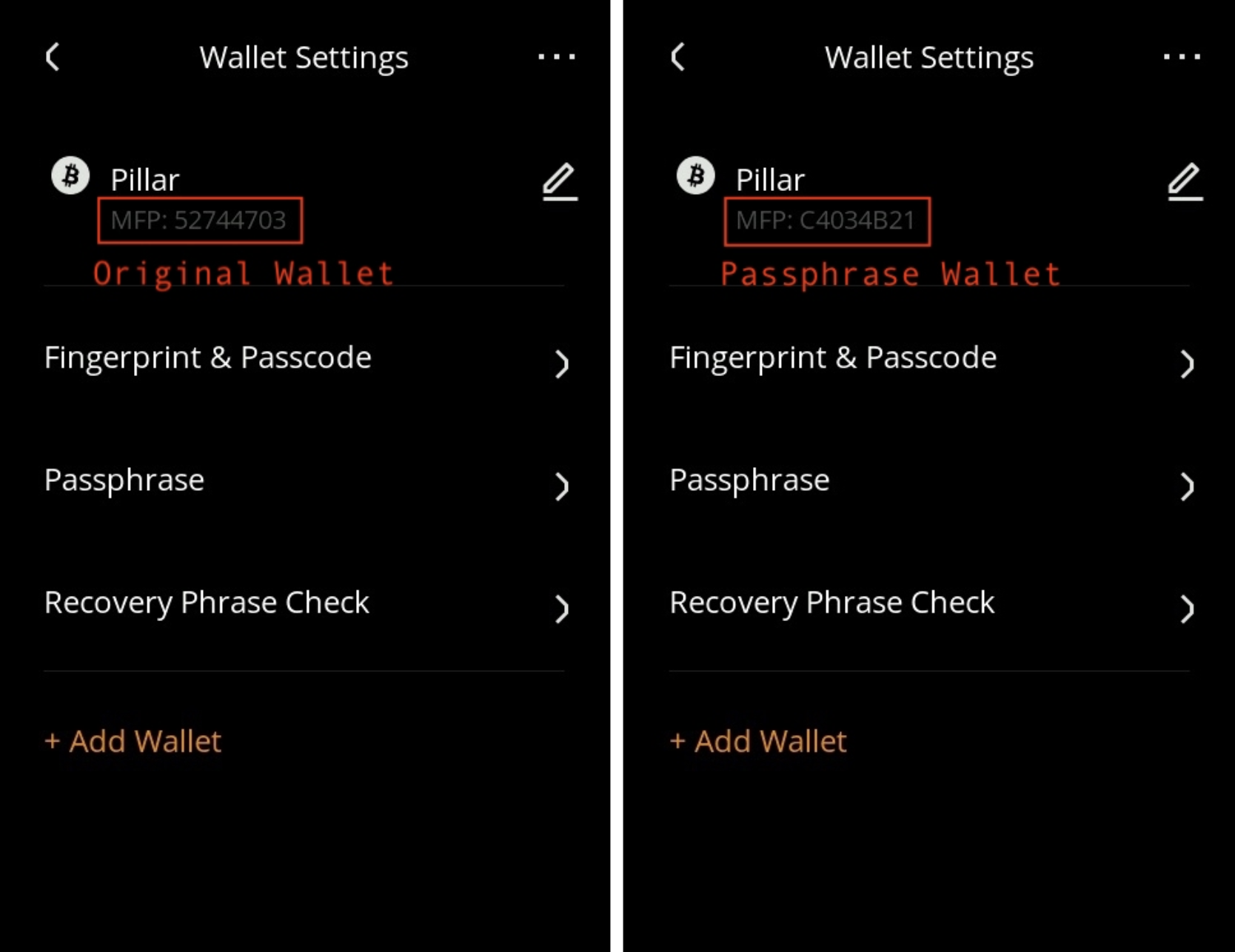
The Master Fingerprint (MFP) of a Passphrase Wallet is different from that of the Original Wallet.
You can use the MFP to identify which wallet you are currently using.
Using a Passphrase Wallet as Your Regular Wallet
If you use a Passphrase Wallet as your regular wallet, enter your passphrase to access the Passphrase Wallet before using it.
When you restart or reset your Keystone device, it automatically returns to the Original Wallet.
Therefore, if you want to use your Passphrase Wallet after restarting the device, you need to enter the same passphrase again to access it.
The Original Wallet and a Passphrase Wallet are not simply different lock states of the same wallet. They are treated as separate wallets.
Using a Passphrase Wallet with a Cardano Wallet
To use a Passphrase Wallet with Cardano, first access the Passphrase Wallet you want to use on your Keystone, then connect it to a compatible Cardano wallet.
The UI and connection steps may vary depending on the Cardano wallet.
The Original Wallet and the Passphrase Wallet have different Cardano addresses.
-
Enter the passphrase you want to use on your Keystone and access the corresponding Passphrase Wallet.
-
In your Cardano wallet, select "Keystone" to connect a hardware wallet.
-
When the QR code is displayed, open the QR code scanner in the lower-right corner of the home screen on your Keystone device.
-
Scan the QR code displayed in the Cardano wallet.
-
Confirm that the Cardano wallet you are connecting is requesting Keystone's public key information, then select "Approve."
-
Enter your passcode on your Keystone device.
-
A QR code will be displayed on your Keystone device. Scan it with the Cardano wallet.
-
Confirm that your Keystone wallet has been connected to the Cardano wallet.
-
The QR code will remain displayed on your Keystone device. Select "
<" in the upper-left corner twice to return to the home screen.
You do not need to enter your Keystone recovery phrase or passphrase into the Cardano wallet.
Access the Passphrase Wallet you want to use on your Keystone first, then connect it to a compatible Cardano wallet.
The Original Wallet and Passphrase Wallet have different Cardano addresses.
When using a Passphrase Wallet, make sure that you are using the correct wallet and Cardano address before sending or receiving funds.
Returning to the Original Wallet
-
Select "Device Settings" → "Wallet Settings" → "Passphrase."
-
Leave the passphrase field empty, select "Next" twice, and enter your passcode.
-
You will return to the Original Wallet.
Quickly Accessing a Passphrase Wallet
Under "Wallet Settings" → "Passphrase," there is an ON/OFF setting for "Passphrase Quick Access."
When this feature is turned ON, a shortcut for accessing a Passphrase Wallet is displayed when the device starts.
- ON: Enter your passphrase from the shortcut at startup to quickly access your Passphrase Wallet.
- OFF: The shortcut is not displayed. Access the Passphrase Wallet through "Device Settings" → "Wallet Settings" → "Passphrase."
Turning on Passphrase Quick Access does not store your passphrase on the Keystone 3 Pro.
You still need to enter your passphrase each time you access a Passphrase Wallet.
Passphrases Used with Other Hardware Wallets
With Keystone's "Standard Seed Phrase" (12/24 words), you can use passphrases based on the BIP39 standard.
You can also use recovery phrases and passphrases from BIP39-compatible hardware wallets such as Trezor and Ledger with Keystone.
When using a recovery phrase and passphrase from another hardware wallet with Keystone, the Cardano address derivation method may differ depending on the hardware wallet you are migrating from.
When migrating from Ledger or BitBox02, select the "Ledger/BitBox02" address derivation method on Keystone when connecting to a Cardano wallet.
After connecting, be sure to verify that the Cardano address you are using matches the address of the original wallet.